Using the Archive
Search, filter, sort and select the records Brolly has captured — every control on the Archive feed explained.
Overview
The Archive is Brolly's record library. Supported posts, comments and messages from your connected accounts are captured automatically and kept here for as long as your organisation keeps them — including every version Brolly captured of anything later edited, hidden or deleted on the platform. The Feed shows those records as cards with a search-and-filter toolbar; Messages (see Archive Messages) shows direct-message conversations, and Summary (see Archive Summary) totals the archive by account, platform and group. This article covers the feed and its toolbar; the Filters dialog and saved searches have an article of their own, Filters and Saved Searches.
How to Get There
- Click Archive in the left sidebar — the Feed opens by default, and the sidebar expands to show Feed, Messages and Summary
- Or come from Home: the Jump into the archive search and the shortcut cards all open the feed already filtered
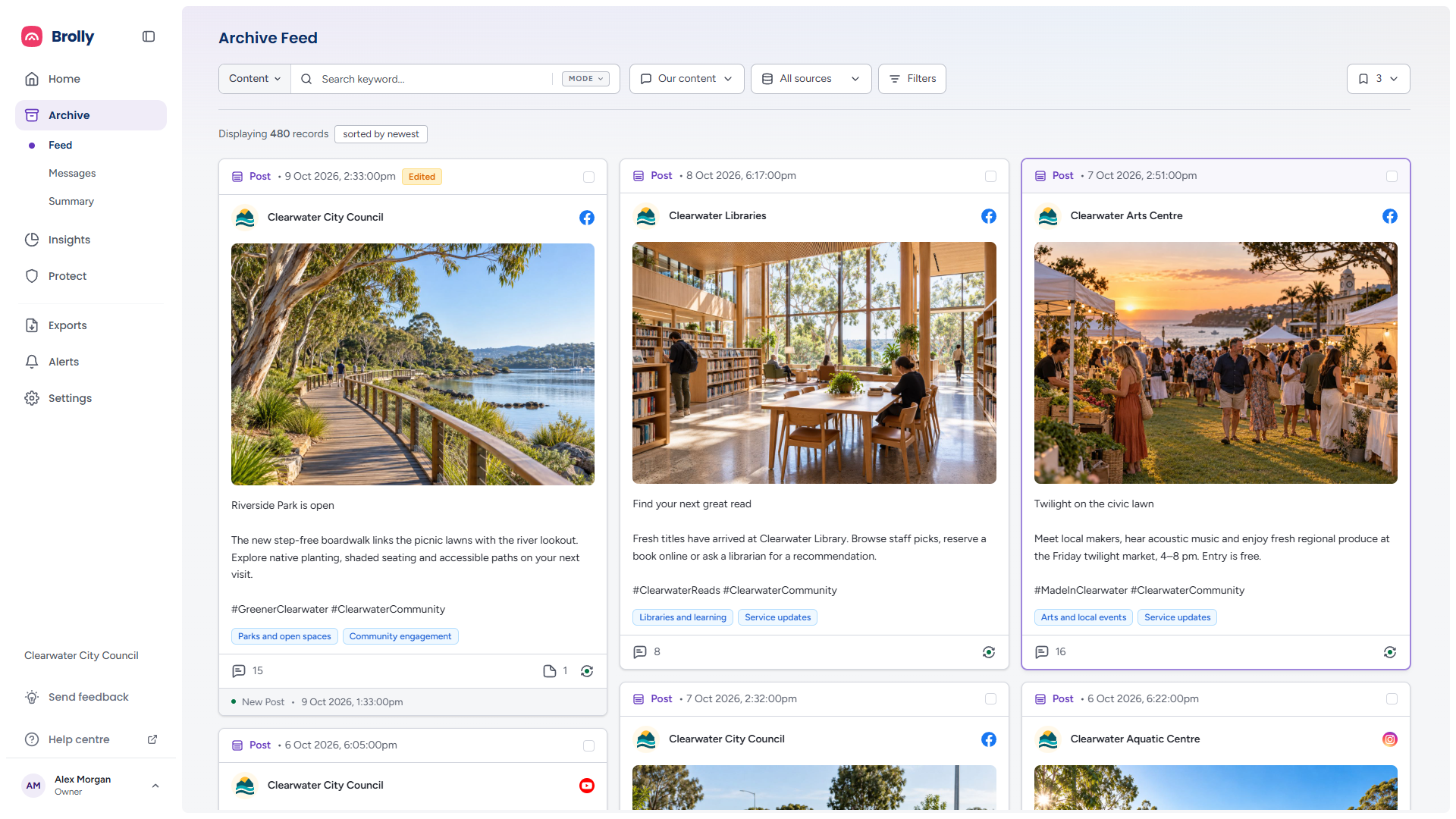
The Toolbar

Left to right, the toolbar gives you:
- Content — the search scope: what the keyword search looks at. The button is labelled with the current scope
- Search keyword… — the search box itself. The search runs when you press Enter, not as you type; the × inside the box clears it and brings the unfiltered feed back
- MODE — how the keyword is matched
- Content filter — whose content is shown, labelled with the current choice (Our content to start with)
- All sources — which accounts and platforms
- Filters — everything else: record type, who posted, action types, media types and timeframe. See The Filters Dialog
- Saved searches — the bookmark at the far right, showing how many searches you have saved ("3"). See Saved Searches
Search Scope
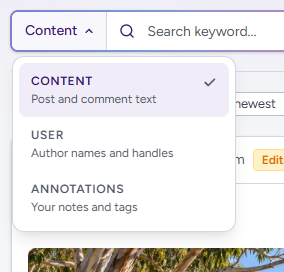
- Content — post and comment text (the default)
- User — author names and handles. With this scope, typing in the search box lists Matching people beneath it (it reads "Searching…" while it looks, and "No people found for “…”" when nobody matches); use the arrow keys and Enter to pick one, or press Enter with nobody highlighted to search the text you typed
- Annotations — your notes and tags on records
Search Mode
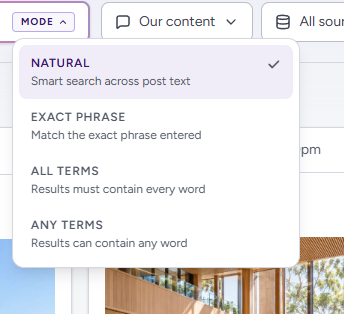
- Natural — smart search across post text (the default)
- Exact Phrase — match the exact phrase entered
- All Terms — results must contain every word
- Any Terms — results can contain any word
Content Filter
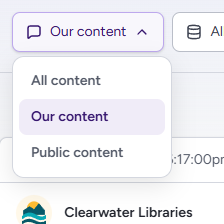
- All content — everything captured
- Our content — only what your organisation's accounts published
- Public content — only what other people posted, such as comments on your posts
Sources
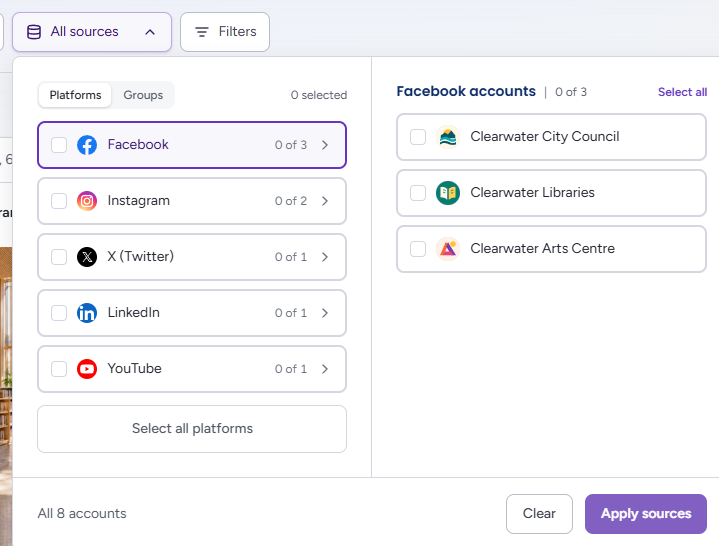
All sources opens a two-column picker. The Platforms / Groups switch at the top left chooses how the left column is organised, and "0 selected" beside it counts your choice. Tick a platform on the left to include all of its accounts ("0 of 3" on each row says how many are in), or click a platform to list its accounts on the right — "Facebook accounts | 0 of 3" — and tick individual ones. Select all platforms and Select all are there for speed, Clear removes every selection, and Apply sources applies the choice to the feed. The footer counts the accounts in play ("All 8 accounts").
When Filters Are Active

With filters applied or a keyword searched, the Filters button shows a count badge, a Reset button appears beside it to clear everything in one click, and the record count beneath the toolbar updates to the filtered total. Two more buttons also join the saved-searches bookmark at the far right of the toolbar:
- Export results — export the filtered view as it stands (see Exports). It is unavailable while the count is still loading or the view is empty
- Save Search — save the current filters, tags and sort order as a named search (see Saving a Search)
- Saved searches — the bookmark with a count; opens the list of searches you have saved (see Opening a Saved Search)
Neither Export results nor Save Search is offered on the unfiltered feed — there is nothing to save, and an export of it would be the whole archive.
Nothing Found
When a search or filter leaves nothing to show, the feed reads No records found and says what narrowed it, with Clear all filters and — when a keyword was part of it — Clear search only to get back. An organisation that has not captured anything yet sees No records archived yet instead. While records load, placeholder cards stand in for them.
New Records While You Read
The feed does not reshuffle itself. When Brolly captures records that belong in the view you are looking at, a toast at the bottom of the screen says how many are new ("3 new records") with Refresh to bring them in and a dismiss control to leave the view as it is.
Sorting
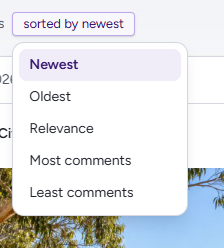
Above the cards, "Displaying 480 records" tells you the size of the current view, and the sorted by newest chip beside it shows the sort order. Click the chip to sort by Newest, Oldest, Relevance (most useful after a keyword search), Most comments or Least comments.
Reading a Record Card
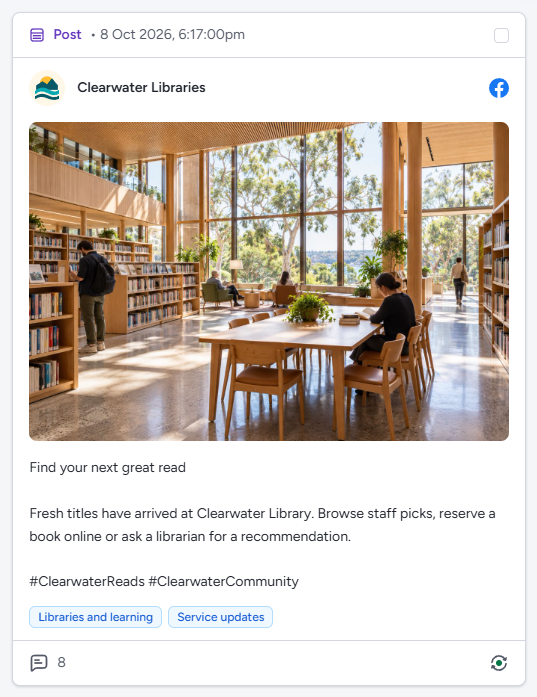
Each card is one record. Click anywhere on it (or focus it and press Enter) to open it in the inspector; the checkbox is the only part that does something else.
- Header — the record type (Post, Comment…) and the date and time it was published on the platform, a badge when something has happened to it since (Edited, Hidden, Unhidden or Deleted), and a selection checkbox on the right
- Account — which of your connected accounts it belongs to, with the platform icon
- Content — the text, with See more / See less for longer posts, plus any images or video. Several attachments show as a grid; one the platform no longer serves shows as an Unavailable tile
- Tags — tags applied to the record, as chips. A tag that sits only on an earlier version of the record is drawn as an outline chip
- Footer — the number of comments captured on it on the left, and on the right the number of attachments, a note icon with a count when the record has notes, and the record's sync status where your organisation has the OpenText Content Manager integration. Organisations with the Insights add-on also see a sentiment face beside the comment count: green for a positive conversation, amber for neutral, red for negative. Hover it for the score; see Insights in the Archive
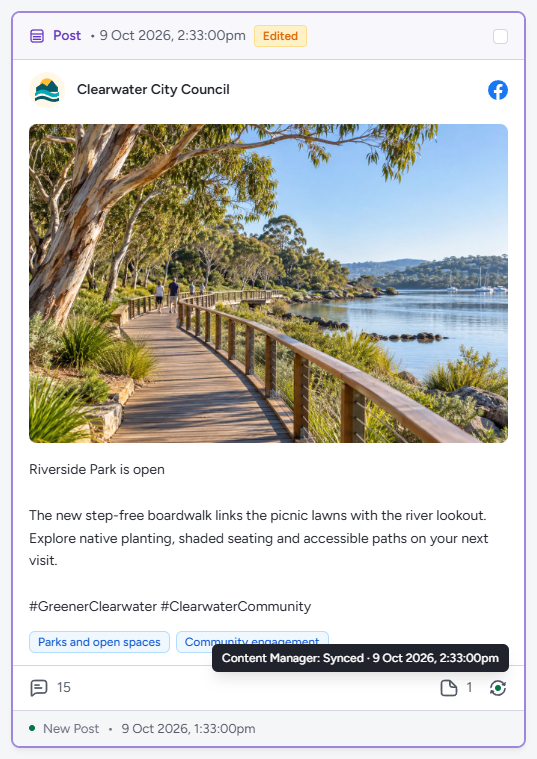
The sync icon at the far right of the footer appears only on records that have been sent to Content Manager. The dot at its centre is green once the record is synced, amber while it is pending or queued and red if the sync failed; hover the icon to read the status in full — "Content Manager: Synced · 2026-10-09T14:33:00". The same information, with who sent it, is in the inspector's Details tab. See Integrations for the integration itself.
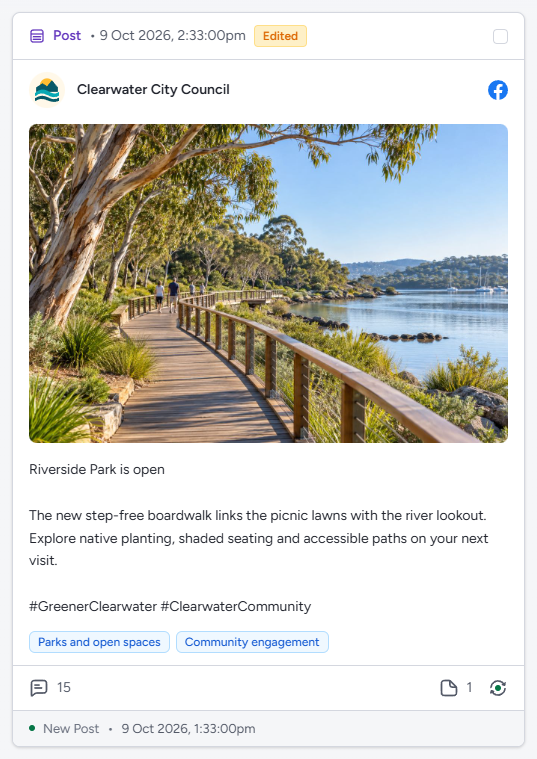
When a record has more than one captured version — it was edited, hidden or deleted after Brolly first captured it — the card lists its earlier versions at the bottom, one line per version with its action and time ("New Post • 2026-10-09T13:33:00" under a post now marked Edited). Up to three lines are shown; the inspector has the rest. Click anywhere on a card to open the record in the inspector, where every version can be viewed in full. See Viewing a Record.
Selecting Records
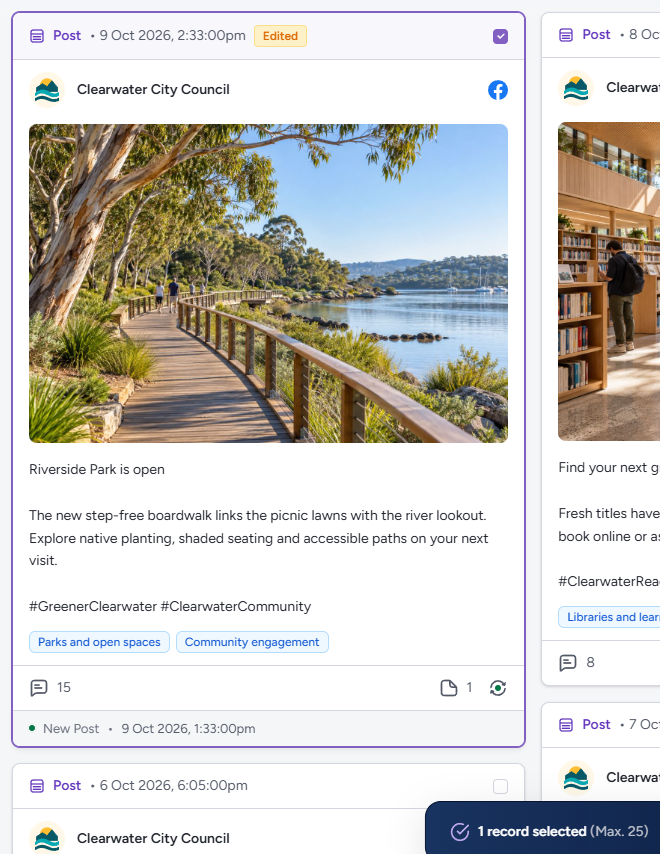
Tick the checkbox on one or more cards and a bar appears at the bottom of the screen showing how many are selected (up to 25 at a time) with two actions:
- Apply Tags — add tags to all of the selected records
- Export — export just the selected records
Clear deselects everything, and the bar itself counts the selection: "1 record selected (Max. 25)".
Apply Tags
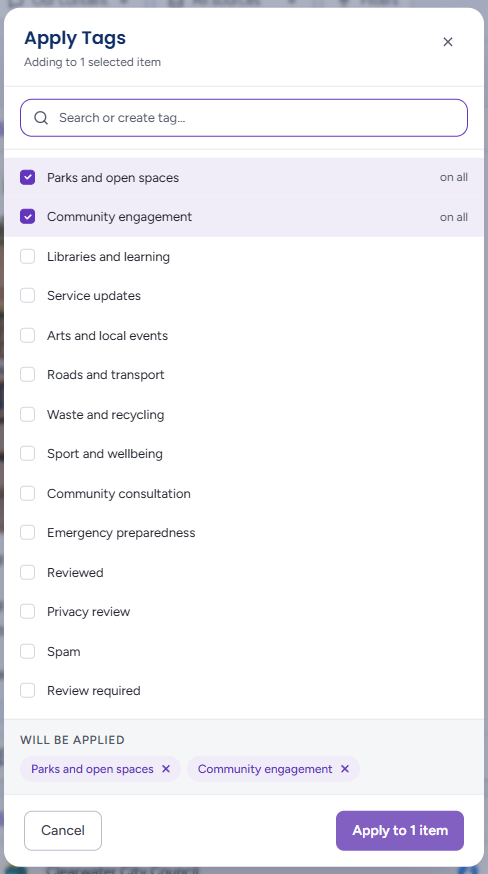
The Apply Tags dialog lists your organisation's tags with a Search or create tag… field above them. Tick the tags to add, or type a name that does not exist yet and choose Create “…” to make it on the spot; "No tags available" means the organisation has none yet. Apply to N items applies the ticked tags to every selected record and Cancel closes without changing anything. A toast confirms the change with Undo in case you ticked the wrong tag.
Content Types
The Archive captures posts (text, images, videos, links), comments and replies on those posts, messages (private and direct messages, where the platform permits) and stories from platforms that support them. Use the Record type and Media types filters to narrow to any of these.
Tips
Start broad and narrow down: pick the account under All sources, set a timeframe in Filters, then search — the record count tells you when you are close.
Switch MODE to Exact Phrase when you are looking for a specific quote, and to Any Terms when you are not sure which words were used.
Filter Action types to Hidden and Deleted only for an instant audit of moderation activity across every account.
The 25-record selection limit is per batch — tag or export in rounds if you need more, or filter the feed and use Export results for the whole filtered view instead.