Exports
Create one-off or scheduled exports of your records in PDF, HTML, CSV or JSON, follow their progress under Files, and manage recurring exports under Schedules.
Overview
Exports turn your captured records into files you can hand over — for an FOI or records request, a compliance audit, a legal matter, or analysis in another tool. You can export from wherever you are looking at records (a filtered Archive view, a message conversation, the activity log) or build an export from scratch with the New export wizard, and you can schedule exports to run automatically every month or quarter. The wizard has an article of its own — Creating an Export with the Wizard — and this one covers the Files and Schedules pages, exporting from elsewhere in Brolly, and how long export files are kept.
Exports has two pages in the sidebar:
- Files — every export that has been generated, with its status and a Download button once it is ready
- Schedules — the recurring exports you have set up
For what each file format contains and when to choose it, see Export formats and contents. For a step-by-step walkthrough of producing records for a request, see Exporting records for an FOI or records request.
How to Get There
- Click Exports in the left sidebar. It expands to show Files and Schedules
- Click the page you want. Opening Exports itself lands on Files
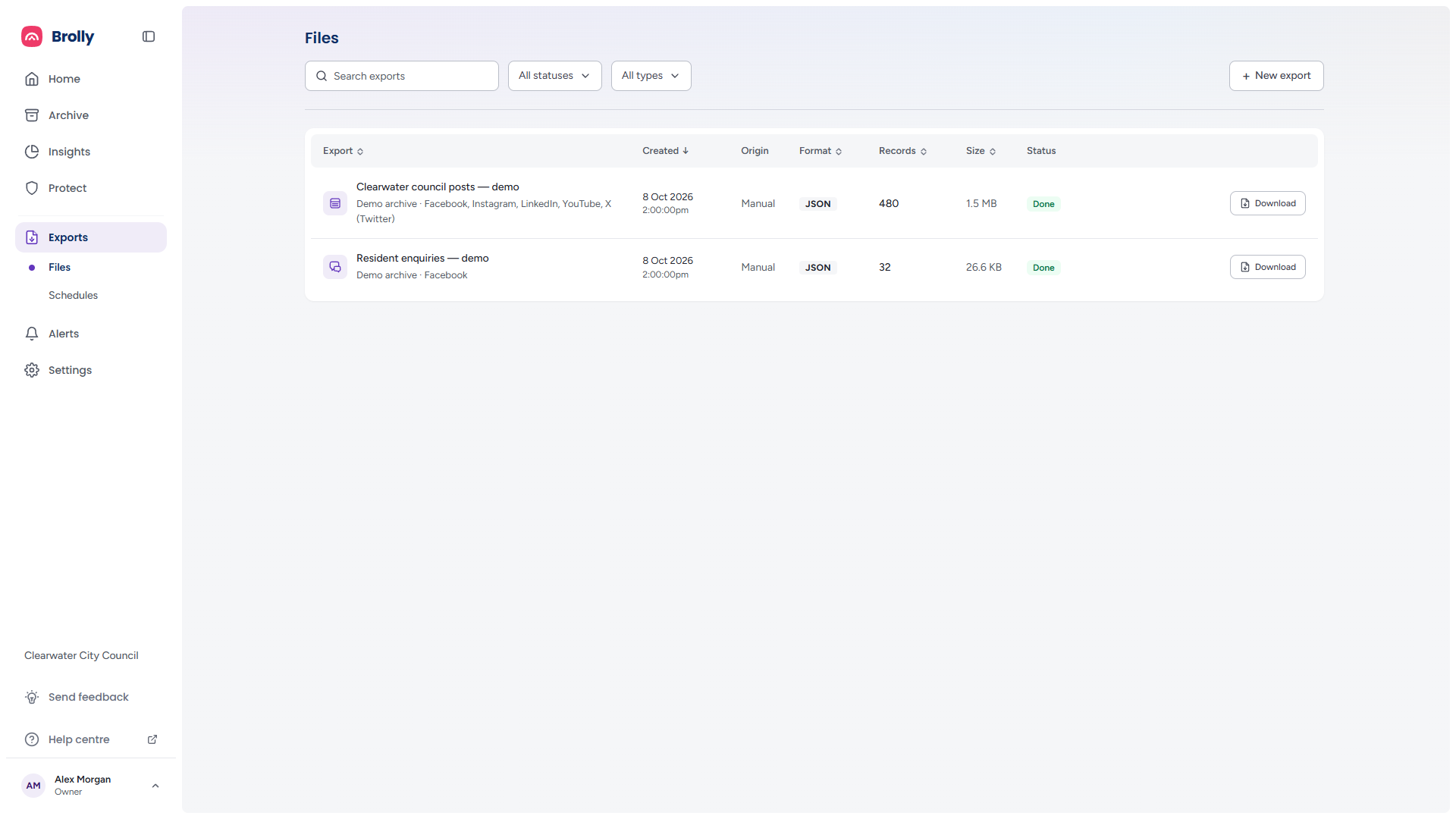
Files
Toolbar

- Current / Expired — two tabs: Current lists exports whose files can still be downloaded (or are still being produced); Expired lists those whose download period has passed, each with the date it expired, ordered Newest or Oldest
- Search exports — find an export by name
- All statuses — show only exports that are Queued, In progress, Done, Failed or Cancelled
- All types — show only Feed, Messages or Insights exports
- New export — start the wizard (see Creating an Export with the Wizard)
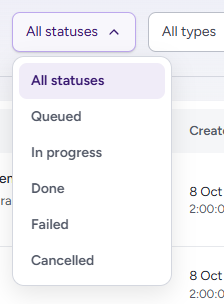
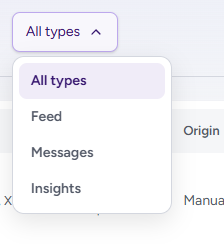
With a search or filter in place a Clear button appears beside them to reset the list. The search, filters and sort apply across your whole export history, not just the rows on screen.
The Files Table

Each row is one export:
- Export — the name, with an icon for the kind of export (Feed export, Messages export, Insights report, Activity log export) and, beneath the name, where it came from and which platforms it covers
- Created — the date and time it was requested. The list opens newest first; click the heading to reverse it
- Origin — Manual for an export you created yourself, Scheduled for one produced by a schedule
- Format — PDF, HTML, CSV or JSON
- Records — how many records the file contains
- Size — the file size
- Status — where the export is up to (see below)
Click Export, Created, Format, Records or Size to sort. On a narrow window the table becomes a list of cards with a sorted by menu in place of the column headings.
Statuses and Row Actions
An export moves through Queued, then In progress — the badge names the stage it is in and how far along it is, such as Rendering · 40% — to Done. One that could not be produced reads Failed, with the reason beneath its name, and one you stopped reads Cancelled. The buttons at the end of the row follow the status:
- Queued — Cancel stops it before it starts
- In progress — no actions; wait for it to finish
- Done — Download fetches the file (the button reads Preparing… while the download is set up). A finished export that matched nothing reads No matching records instead of a download button
- Failed — the reason is shown beneath the name. Retrying is not available yet: fix the cause, then create a new export with the same scope, or contact support@brolly.com.au if the reason is unclear
- Expired — the file's download period has passed. The row moves to the Expired tab with the date it expired; the records themselves are still in the Archive, so create a new export if you need the file again
Where Brolly has recorded a SHA-256 checksum for a finished file, a Checksum button sits beside Download. It opens a small panel showing the checksum and the file name with a Copy button, so anyone you hand the file to can verify it is the file Brolly produced. See Verifying a download.
Exports cannot be deleted from the list. Large exports can take a few minutes; the Status column updates on its own and the row gains Download when the file is ready. When the list runs past one page, a strip of page numbers appears beneath it.
The Export Activity Panel
Once you have requested an export you do not have to stay on this page to follow it. A small panel appears at the bottom of the screen, on whichever page you are on, with one line per export you have asked for: Export request submitted while it is queued, the stage it is in while it runs, then Export ready with a Download button (and View exports, which brings you here), Export failed with the reason (retrying is not available yet — create a new export), or No matching records. The arrow at its corner collapses the panel to a bar and expands it again, and each line has a × to dismiss it. Dismissing a line does not affect the export itself, which stays under Files.
Empty, Loading and Error States
Until you create an export the page reads No exports yet — "Create your first export from a feed, post, or audit log" — with a button to start one. A search or filter that matches nothing reads No exports found — "Try adjusting your filters or search term". While the list loads the table shows placeholder rows, and if it cannot be fetched it reads Couldn't load exports with a Retry button.
Schedules
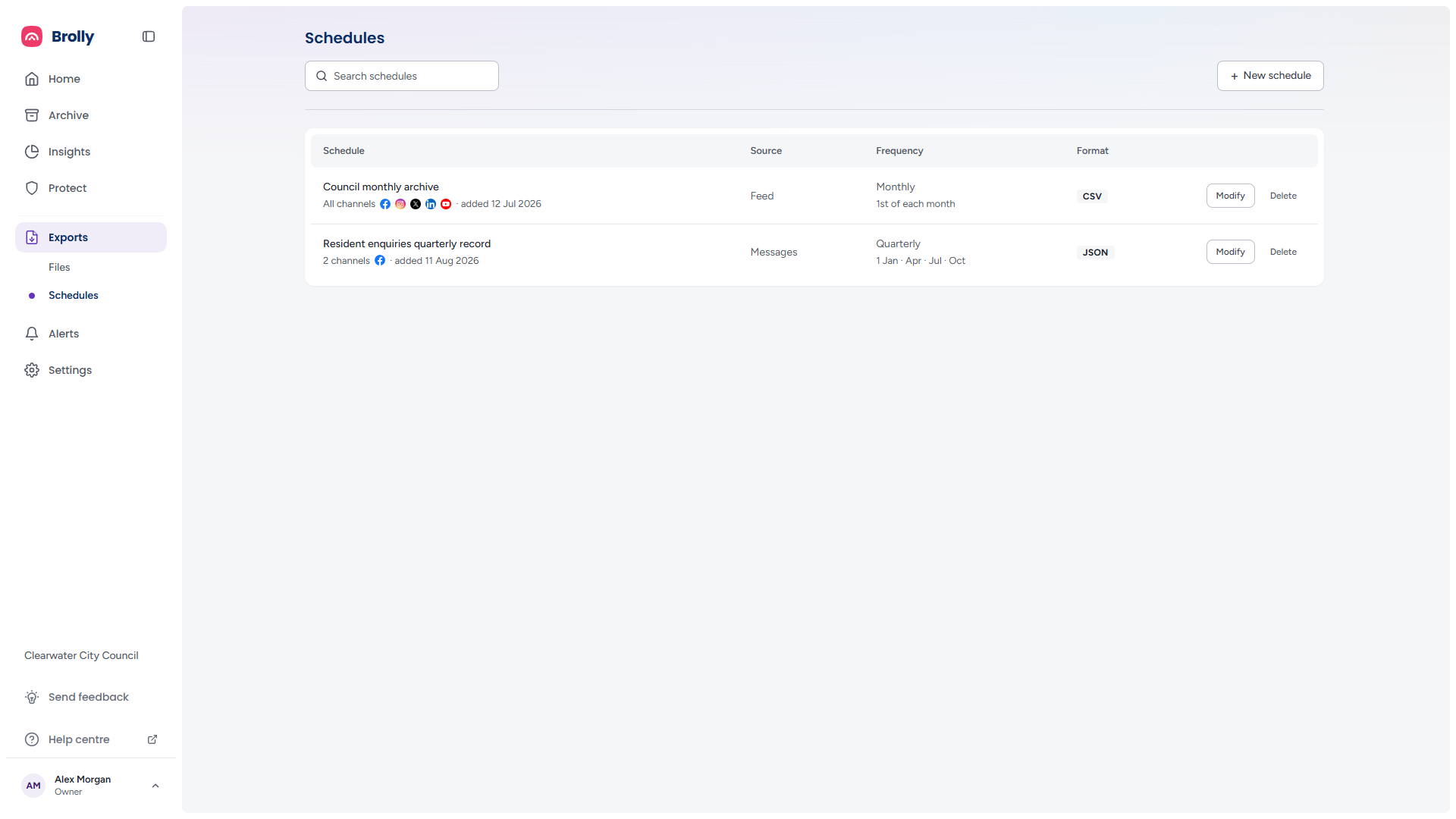
Toolbar

- Search schedules — find a schedule by name
- New schedule — opens the wizard with Scheduled export already chosen (see Creating a Scheduled Export)
There are no status or type filters here: a schedule has no status or record count of its own.
The Schedules Table

Each row is one recurring export:
- Schedule — its name, with the channels it covers (All channels with a platform icon for each, or a count such as 2 channels) and the date it was added
- Source — Feed or Messages
- Frequency — Monthly ("1st of each month") or Quarterly ("1 Jan · Apr · Jul · Oct")
- Format — PDF, HTML, CSV or JSON
A schedule runs on its own at each of those dates, covering the period that has just closed, and each run appears under Files with Scheduled as its origin. A schedule whose accounts have all been disconnected reads No accounts — will not run until you give it accounts again.
Until you create one the page reads No scheduled exports yet — "A scheduled export runs on its own each month or quarter, so a recurring report does not have to be remembered". A search that matches nothing reads No schedules found. If the list cannot be fetched it reads Couldn't load schedules with a Retry button.
Modify a Schedule
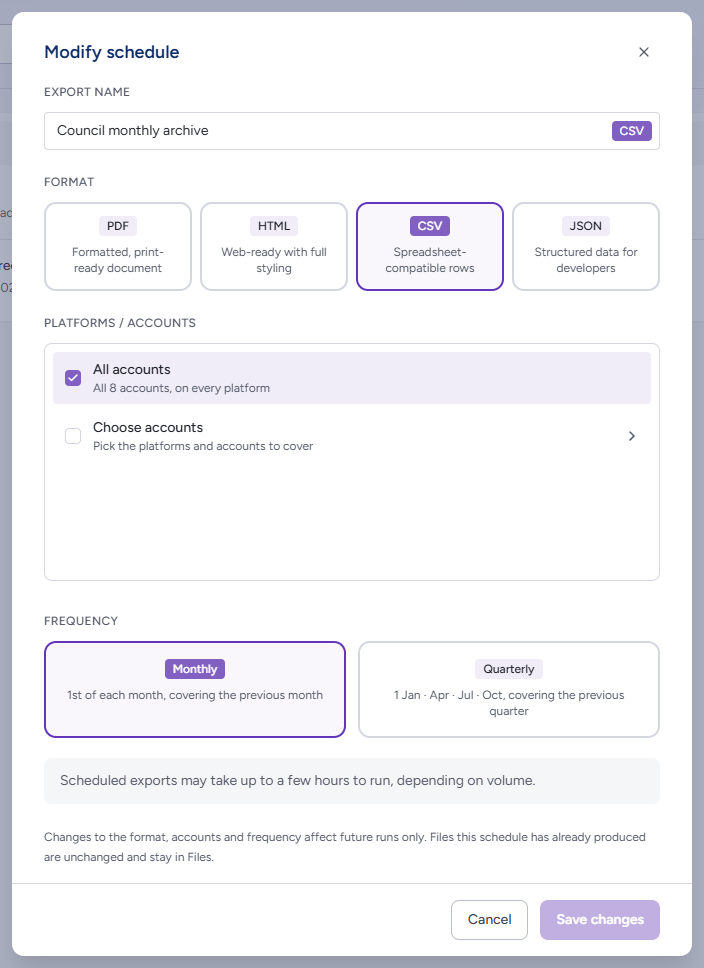
Click Modify at the end of the row. The Modify schedule dialog opens with the schedule's current settings, top to bottom:
- Export name — editable, with the format shown as a pill at the end of the field
- Format — shown as the same four tiles as the wizard, but a change here is not saved in the current release. To move a schedule to a different format, create a new schedule in that format and delete the old one
- Platforms / Accounts — All accounts ("All 8 accounts, on every platform") or Choose accounts ("Pick the platforms and accounts to cover"), which opens the same platform and account picker as the wizard
- Frequency — Monthly or Quarterly, with the same note that scheduled exports may take up to a few hours to run
Beneath that the dialog says: "Changes to the format, accounts and frequency affect future runs only. Files this schedule has already produced are unchanged and stay in Files." Name, accounts and frequency are what is saved. Click Save changes to keep the changes — the button stays disabled until something has actually changed — or Cancel or the × to leave the schedule as it was. Choosing Choose accounts and ticking nothing is refused with the wizard's "Please select at least one platform or account to continue."
Delete a Schedule
Click Delete at the end of the row. The row's buttons are replaced by an inline confirmation — Delete? with a red Delete and a Cancel — so nothing happens until you click Delete a second time. The schedule stops; the files it has already produced stay under Files. If the deletion fails the row reads Couldn't delete (hover for the reason) and the schedule stays.
Exporting from Where You Are
You do not have to start from the Exports page:
- A filtered Archive view — set up the feed you need and use Export from the group of buttons that appears at the right of the toolbar when filters are active. See Using the Archive
- Selected records — tick records in the feed and choose Export from the bar at the bottom (up to 25 at a time)
- A message conversation — click Export conversation in the conversation header. See Archive Messages Each opens a shorter version of the wizard — the scope is already decided, so you choose a format and name and confirm — and each lands under Files like any other export.
The activity log is different: Export log on Settings → Activity Log downloads a CSV of the filtered log straight to your browser. It does not pass through this page. See Activity Log.
Export Retention
Export files are kept for a limited time. Once a file has expired its download is withdrawn and the row moves from the Current tab to the Expired tab under Files, labelled Expired with the date it expired, so the history of what was produced is kept. The Expired tab can be ordered Newest or Oldest. The underlying records stay in the Archive, so create a new export if you need the file again. Ask support@brolly.com.au if you need to know how long your organisation's export files are kept.
Tips
For an FOI or records request, filter the Archive to exactly the accounts and dates involved first, then export — the file reflects the view. The full walkthrough is in Exporting records for an FOI or records request.
Choose PDF when the recipient just needs to read it, CSV when they will analyse it in a spreadsheet, and JSON when another system will ingest it.
Set up a Quarterly scheduled export of each account as a standing compliance record instead of remembering to run one by hand.
Every export carries the full version history of each record — it is the edit and deletion history that makes the record defensible, so there is nothing to switch on.