 Brolly
 Understanding Insights
Insights turns your archive into analytics — activity, engagement, sentiment, keywords and hashtags — with a downloadable PDF report.
Add-on — Insights is an optional extra on top of your Brolly plan. If you don't see it in your organisation's Brolly, email support@brolly.com.au or talk to your account manager to enable it.
Insights, in the left-hand sidebar, is where Brolly turns your captured records into analytics. Where the Feed shows individual records, Insights shows the patterns across them — useful for reporting to management, tracking channel activity, or understanding how your community engages with you.
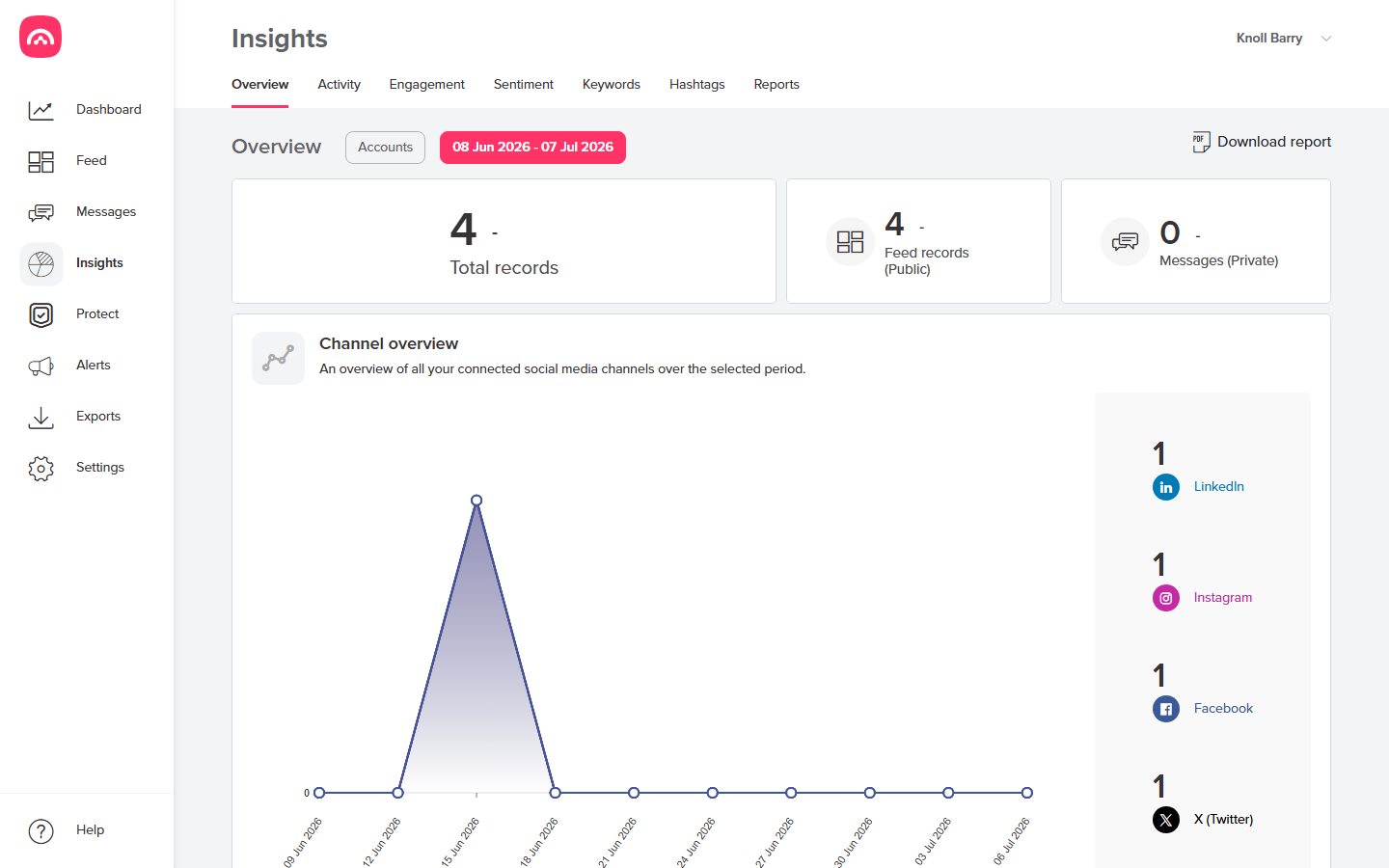
The tabs
Insights is organised into tabs:
- Overview — the headline numbers: total records, feed records (public activity), messages (private activity), and a channel overview chart showing how your records break down by platform.
- Activity — how much is being captured over time.
- Engagement — how audiences are interacting with your content.
- Sentiment — the tone of the activity around your accounts.
- Keywords — the words appearing most in your captured activity.
- Hashtags — the hashtags appearing across your records.
- Reports — reporting on your archive.
Focus on what matters
Two controls at the top let you narrow any view:
- An account filter, so you can look at one social media account or a selection.
- A date range, so you can report on a specific period — a month, a quarter, or a campaign window.
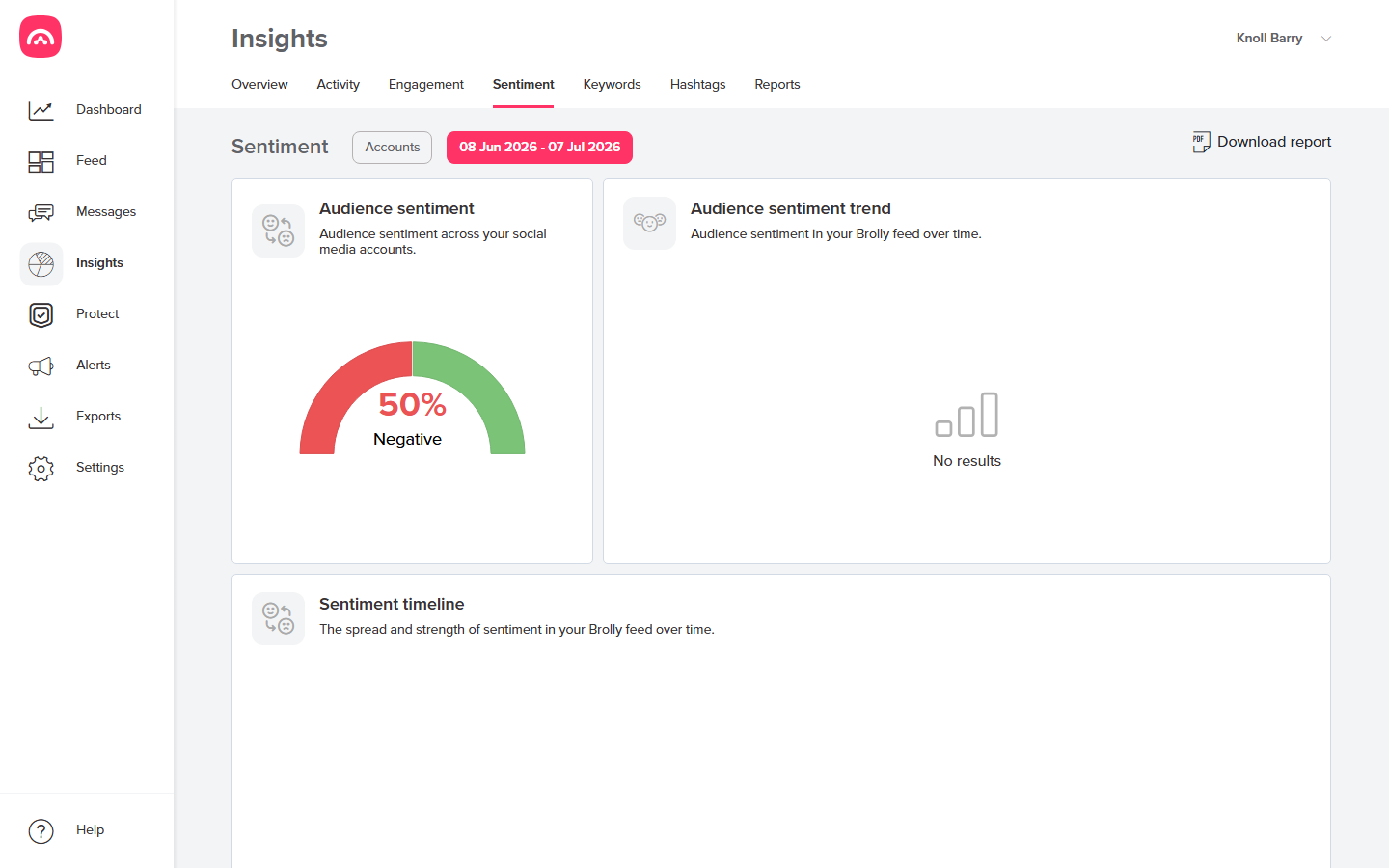
Download a PDF report
Click Download report to save the current view as a PDF. Because it respects your account filter and date range, it's a quick way to produce a monthly channel report or a snapshot for a meeting without copying numbers by hand.
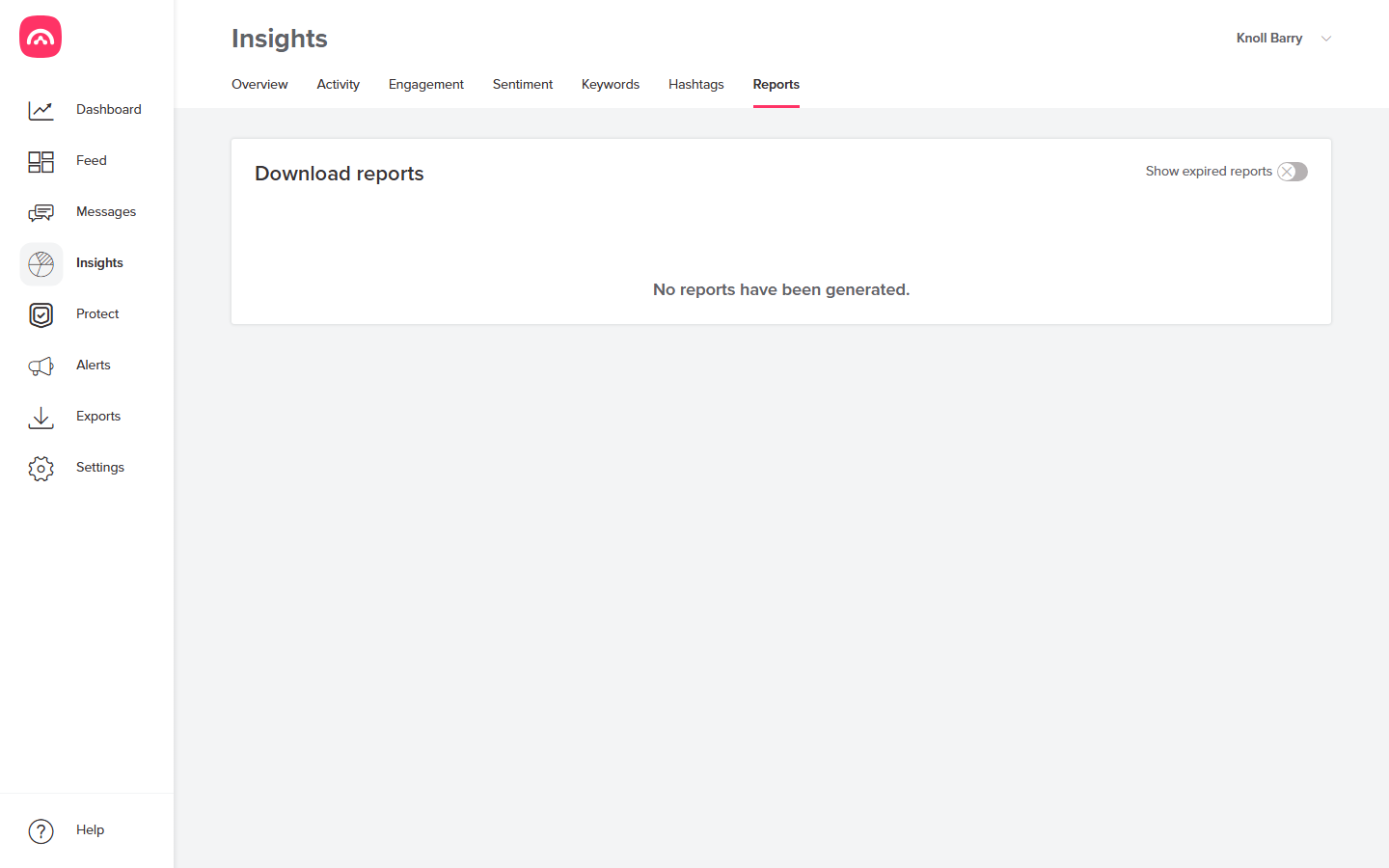
Generated reports collect on the Reports tab. They're kept for a limited time — flick on Show expired reports to see older ones, and simply generate a report again if one you need has expired.
If a figure looks unexpected, remember Insights reflects captured records — check the relevant account is connected and Active under Settings → Accounts.