 Brolly
 Roles in Brolly groups
What Owners, Group owners and View only users can see and do when your organisation uses groups.
Add-on — Groups is an optional extra on top of your Brolly plan. If you don't see it in your organisation's Brolly, email support@brolly.com.au or talk to your account manager to enable it.
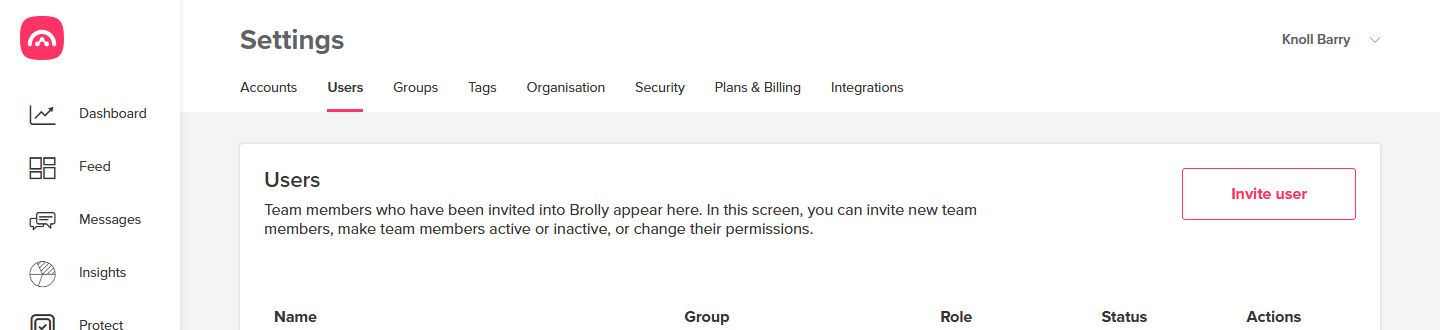
When your team shares responsibility for archiving social media records, it helps to know exactly what each role can see and do — so everyone has the right access for the job. Brolly has three roles: Owner, Group owner and View only. You can see and change each user's role in Settings → Users.
Owner
An organisation Owner has full control:
- Sees and can export records for every group in the organisation.
- Can connect or remove social media accounts in any group.
- Can create, edit and remove groups.
- Can invite users, change any user's role or group, and make users active or inactive.
- Manages organisation-wide settings such as two-factor authentication and plans and billing.
Group owner
A Group owner manages a single group:
- Sees and can export records for the accounts connected to their group — not the default organisation or other groups.
- Can connect and manage social media accounts within their group (they'll need admin or editor access on the social platform itself).
- Can invite team members into their group and manage their access.
View only
A View only user has read-only access:
- Can view records for the accounts in their group.
- Cannot connect or remove accounts, change groups, or invite or remove users.
Which role should you give someone?
- Managing the whole archive? Owner.
- Responsible for one team's or one official's accounts? Group owner.
- Just needs to look records up? View only.
For inviting users and managing their status, see users, roles and permissions.