 Brolly
 Managing users, roles & permissions
Invite teammates, set their role, and make users active or inactive under Settings → Users.
Team members who have been invited into Brolly appear under Settings → Users. From there you can invite new team members, make users active or inactive, and change their permissions. Brolly plans don't limit how many team members you can have.
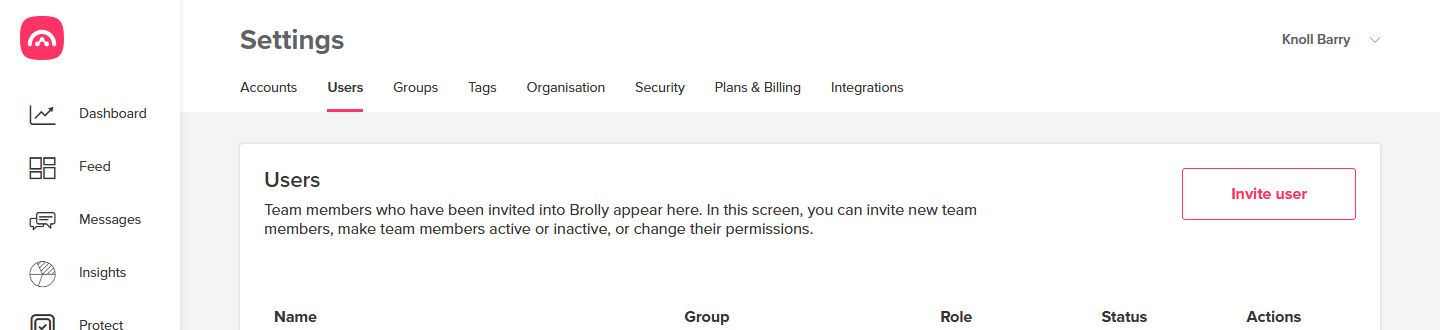
Invite a user
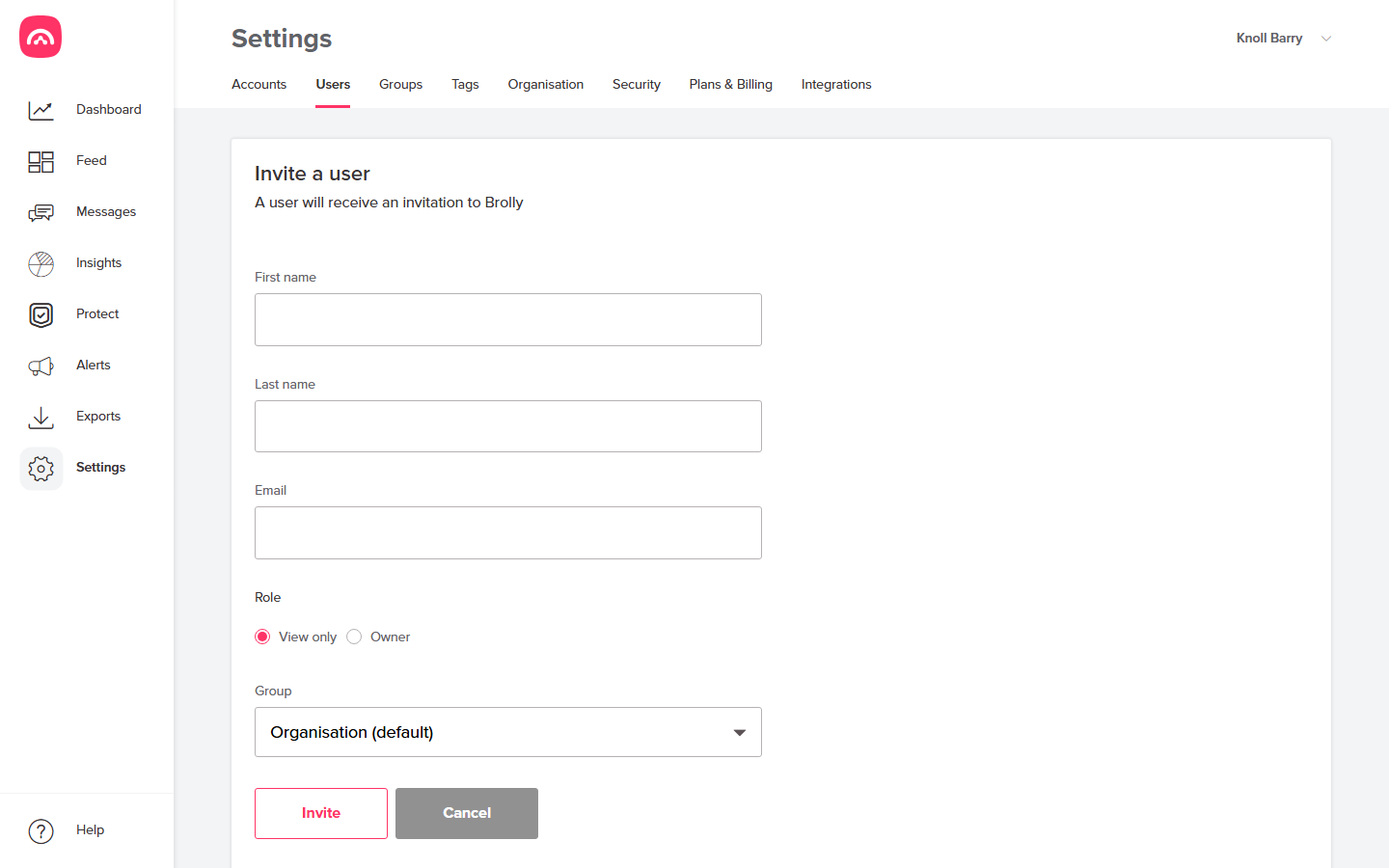
- Go to Settings → Users and click Invite user.
- Enter their first name, last name and work email.
- Choose their role — View only or Owner (a user becomes a Group owner through group management; see group roles).
- Pick the Group they belong to — this controls which connected accounts they can see.
- Click Invite. They'll show as Pending until they accept the invitation and sign in.
Roles
- Owner — full control of the organisation's Brolly account, including settings and users.
- Group owner — manages a specific group and its connected accounts.
- View only — can browse and search records, but can't change settings.
Deactivating someone
Rather than deleting a user, set them to Inactive from the actions menu on their row — they lose access immediately, and everything they did remains in the audit history. Reactivate them the same way if they return.
Was this article helpful?