 Brolly
 Multi-factor authentication (MFA)
How to enable two-factor authentication for your whole organisation and what your team will see at login.
Multi-factor authentication (MFA) asks users for a second proof of identity when they sign in to Brolly, adding an extra layer of protection to your organisation's archive. In Brolly, MFA is managed at the organisation level — one setting covers every user.
How to enable it
Only an organisation Owner can manage this setting.
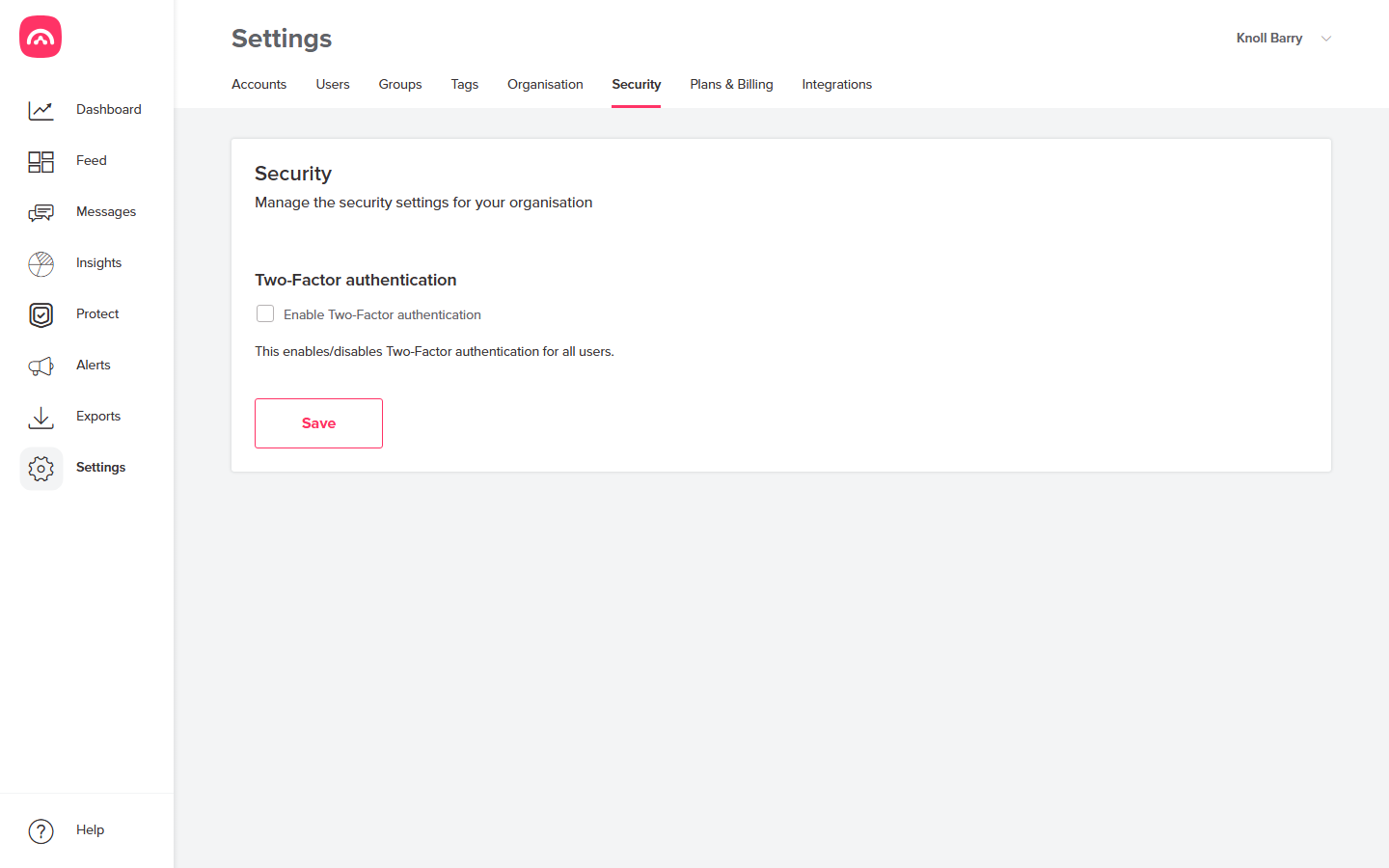
- Go to Settings → Security.
- Under Two-Factor authentication, tick Enable Two-Factor authentication. This enables (or disables) two-factor authentication for all users in your organisation.
- Click Save. The change takes effect immediately for everyone.
What your team will experience
- Users still sign in with their email address and password as usual.
- With two-factor authentication enabled, they'll then be asked for an additional verification code before they can access Brolly.
- Brolly sends the code to the user, and once it's entered correctly they're signed in as normal.
- The next time each user logs in after you enable the setting, they'll be taken through this extra step automatically — there's nothing for individual users to set up.
Why we recommend it
Security and protection of your organisation's data has always been central to Brolly. MFA significantly reduces the risk of unauthorised access, even if a password is compromised, and is recommended by the Australian Cyber Security Centre for all online services.
Having trouble signing in?
If you or a team member has any issues logging in after two-factor authentication is enabled, contact us at support@brolly.com.au and we'll help you get back into your account.