 Brolly
 Setting up groups for elected officials
The classic council pattern — one group per councillor or minister, so each official's team only sees their own accounts.
Add-on — Groups is an optional extra on top of your Brolly plan. If you don't see it in your organisation's Brolly, email support@brolly.com.au or talk to your account manager to enable it.
Brolly groups are a perfect fit for organisations that archive the public social media accounts of elected officials — local government councillors, mayors, ministers and the like. The pattern is simple: create one group per official, so each official (or their staff) sees only their own accounts, while the organisation's records team keeps oversight of everything.
Step 1 — Create a group for each official
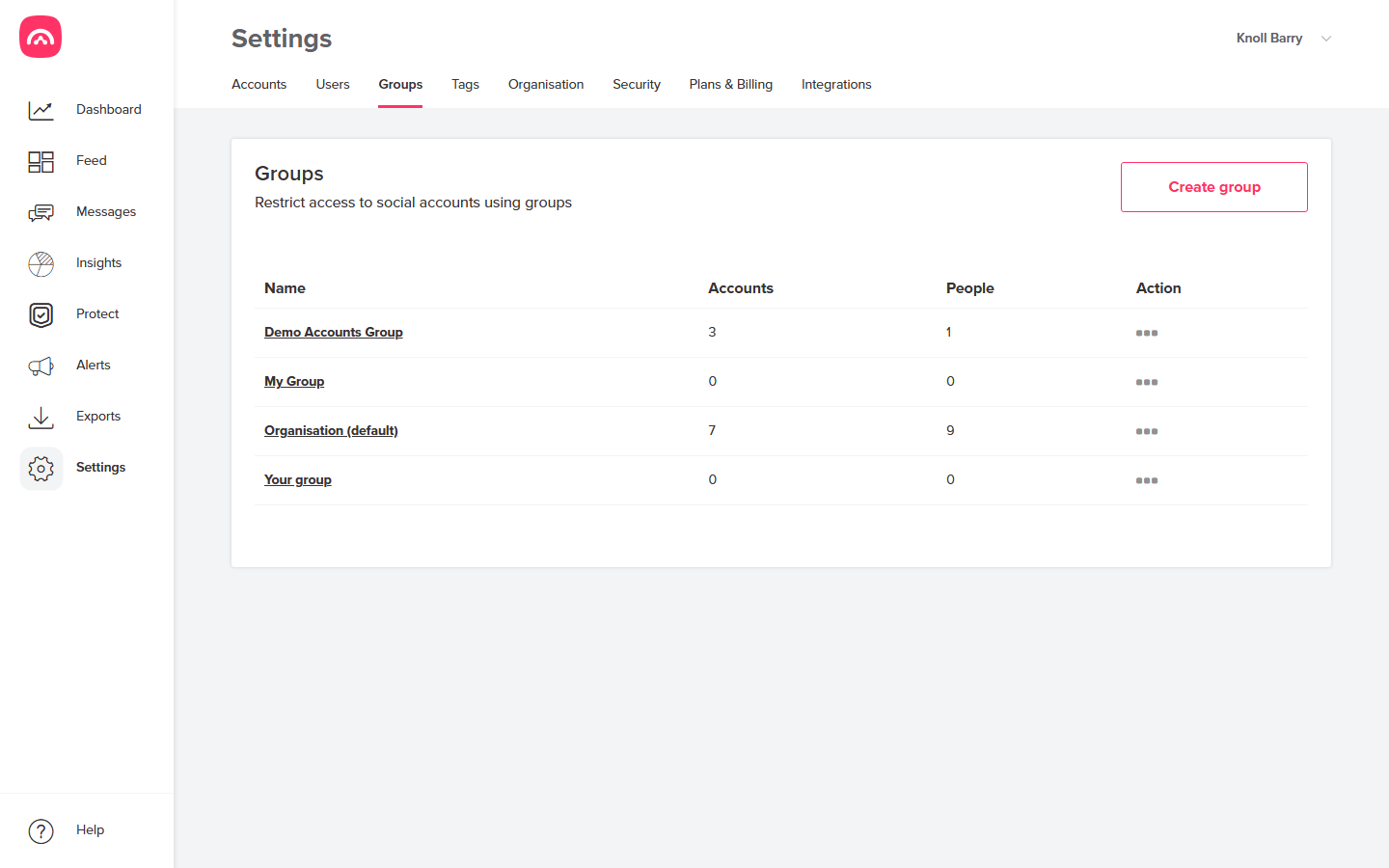
An organisation Owner goes to Settings → Groups and chooses Create group. Name the group with the official's title or name — for example 'Mayor', 'Premier', or 'Cr. Wilhemena Bloggs'. Repeat for each official.
Step 2 — Invite a Group owner
The Owner invites whoever has access to the official's social media accounts and makes them the Group owner of that group. Depending on the organisation, that might be:
- the elected official themselves,
- their assistant or electorate office staff, or
- a media team member.
Step 3 — The Group owner connects the accounts
The Group owner connects the official's social media accounts into their group — when adding accounts, the first step of the Add accounts dialog asks which group the accounts belong to. They'll need admin or editor access to the accounts on the platform itself.
Why this pattern works
- Each official's team sees only their own accounts and records — nothing from other councillors or the corporate accounts.
- Group owners can invite additional team members into their group, as another Group owner or as View only.
- Organisation Owners retain full visibility across all groups, keeping the whole archive compliant. See roles in Brolly groups.