 Brolly
 Connect an Instagram account
How to connect a business Instagram account to Brolly, including the Facebook page link it needs first.
Brolly captures Instagram posts, comments and stories from business Instagram accounts. Before you connect, make sure the Instagram account is a business (professional) account linked to a published Facebook page — personal Instagram accounts can't be connected.
Before you begin
- The Instagram account must be a business account linked to a Facebook page. You can check this in your Facebook page settings under the Instagram section.
- You must have admin or editor access to the social media account you want to connect.
- Allow pop-ups in your browser, as the platform may open a sign-in window.
Connect the account
- Log in to Brolly and go to Settings → Accounts.
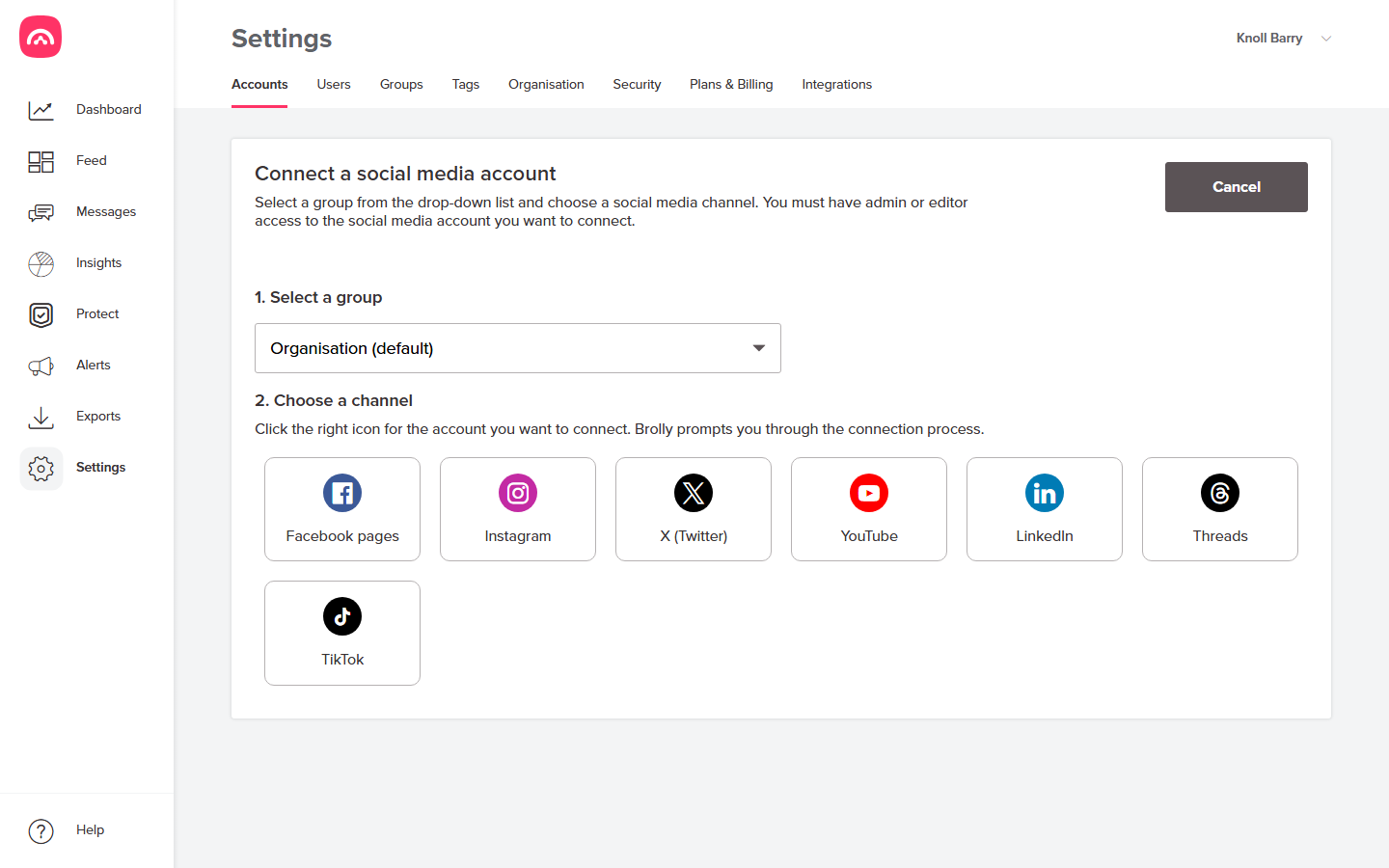
- Select Add accounts. The Connect a social media account dialog opens.
- Select a group for the account, or leave the default Organisation (default).
- Choose the Instagram tile from the list of channels. A Facebook sign-in window pops up — that's expected: business Instagram accounts connect through their linked Facebook page, so it's Facebook that handles the sign-in.
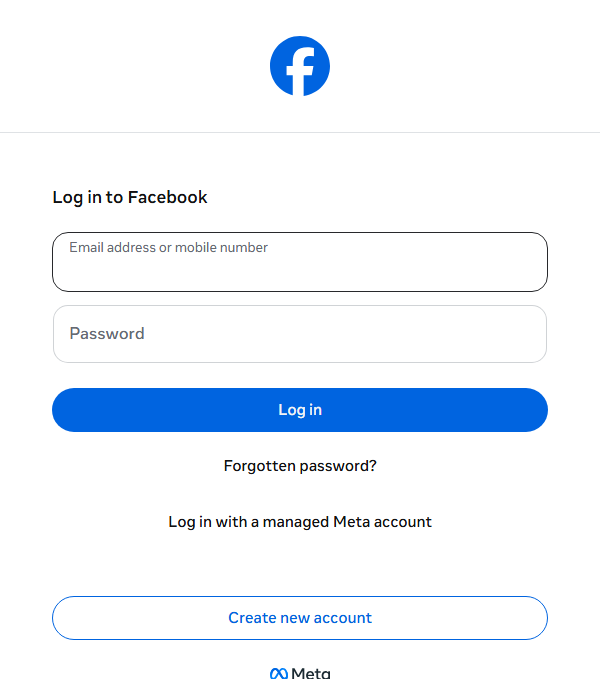
- Sign in with the account that manages the linked Facebook page — Brolly prompts you through the connection process and only requests read-only access.
- Select the Instagram account you want to archive and confirm. The pop-up closes and you're back in Brolly.
The account now appears in your Settings → Accounts table with a status of Active, and new records begin flowing into your Feed. Brolly also backfills earlier content — see Can I set a capture start date? for how far back capture goes.
If the connection doesn't complete, check that the Instagram account is properly linked to its Facebook page, then try again.
Was this article helpful?