 Brolly
 Scheduling a recurring export
Set up an export once under Exports → Schedule and Brolly produces it automatically on a recurring basis.
If you export the same thing on a cycle — a monthly snapshot for your records system, a quarterly compliance report — set it up once as a scheduled export and let Brolly do the rest. Each run is prepared automatically and made available for download.
Create a schedule
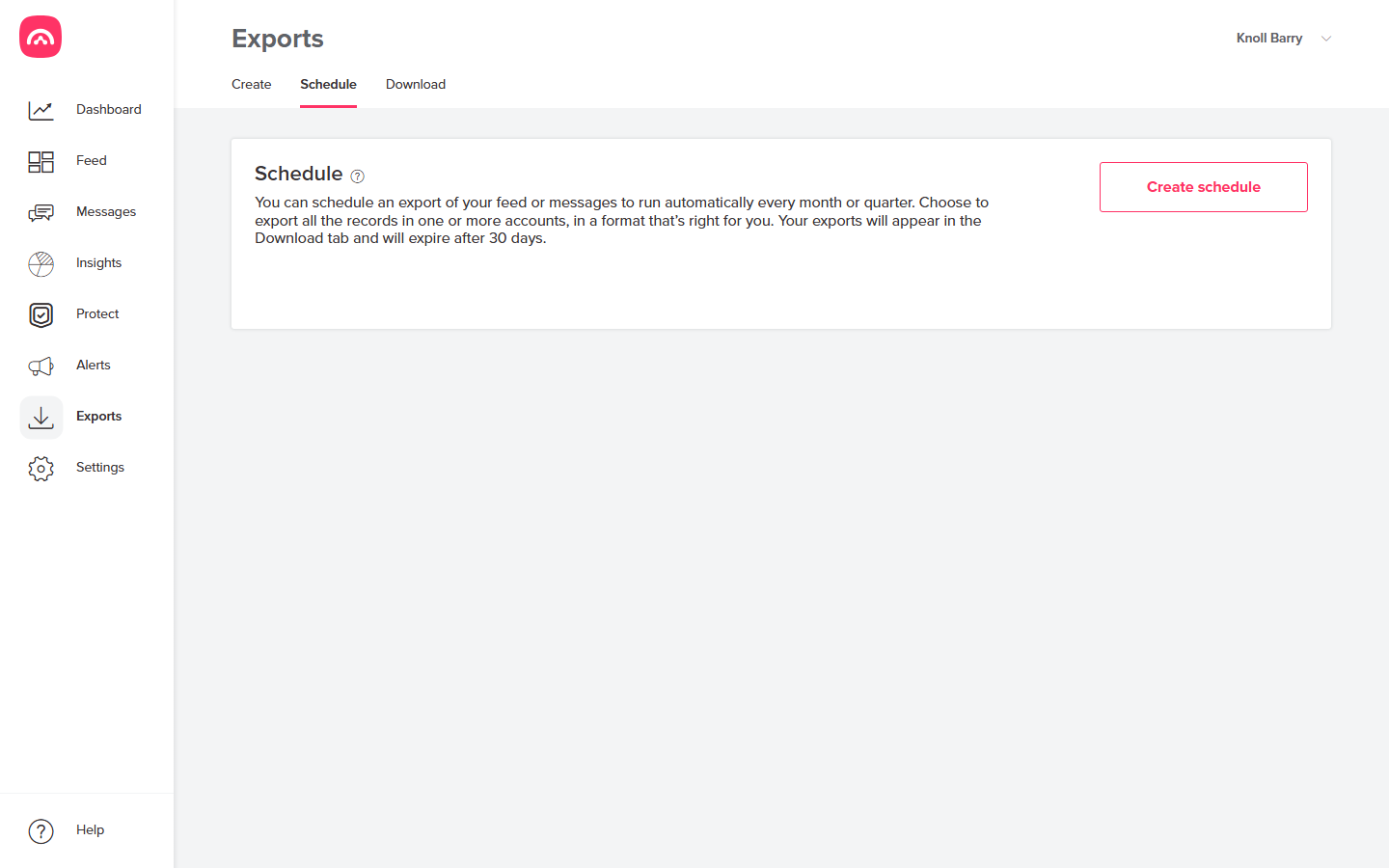
- Go to Exports → Schedule. Any schedules you've already created are listed here.
- Create a new schedule and work through the options: which accounts to include, whether the export covers your Feed or Messages (these are exported separately), how often it should run, the file format, and a name for the export.
- Save the schedule.
Scheduled exports run for the period just ended — a monthly export covers the previous month, a quarterly one the previous three months — so each file is a complete, closed reporting period.
Collect each run
When a scheduled export is generated, Brolly notifies you and the file appears under Exports → Download, alongside any one-off exports. Download it promptly — prepared exports are available for a limited time before they expire. The records themselves stay safely in Brolly; you can always export the same period again.
Good to know
- Scheduled exports are tied to the login that created them, so the person who needs the files should set up the schedule.
- To change or remove a schedule, find it in the list under Exports → Schedule and edit or delete it from there.
- For a one-off export — say, for a specific FOI request — use Exports → Create instead; see exporting records for an FOI request.