 Brolly
 Selecting and tagging multiple records
Filter the Feed to a set of records, select them together and apply tags in one action.
Tagging records one at a time works, but the real power comes from doing it in bulk: filter the Feed down to a set of records, select them, and apply a tag to all of them at once. It's the quickest way to group everything related to a campaign, a topic or a disposal classification so it's easy to find — and export — later.
Before you begin
The tag you want to apply must already exist. Tags are created in Settings → Tags — see using tags in Brolly.
Build your set of records
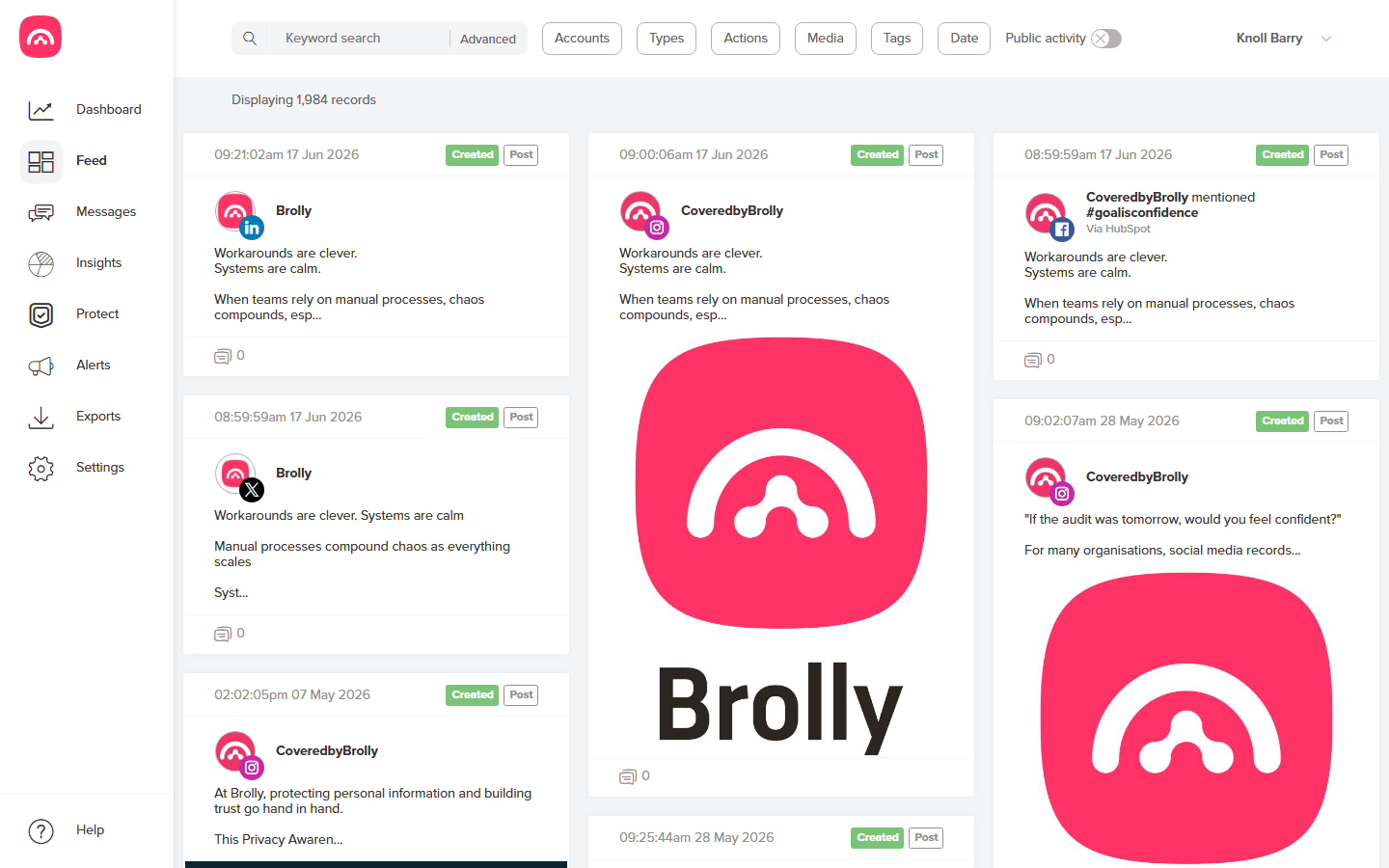
- Go to the Feed and use search and filters to narrow down to the records you're after — a keyword plus a date range, an account plus a record type, whatever matches your criteria.
Select and tag
- Select the records you want to tag directly in the Feed — each record card can be selected, and the Feed shows a running count of how many you've picked. There's a limit on how many you can select in one pass, so work in batches for large sets.
- With records selected, open the Assign a tag option that appears with the selection and pick one or more tags to apply to the whole set.
- If the selected records already share a tag, you can remove it from all of them in the same step.
- Save, and you're returned to the Feed with the tags applied.
From there, the tagged set is one Tags filter away — and ready to become an export whenever a request lands.
Was this article helpful?