 Brolly
 Using tags in Brolly
Create tags in Settings, apply them to records, and use them to filter the Feed for campaigns, topics or classifications.
Tags let you group records your own way — by campaign, event, topic, or a retention and disposal classification. Once applied, tags become a filter in the Feed and a way to scope exports, on top of Brolly's built-in search and filters.
Create a tag
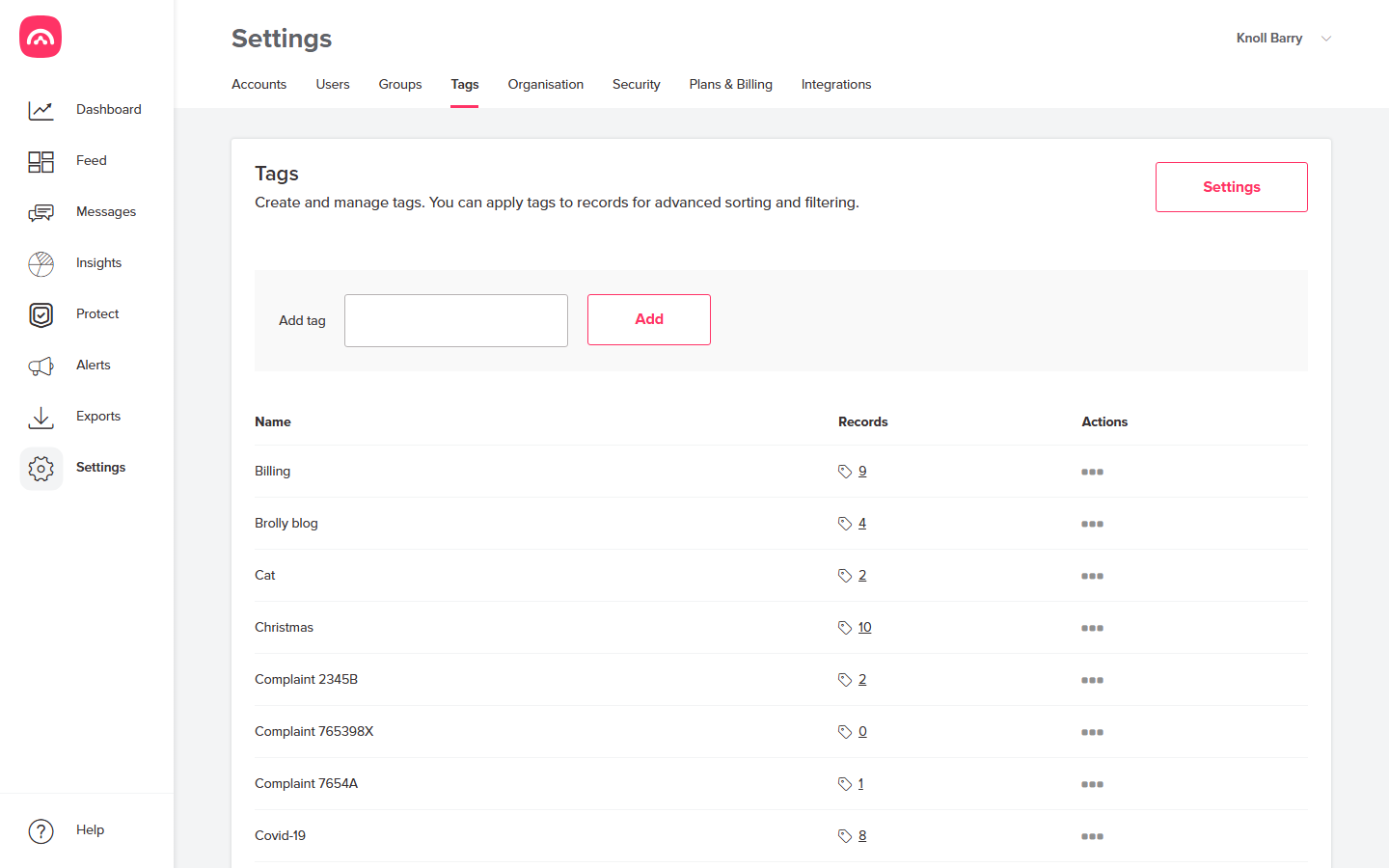
Tags are created and managed in Settings → Tags, where you can create tags and apply them to records for advanced sorting and filtering.
- Go to Settings → Tags.
- Type the tag name into the input and click Add.
- The list shows each tag alongside the number of records it's applied to.
Use the actions menu next to a tag to change or remove it — changes flow through to every record carrying that tag. The Settings button at the top right of the screen holds options for how your team uses tags.
Apply a tag to records
Tagging happens from the Feed: open a record and click Assign a tag in its Tags panel, or select records in the Feed and tag them together — see tagging multiple records. A record can carry more than one tag.
Filter the Feed by tag
Back in the Feed, use the Tags filter button to show only records carrying a particular tag. Combine it with the Date or Accounts filters to zero in fast — and when a tagged set matches a records request, turn it into an export.