 Brolly
 Viewing the detail of a record
Open any record from the Feed to see its full content, capture history and metadata.
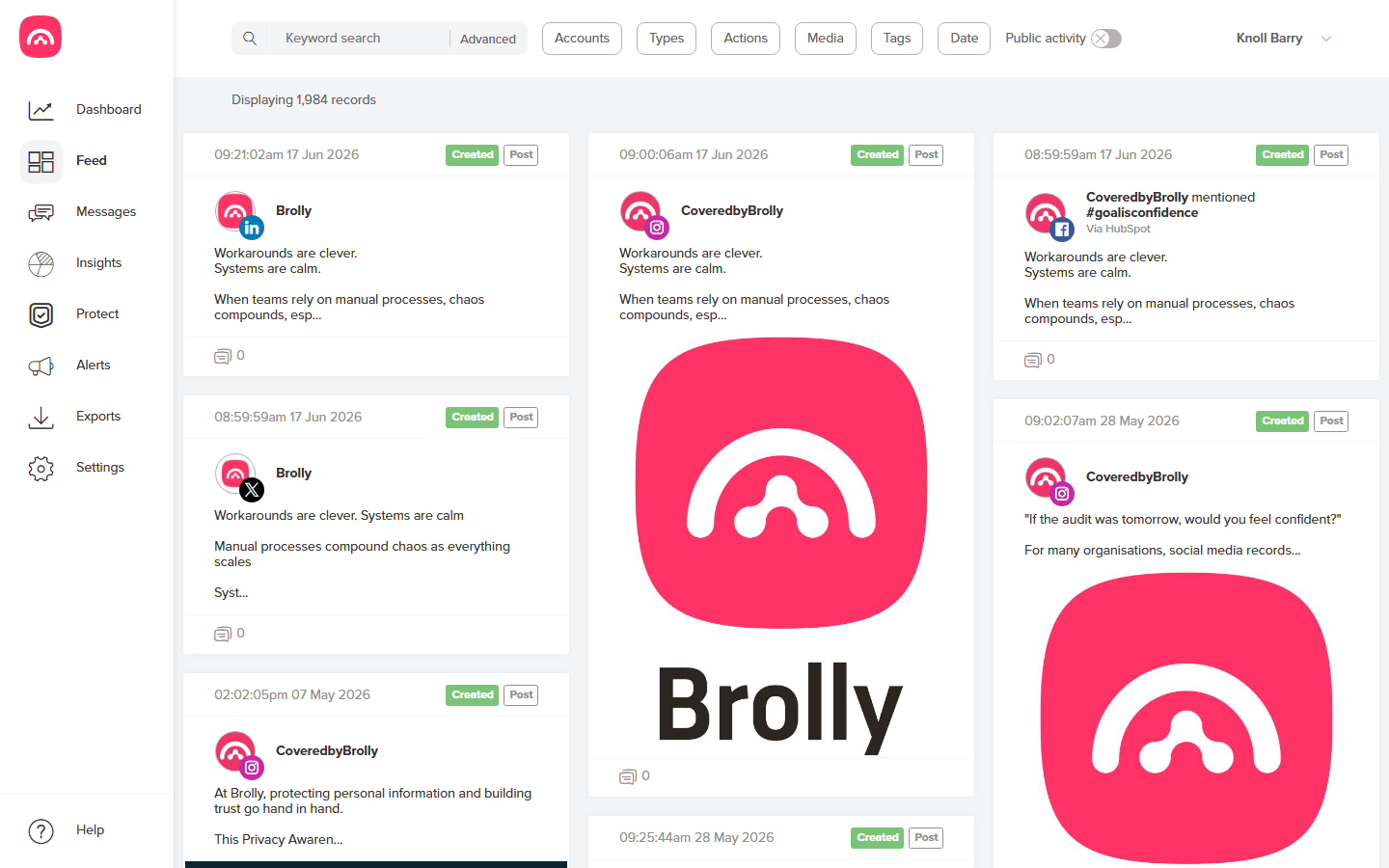
Your Feed shows records from all your connected accounts as cards. Each card gives you the essentials at a glance — the capture timestamp, an action badge (such as Created), a type badge (such as Post) and a comment tally. When you need the full story, open the record itself.
Open a record
- Find the record in the Feed — search and filters get you there quickly.
- Click the record's timestamp to open its detail view (clicking elsewhere on the card selects it for bulk actions instead).
- Use Back (top left) to return to the Feed with your search and filters intact.
What the detail shows
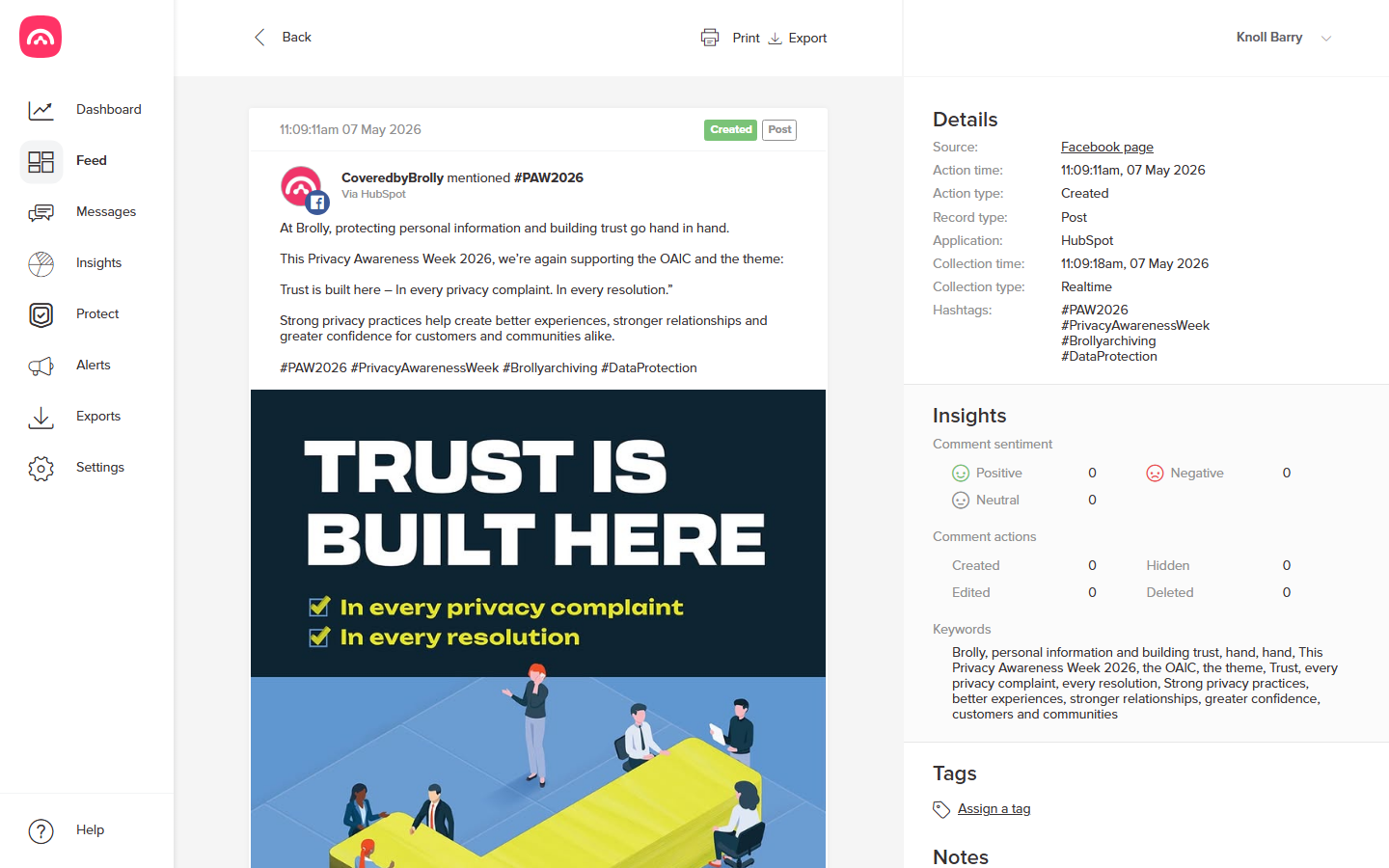
The record's full content — text, images, video — sits on the left, with everything Brolly knows about it alongside:
- Details — the source account and platform, the action (created, edited, deleted) and when it happened, the record type, the publishing application where known, the collection time and type (records captured live show Realtime), and any hashtags.
- Insights — comment sentiment (positive / neutral / negative) and comment actions (created, edited, hidden, deleted) for the conversation on this record. This section appears if your organisation has the Insights add-on.
- Keywords — the key terms Brolly picked out of the content.
- Tags and Notes — your team's own context, right on the record.
The level of detail varies by platform and record type, and can be more limited for historic records backfilled from before the account was connected.
What you can do from here
- Assign a tag — case numbers, campaigns, topics; see using tags.
- Add a note for the next person who opens the record — see using notes.
- Print or Export just this record from the buttons at the top — see exporting a single record.
Was this article helpful?