 Brolly
 Connecting a YouTube channel
Add your YouTube channel by pasting its URL — no sign-in needed; capture starts within 24 hours.
YouTube is one of the channels Brolly connects without a sign-in: you don't need the channel's credentials or admin access — just its URL. Brolly sets up capture on its side.
Add the channel
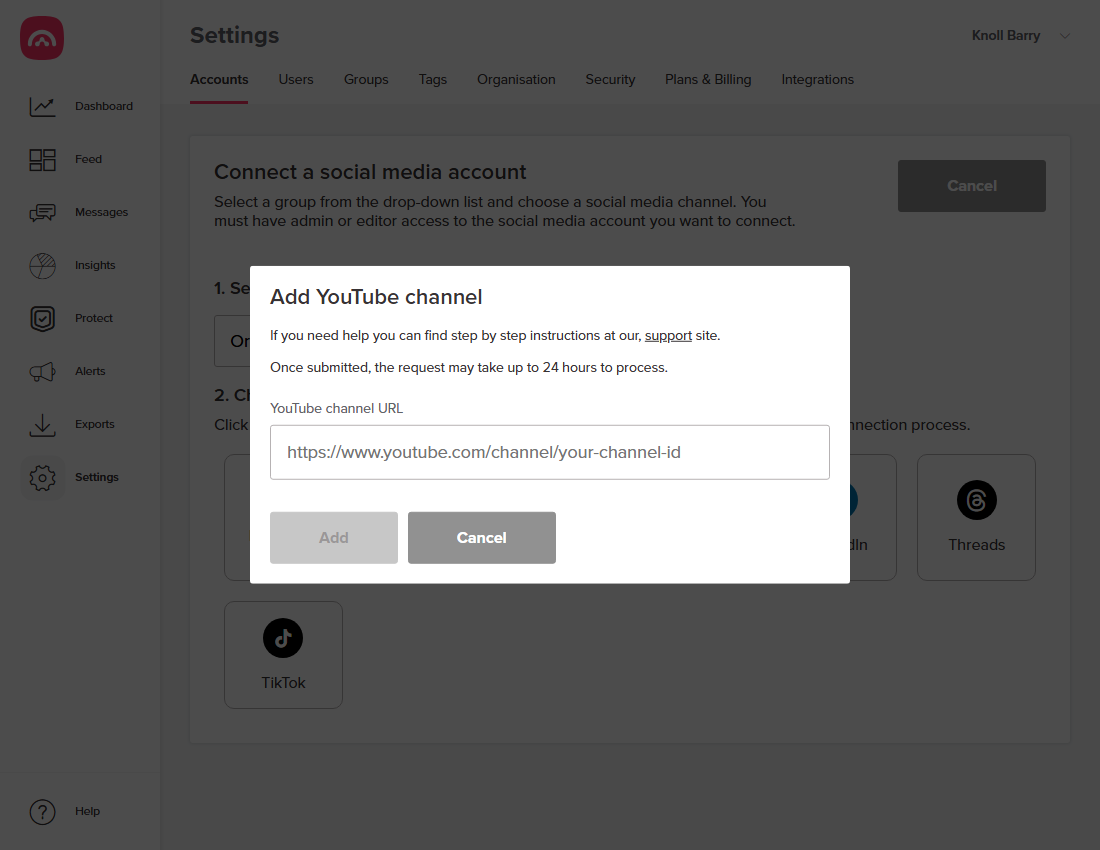
- Go to Settings → Accounts and click Add accounts.
- Select a group, then choose YouTube.
- Paste the channel URL (it looks like
youtube.com/channel/your-channel-id— open your channel on YouTube and copy the address). - Click Add.
What happens next
The request can take up to 24 hours to process. Once it's live, the channel appears under Settings → Accounts with status Active, and videos and comments start landing in your Feed.
Good to know
- Saved live streams are archived once YouTube processes them; streams that aren't saved to the channel can't be captured.
- Because there's no sign-in, YouTube connections don't use access tokens — so they don't go On hold the way Facebook or Instagram can.
Was this article helpful?