Brolly Help
Create alerts for keywords and phrases
Get an email whenever a keyword, phrase or user name appears in your connected social media accounts.
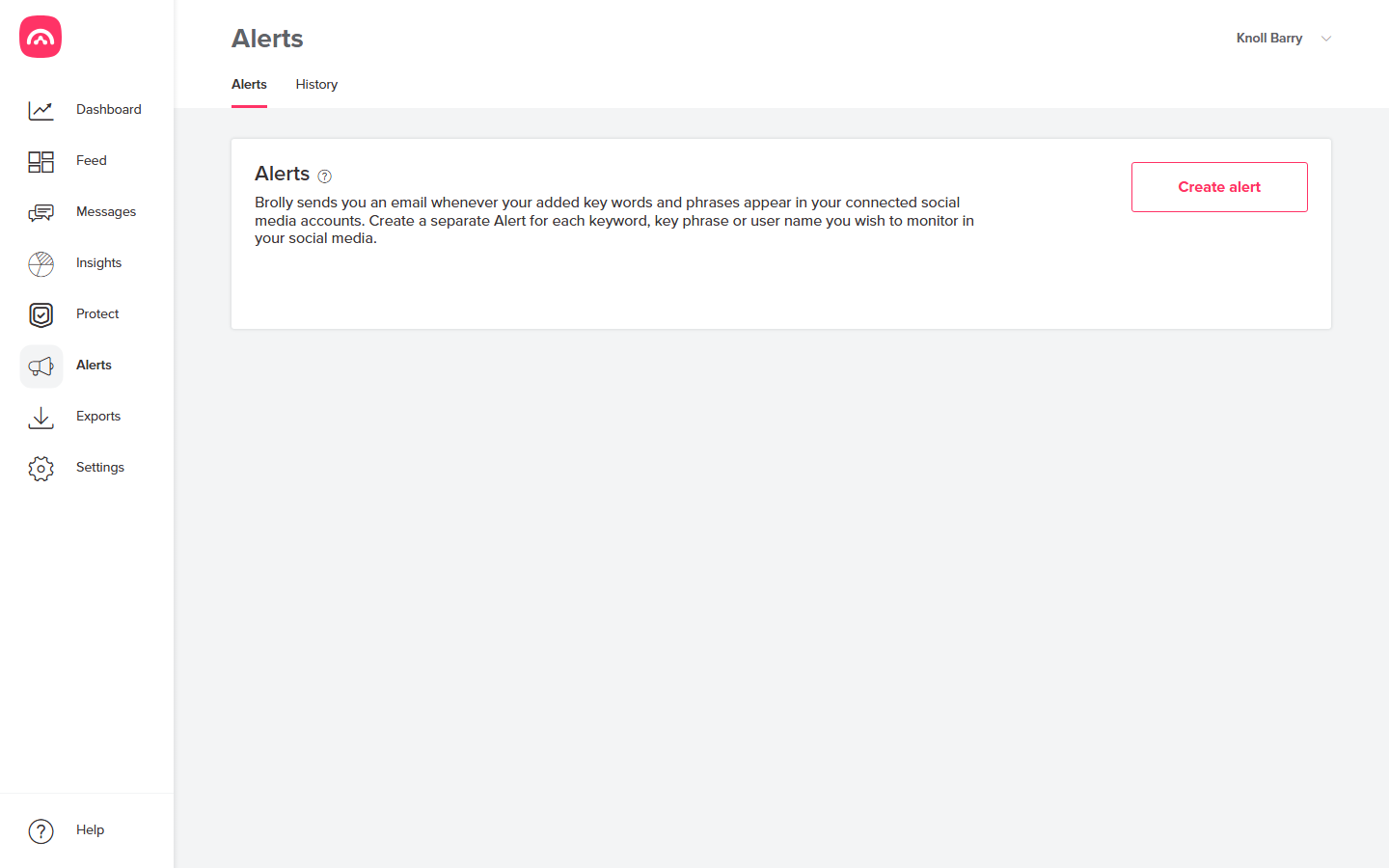
Brolly sends you an email whenever your added key words and phrases appear in your connected social media accounts. It's an easy way to stay on top of topics that matter — a project name, a councillor's name, an emerging issue — without watching the Feed all day.
Create a separate Alert for each keyword, key phrase or user name you wish to monitor.
Create an alert
- Select Alerts in the left-hand navigation.
- Select Create alert.
- In the Key words and phrases field, type a keyword or phrase, then select Add. Each term you add appears in a list below the field.
- Save the alert.
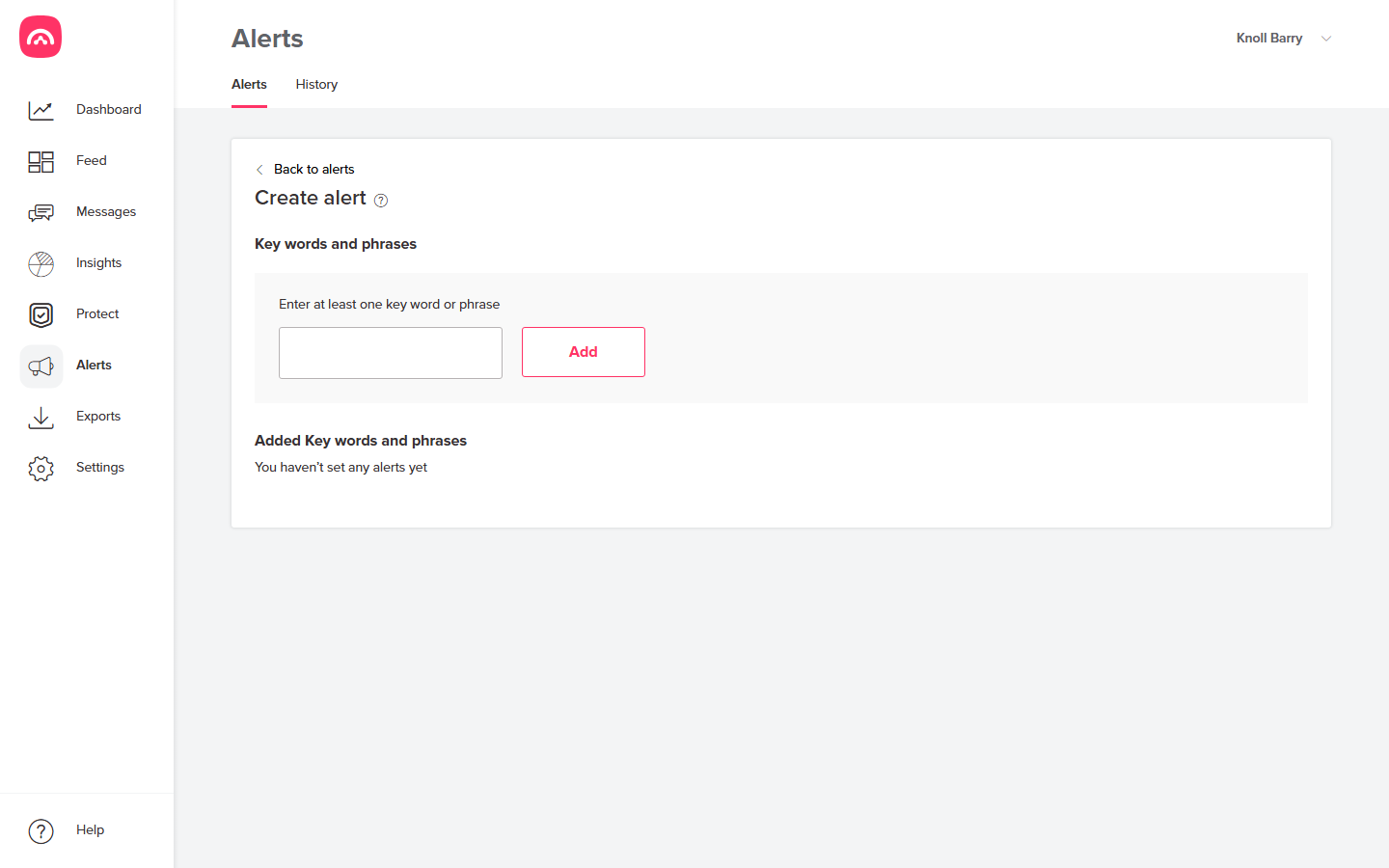
If an alert contains several terms, you'll be emailed when any one of them appears. For example, an alert with the terms "podcast" and "cybersecurity" triggers whenever either word turns up in a captured record. For distinct topics, create a separate alert for each so notifications stay meaningful.
Manage your alerts
Your alerts are listed on the Alerts screen. From here you can add new keywords or phrases to an alert, or remove terms you no longer need.
Review what's been triggered
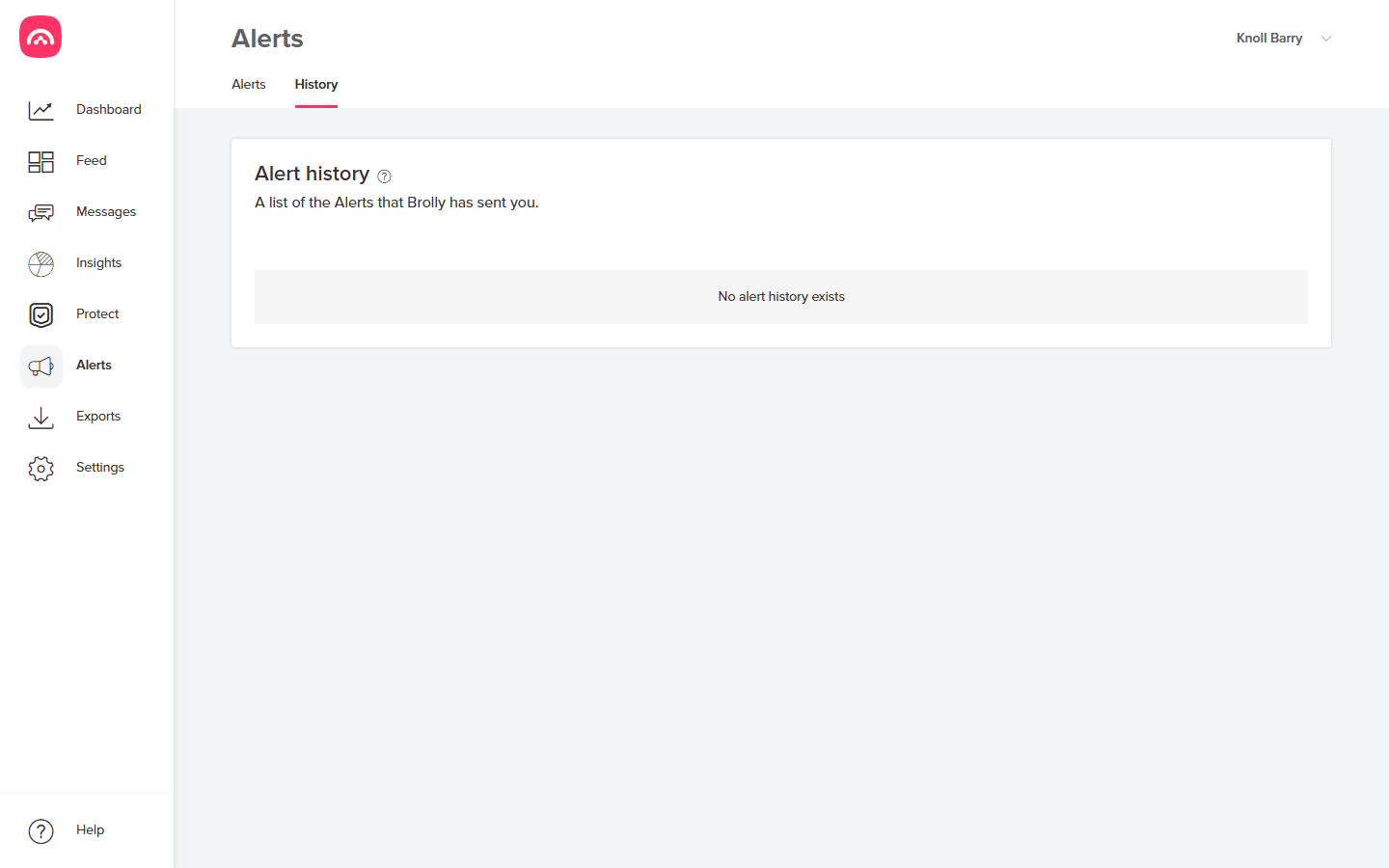
The Alerts screen has two tabs: Alerts and History. The History tab is a list of the alerts Brolly has sent you, so you can look back over past matches. To explore the matching records themselves, jump into the Feed and search — see Searching your archive.