Your Profile
The one page that is about you rather than your organisation: your name, email address and avatar, and where to change your password.
Overview
User Profile holds your personal details — name, email address, avatar and password. Everything else in Brolly belongs to the organisation and lives under Settings; this page is yours alone, and nobody else on the team edits it.
How to Get There
- Click your name at the bottom of the left sidebar
- Choose View profile
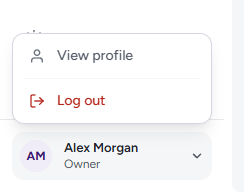
The page is not listed under Settings; the account menu is the way in.
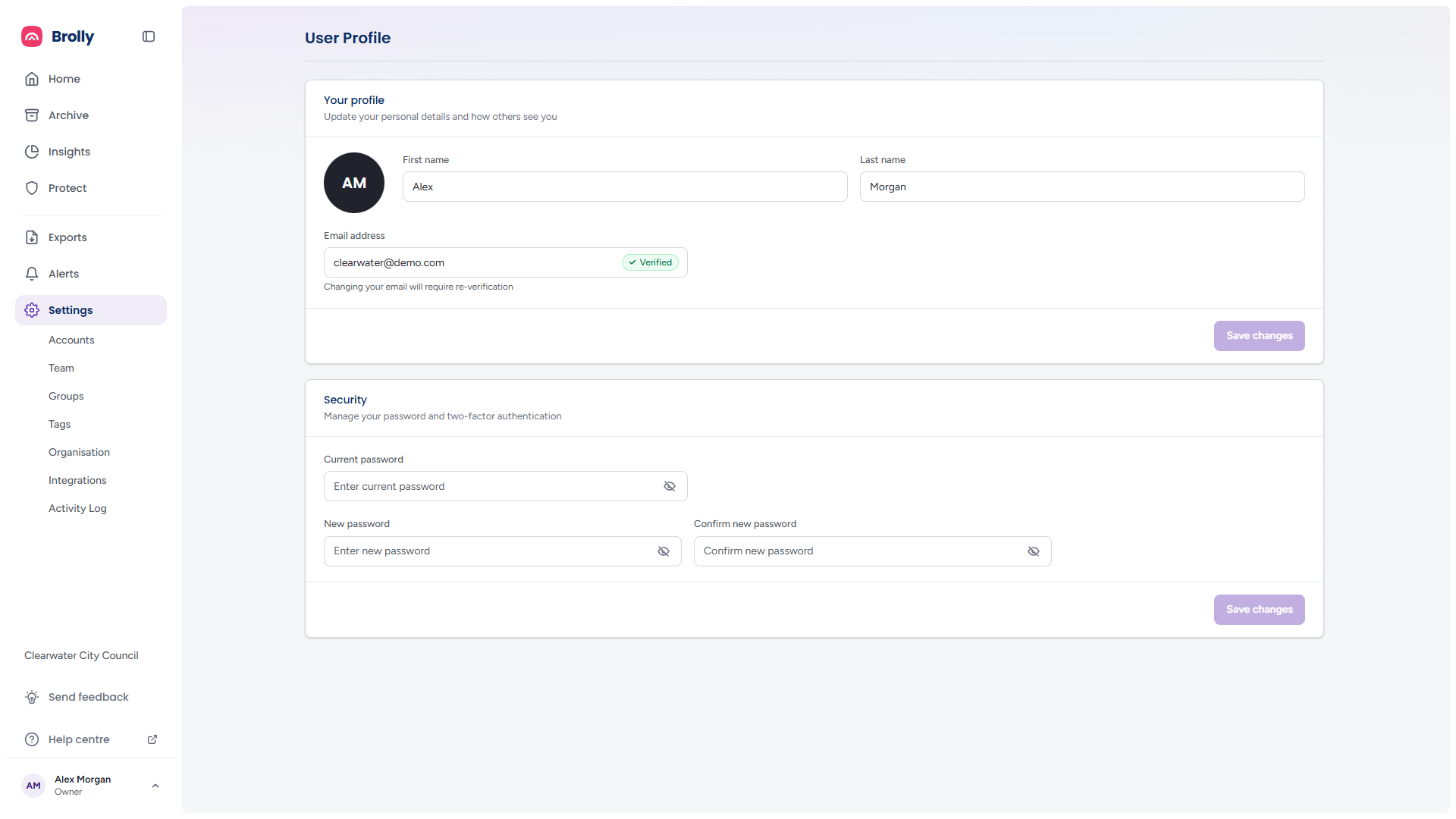
Your Profile
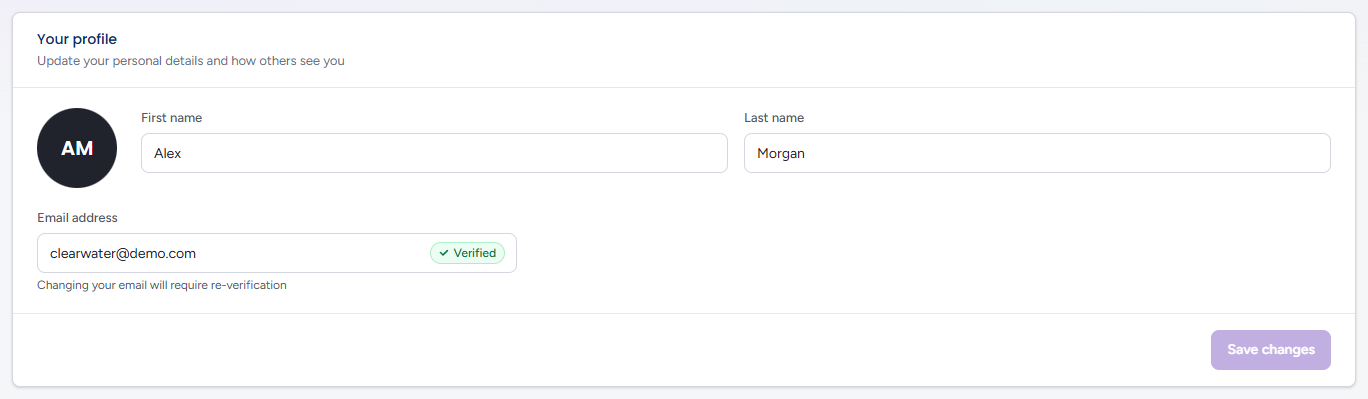
The Your profile card — "Update your personal details and how others see you" — has:
- Avatar — your initials on a dark circle. Click it (or Change beneath it) to pick a picture from your computer; the picture previews in place of the initials straight away but is not uploaded until you save. On a deployment without picture uploads the avatar shows initials only, with no Change
- First name and Last name — how you appear to the rest of the team, in the Team table and in the Activity Log
- Email address — the address you sign in with. A green Verified badge inside the field shows it has been confirmed. The note beneath warns that changing your email will require re-verification: Brolly sends a link to the new address and the change takes effect once you follow it
Click Save changes when you are done. The button stays greyed out until you have actually changed something; after a successful save it turns green and reads Saved for a moment, then greys out again. If the save is refused — an email address that another account already uses, for example — the reason appears beneath the card and your edits stay in the fields.
Security
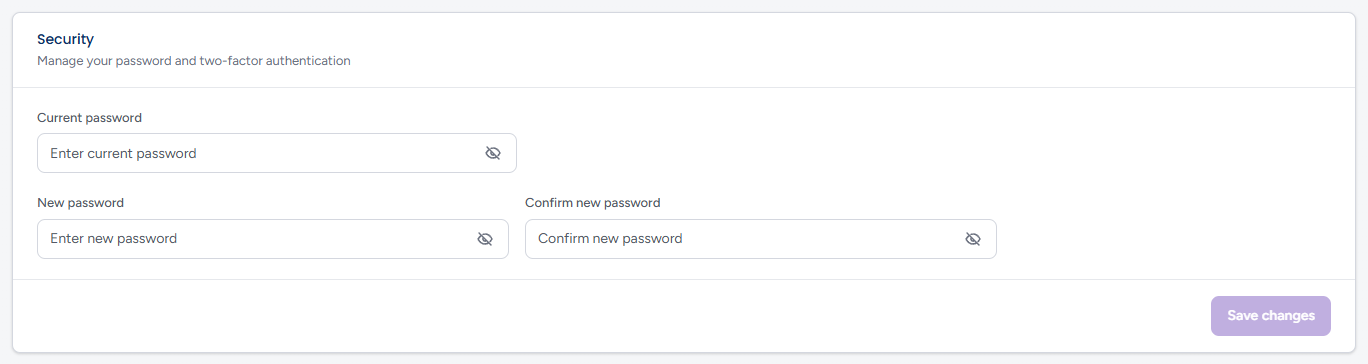
The Security card — "Manage your password and two-factor authentication" — is where you change your password:
- Type your Current password
- Type the New password, then type it again under Confirm new password
- Click Save changes
Each field has a show/hide toggle (the eye icon) so you can check what you have typed. As you type the new password a strength bar appears beneath it, rated Weak, Fair or Strong — length (8 and 12 characters), capitals, numbers and symbols all count. As on the card above, Save changes stays greyed out until you have typed something, and turns green with Saved once the change goes through; the three fields then clear.
If the two new passwords differ, the confirm field is outlined in red with "Passwords do not match". If the current password is wrong, or the new one does not meet your organisation's password rules, the message from the server is shown in the same place.
Two-factor authentication is not something you switch on here. It is an organisation-wide setting that an Owner turns on for everyone under Settings → Organisation; once it is on, you are asked for a code each time you sign in. See Organisation and Signing In.
Tips
Forgotten your current password? You cannot change it from this page without it. Log out and use Forgot password? on the sign-in page instead — see Signing In.
Your role (Owner or User, with Group owner shown for a User who manages a group) is shown under your name in the sidebar but is not changed here. Roles are set by an Owner on Settings → Team.