Home
Your landing page: quick searches into the archive, saved shortcuts, your connected accounts and their health, headline figures and a history of what has been captured — and what to do with each.
Overview
Home is the first screen you see after signing in. It answers three questions at a glance — how much is in the archive, is everything still capturing, and how do I get to the records I need — and almost every part of it is a shortcut into the Archive or Settings.
How to Get There
- Click Home in the left sidebar (you land here automatically after signing in, and Go to Home on any error page brings you back)
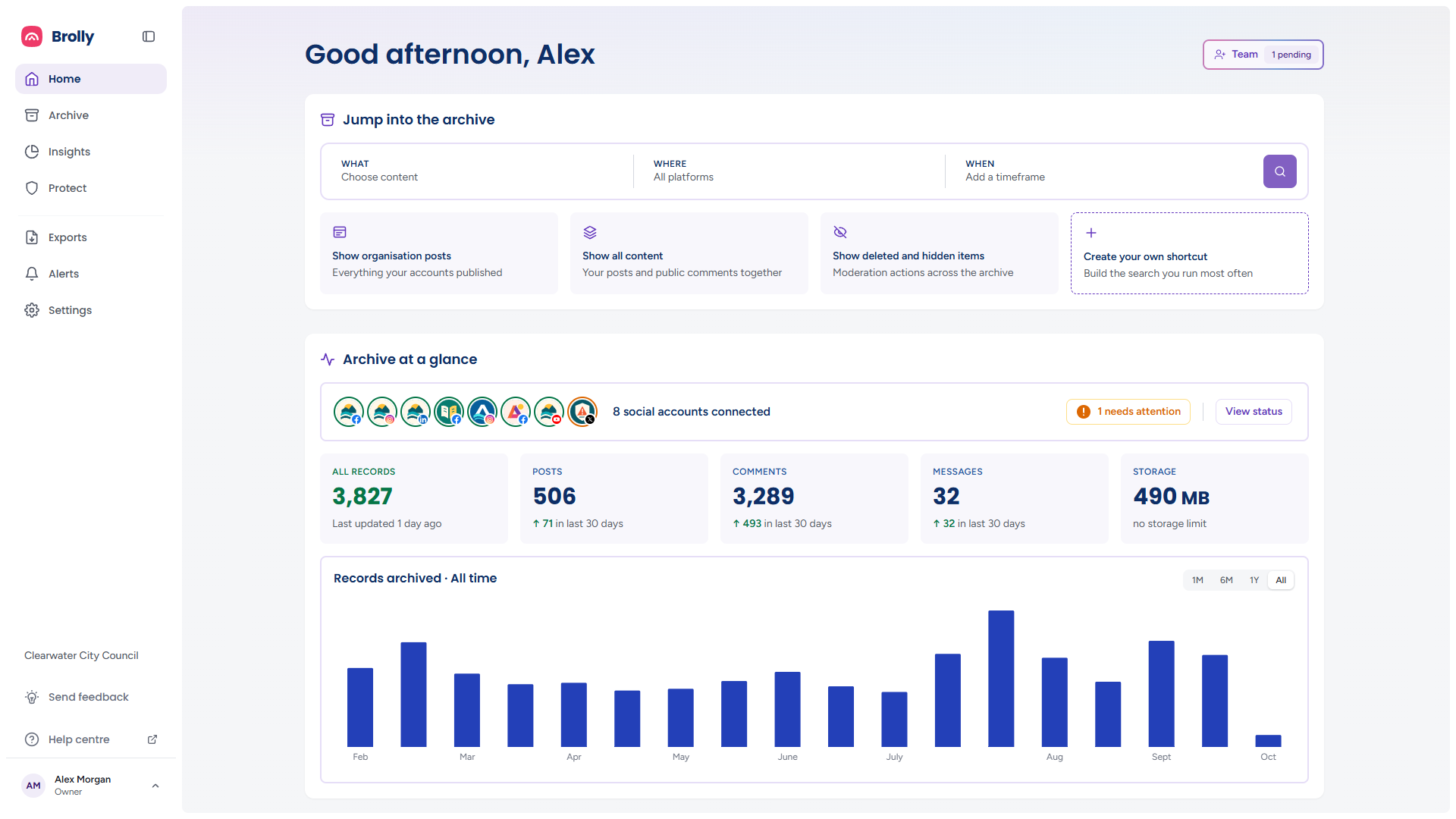
Each block of the page loads on its own, so you may briefly see grey placeholders where the figures and tiles will appear.
Greeting and Team Chip

The heading greets you by first name and by time of day — Good morning until noon, Good afternoon until six, Good evening after that.
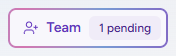
In the top right, a Team chip counts invitations that have not been accepted yet ("1 pending"). Click it to open Settings → Team with the status filter already set to Pending. The chip is a prompt to act rather than a standing figure: it only appears when there is at least one pending invitation, and only for people who manage the team. See Managing Team Members.
Jump into the Archive
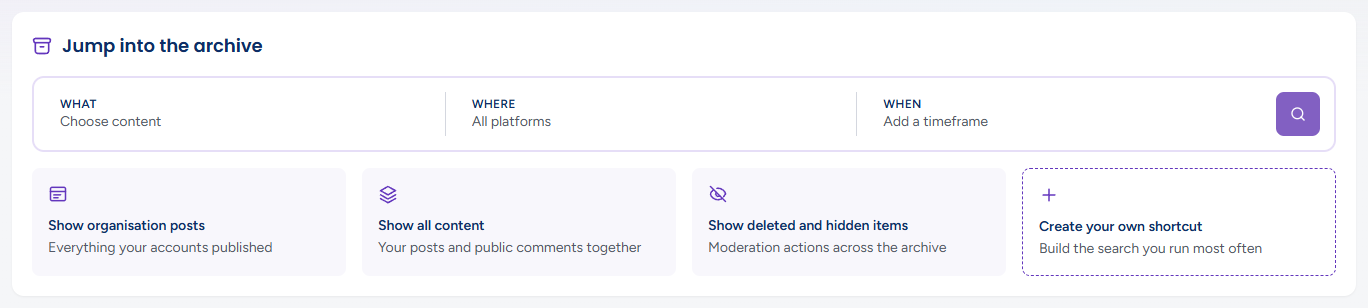
A three-part search that opens the Archive already filtered. Each part is a button that opens a small menu beneath it; the text under the label reads as a placeholder until you choose something:
- What — the kind of content: our posts, public comments or all content (shows "Choose content" until you pick one). Picking an option closes the menu
- Where — All platforms, or any combination of Facebook, Instagram, X (Twitter), LinkedIn, YouTube, TikTok and Threads. Platforms are ticked one at a time and the menu stays open so you can pick several; All platforms clears them. The button then names what you chose
- When — Last 7 days, Last 30 days, Last 3 months, Last 6 months or Last 12 months (shows "Add a timeframe" until you pick one)
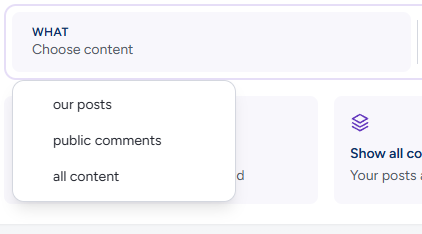
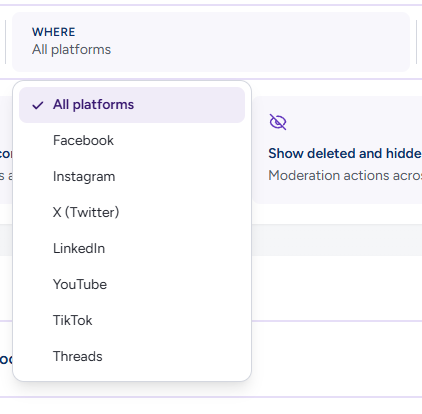
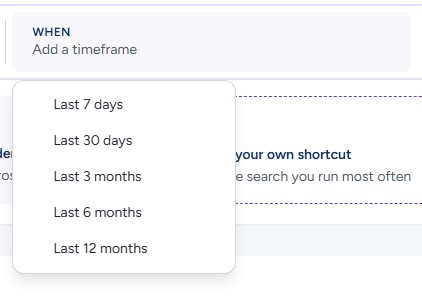
Then click the search button at the right of the row (a magnifier, labelled Search the archive; on a narrow window it becomes a full-width Search button beneath the stacked fields). The Archive feed opens with those filters applied and its own dropdowns showing the selections, and everything else in its toolbar — search terms, sources, tags, sort — is available to refine from there. Parts you leave unset fall back to defaults: our posts, All platforms and Last 30 days.
Shortcuts
Beneath the search are cards for the views people open most. Each is a link into the Archive:
- Show organisation posts — everything your accounts published (the Archive filtered to Posts, our content)
- Show all content — your posts and the public comments on them together
- Show deleted and hidden items — moderation actions across the archive: records whose action type is Deleted or Hidden
- Create your own shortcut — the dashed fourth card. Save any combination of Archive filters as your own card
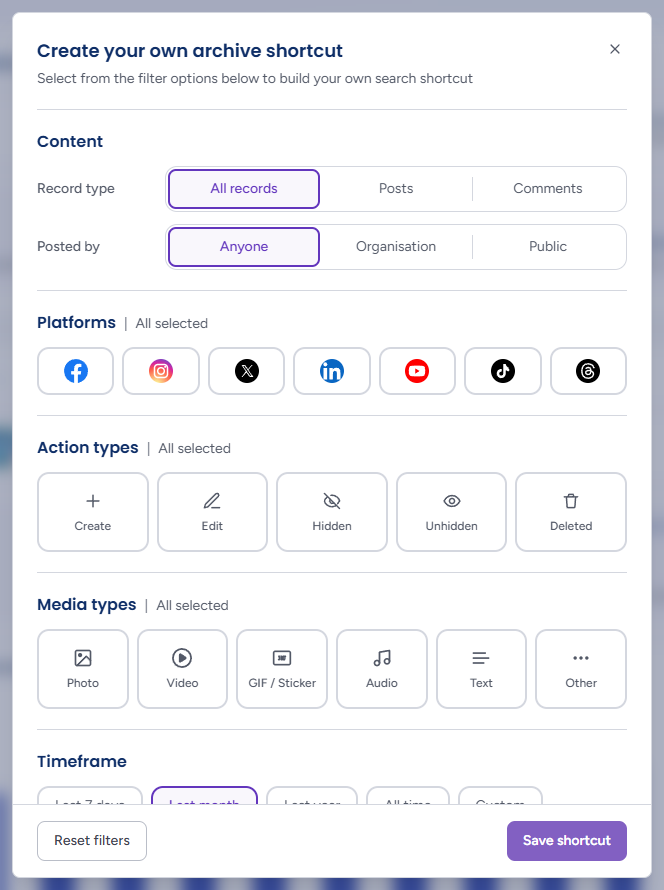
Create your own shortcut opens the Create your own archive shortcut dialog — "Select from the filter options below to build your own search shortcut" — with the same filter set as the Archive's Filters dialog:
- Record type — All records, Posts or Comments
- Posted by — Anyone, Organisation or Public
- Platforms — tick any combination; all are selected to start with
- Action types — Create, Edit, Hidden, Unhidden, Deleted
- Media types — Photo, Video, GIF / Sticker, Audio, Text, Other
- Timeframe — Last 7 days, Last month, Last year, All time, or Custom for a date range. A new shortcut starts on Last month
The header and footer stay put while the filter list scrolls. Reset filters puts everything back to the starting values, Save shortcut saves it, and the × (or Escape) closes the dialog without saving. The card then shows a one-line summary of the filters you chose in place of "Create your own shortcut", with an Edit button beside it. Edit reopens the dialog as Edit your archive shortcut, which adds a Remove shortcut button for taking the card away again. There is one custom shortcut per person, and it is saved in your browser rather than shared with the team.
Saved searches in the Archive itself do the same job for searches that include search terms — see Filters and Saved Searches.
Archive at a Glance
The Archive at a glance panel has three parts: your connected accounts, five summary tiles and a chart.
Connected Accounts

A row of avatars, one per connected social account, each with its platform icon in the corner, followed by the count — "8 social accounts connected". Hover an avatar for the account's name and platform. Beyond twelve accounts the rest collapse into a +n chip.

If you can manage accounts, the row also shows connection health. Each avatar carries a ring — green when the connection is fine, amber when it is broken — and the right-hand end of the row reads either All healthy in green or:
- needs attention — an amber chip counting the accounts that have stopped capturing, most often because a platform connection has expired and must be re-authorised. Hovering a broken account's avatar adds its status ("Token expired") to the name. Click the chip to go to Settings → Accounts, open the account and click Re-connect. The chip is replaced by All healthy once every account is capturing. Accounts you have put On hold yourself do not count — a pause is a choice, not a fault. See Re-connecting an Account
- View status — opens Archive → Summary, a table of every account with its status, record counts and last capture. See Archive Summary
Team members who cannot manage accounts see the avatars, the count and View status without the rings or the chip.
The old interface showed a banner across Home when an account needed attention. In Brolly it is the chip in this row — smaller, but in the same place every time, so make it the first thing you look at.
Tiles

Five tiles summarise the archive:
- All records — the total, and when the archive was last updated ("Last updated 1 day ago")
- Posts, Comments and Messages — the total of each record type, with its change over the last 30 days: an up arrow and the number added, or "no change in last 30 days"
- Storage — how much space the archive uses, and your storage limit if you have one ("no storage limit" otherwise)
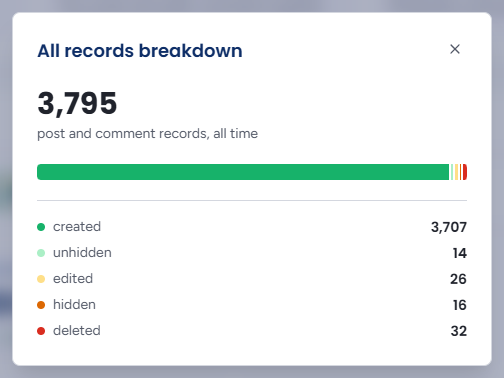
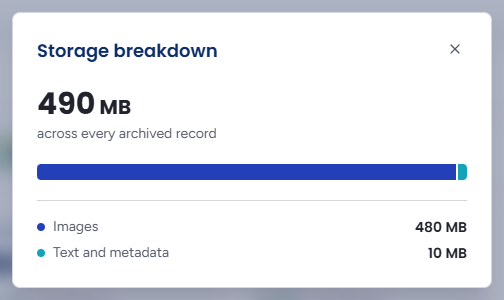
Click All records, Posts, Comments or Storage for a breakdown (the Messages tile has none). A dialog opens with the headline figure, a proportional bar and the list behind it; hover a segment of the bar for its figure, and close with the × or Escape:
- All records breakdown — post and comment records, all time, by the action that created each version: created, unhidden, edited, hidden or deleted. A quick read on how much moderation has happened. (Its total is posts plus comments, so it is a little lower than the tile, which also counts messages)
- Posts breakdown and Comments breakdown — the same five actions for that record type alone
- Storage breakdown — usage "across every archived record" split by content type, for example Images and Text and metadata, with video and documents listed where you have them
The breakdown is fetched when you open it, so the bar may show grey placeholders for a moment. If it cannot be loaded the dialog says "Couldn't load this breakdown. Close and reopen to try again."
If the counts themselves cannot be loaded, the whole tile row is replaced by an Unable to load your archive summary message rather than a row of zeros.
Records Archived Chart
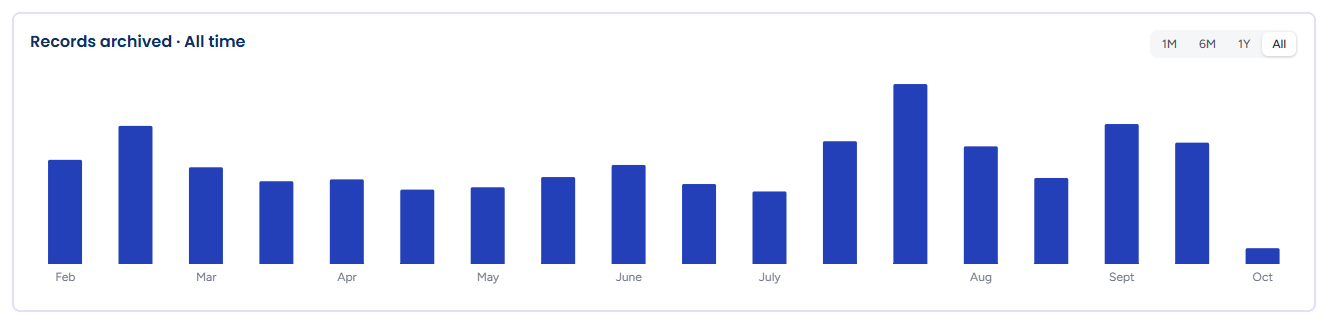
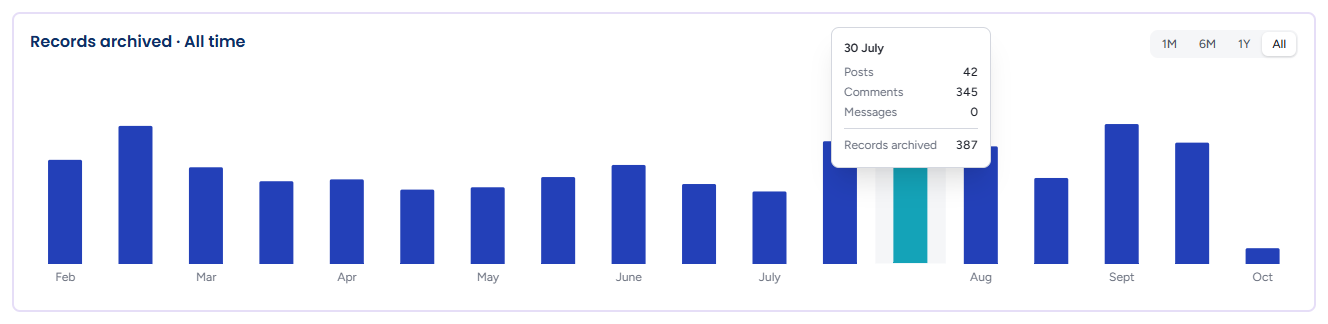
A bar chart of how many records were captured over time. Its heading names the window on show — Records archived · All time — and the 1M, 6M, 1Y and All buttons in the top right switch between the last 30 days, the last 6 months, the last 12 months and the full history of your archive. Hover a bar for its breakdown: Posts, Comments, Messages (where they are counted) and the Records archived total.
Gaps or a sudden drop are worth checking against the Accounts page — they usually mean an account stopped capturing. A range with nothing in it says "No activity in this range."; if the chart cannot be loaded it shows Unable to load archive activity.
Latest Posts and Comments
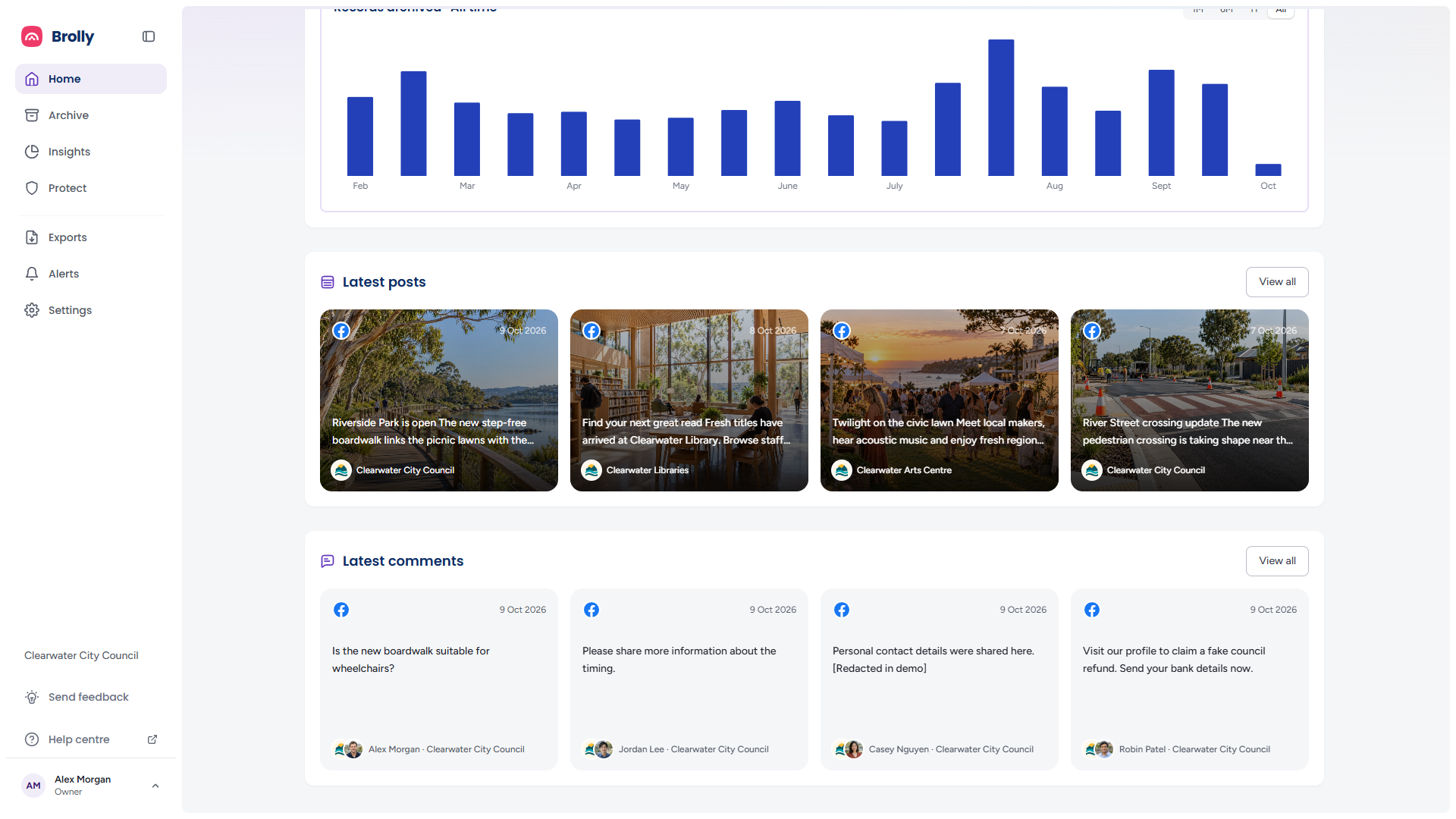
Below the chart, Latest posts shows the four most recent posts across your accounts and Latest comments the four most recent public comments. Each tile has the platform icon and date at the top, the start of the text (over the record's image where it has one), and the account at the bottom — for a comment, the commenter's name and the account they commented on, with both avatars.
- Click a tile to open that record in the Inspector, with its versions, comments and media
- View all beside Latest posts opens the Archive filtered to posts; beside Latest comments, to public comments
- A new archive shows "No posts archived yet." or "No comments archived yet." until records arrive
Before Any Account Is Connected
An organisation with no connected accounts does not see the dashboard at all. Instead Home shows a Welcome to Brolly screen — "Connect your social accounts and Brolly starts capturing straight away" — with a Connect your first account panel: one tile per platform (Facebook, Instagram, X / Twitter, LinkedIn, YouTube, TikTok, Threads), each with a Connect label. Clicking a tile opens the same connect dialog as Settings → Accounts, already on that platform. See Connecting Your First Account. The dashboard appears as soon as the first account is connected.
A Daily Routine
Home is designed to be checked once a day. In order:
- Connected accounts — if the needs attention chip is showing, fix the connection first; every hour it is unresolved is a gap in the archive
- Tiles — "no change in last 30 days" on Posts or Comments for an organisation that publishes regularly means the same thing without the chip
- Team — a pending count that is not going down means an invitation needs resending
- Latest posts and comments — a quick read of what came in, and the fastest way into anything that needs a tag or a closer look
- Shortcuts — your saved view for the review you run regularly
Tips
If you run the same search regularly — one account over the last month, say — save it with Create your own shortcut so it is one click from Home.
Jump into the archive is the quickest way to answer "what did we post on LinkedIn last month": What = our posts, Where = LinkedIn, When = Last 30 days, then export the result from the Archive toolbar.
The needs attention chip goes to the same page as Settings in the sidebar; Settings always opens on Accounts first. View status is the read-only view of the same accounts under Archive → Summary.