Navigating Brolly
The sidebar and its sections, the page layout every section shares, and the controls you will meet everywhere — filters, tables, drawers and dialogs.
Overview
Everything in Brolly is reached from the sidebar on the left. Each page then follows the same layout — a title, a toolbar of search and filters, and a primary action in the top right — and uses the same handful of controls, so once you know one page you know them all. This article walks through each of those pieces. For the sign-in page itself, see Signing In.
You land on Home after signing in. Your archive, accounts and team are already there; nothing needs to be set up again. If you used the old Brolly interface, the What's New page has a cheat sheet of what moved where.
The Sidebar
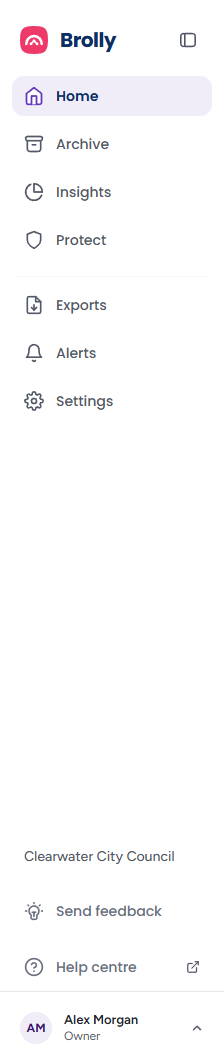
The sidebar is always on the left and lists the main sections:
- Home — your landing page: a quick search into the archive, saved shortcuts, your connected accounts and the headline figures. See Home
- Archive — every captured record, with Feed, Messages and Summary beneath it. See Using the Archive and Archive Summary
- Insights — Performance, Publishing, Engagement, Sentiment, Posts Explorer, Hashtags and Topics across your accounts (optional module). See Insights
- Protect — automatic detection and moderation of harmful content (optional module; guides coming soon)
- Exports — Files and Schedules: create, schedule and download exports of your records. See Exports
- Alerts — Configuration and Activity: keyword alerts that notify you when specific words or phrases are captured. See Alerts
- Settings — Accounts, Team, Groups, Tags, Organisation, Integrations and Activity Log. Clicking Settings itself opens Accounts
Your current page is highlighted, and sections with sub-pages expand beneath their entry when you are in them, with a dot marking the active sub-page.
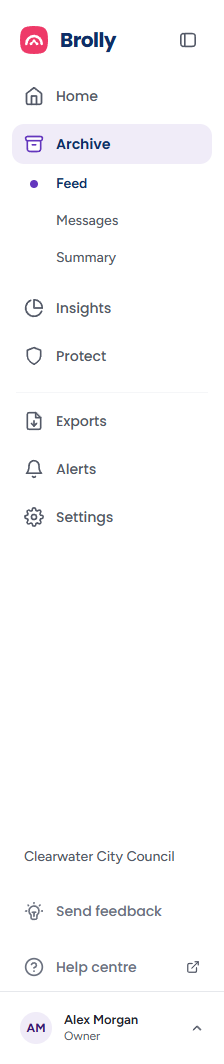
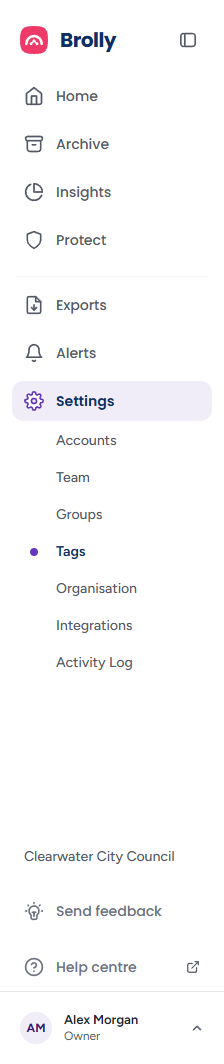
Insights and Protect are optional modules. Without the Insights add-on, Insights shows an overview of what it does with a Get a demo button that opens a booking calendar. Protect is switched on by the Brolly team; its overview page has a Register your interest button that sends them your details.
Collapsing the Sidebar
The Collapse sidebar button beside the Brolly logo collapses the sidebar to icons only, which is useful on smaller screens or when you want the Archive feed as wide as possible. Click the arrow at the top of the collapsed bar to expand it again.

While it is collapsed, hovering an icon shows its name, and hovering a section that has sub-pages (Archive, Insights, Exports, Alerts, Settings) opens a small flyout menu beside the bar listing them, with the current one highlighted. Hovering your avatar at the bottom shows your full name, and clicking it opens the account menu to the right of the bar instead of above it.
On a narrow window — a phone or a half-width browser — the sidebar has no column of its own. A top bar with the Brolly name and an Open menu button takes its place; the button slides the full sidebar in over the page, and choosing a page or clicking the shaded area beside it slides it away again.
Sidebar Footer
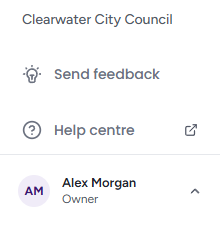
The bottom of the sidebar is the same on every page:
- Your organisation's name — a reminder of which organisation's archive you are looking at
- Send feedback — opens the feedback dialog described below
- Help centre — opens this help centre in a new tab
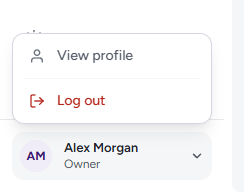
- Your account — your initials, name and role (Owner or User). Click it for View profile, which opens your profile, and Log out, which signs you out and returns you to the sign-in page. Click anywhere else, or press Escape, to close the menu
Send Feedback Dialog
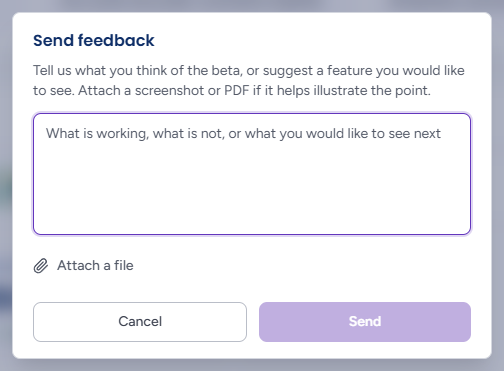
Send feedback opens a small dialog with one box — Your feedback, prompting "What is working, what is not, or what you would like to see next" — and goes straight to the Brolly team:
- Type your message. Send stays greyed out until you have written something
- Attach a file opens a file picker for screenshots (any image) or PDFs, up to 10 MB each. Each attachment appears as a chip with its size and a remove button, and the link becomes Attach another file. A file of the wrong type or over the limit is refused with a message naming it
- Send shows "Sending…", then the dialog changes to Thanks — that is on its way with a Done button. If the send fails you see "That did not send. Check your connection and try again." and your text and attachments are kept so you can retry
- Cancel, the × or Escape closes the dialog and clears it
The dialog is independent of the sidebar, so collapsing the sidebar while you are writing does not lose your message.
Notices Above the Page
During a free trial a strip across the top of the window reads "You are on day n of your trial — Enjoying Brolly? Talk to our team about the right plan for you.", with View plans and Book a call buttons and a dismiss control. What happens when the trial ends is covered in Signing In.
Anatomy of a Page

Most pages share the same structure:
- Page title at the top left
- Toolbar beneath it — a search box on the left and one or more filter dropdowns beside it
- Primary action at the top right, such as Connect account, Add team member, New alert or New export
- The content — usually a table or a grid of cards — below a divider
Home is the exception: it has no toolbar, and its top-right corner holds a Team chip that counts pending invitations instead of a primary action.
Controls You Will Meet Everywhere
Filter Dropdowns
The dropdowns in a toolbar each hold one choice. The button shows the current selection ("All statuses", "All platforms", "All groups") — click it and pick an option to filter the list. Choose the "All …" option again to clear it. Filters combine with the search box and with each other.
Tables
Click a column heading to sort by it; the arrow shows the direction, and clicking again reverses it. Column headings with a double arrow are sortable. Clicking a row opens its details in a drawer.
Status Badges
Coloured pills show state at a glance and are consistent across Brolly: green for Active or Success, amber for Pending or Token expired, grey for On hold, and red for Does not exist, Inactive or Failed.
Detail Drawers
Clicking a row in the Accounts, Team or Groups tables slides a panel in from the right. Drawers have a Details (or Overview) tab and an Activity Log tab showing the history of that item. The actions available for the item — change its group, put it on hold, deactivate it, delete it — live at the bottom of the drawer. Close it with the × in the corner or by pressing Escape.
Dialogs
Primary actions open a dialog in the middle of the screen. Required fields are marked, the confirm button stays disabled until they are complete, and Cancel or the × closes the dialog without changing anything. Longer tasks, such as creating an export, use a multi-step dialog with a progress stepper across the top and Back / Next buttons.
Search Scope and Mode
The search box on the Archive pages has two extra controls: a scope dropdown on its left choosing what to search (content, authors or your annotations) and a Mode control on its right choosing how to match (natural search, exact phrase, all terms or any terms). See Using the Archive.
Links Into the Archive
Many things that look like summaries are really links: Home's shortcut cards, its latest posts and comments, a tag's record count on the Tags page, an alert's trigger count. Clicking them opens the Archive already filtered to that view, so the fastest route to a set of records is usually a click rather than building a search.
If You Land on a Page That Does Not Exist
Brolly lives at app.brolly.com.au; the old interface has been retired. A mistyped address shows a Page not found screen with a Go to Home button. Most addresses saved from the old interface still work: a link to a record (the /feed/{record}/version/{version} address in old exports, EDRMS references and alert emails) opens the Archive with that record's inspector, and old Insights, Alerts and Exports addresses redirect to their new pages. A bookmark that does land on Page not found points at a path that was not carried over — for example, the Feed is now /archive — and needs re-saving.
Where to Go Next
If you are new to Brolly, work through these in order:
- Connecting Your First Account — nothing is captured until an account is connected
- Managing Groups and Managing Team Members — decide who sees which accounts, then invite them
- Home — learn the landing page you will use every day
- Using the Archive — searching, filtering and saving searches
- Exports — producing records for a request
Tips
Escape closes whatever is open — a menu, a dialog or a drawer — without saving.
The dot beside a sidebar sub-page is the quickest way to confirm which view you are in when two look alike, such as Archive Feed and Archive Messages.
Help centre opens in a new tab, so you keep your place in Brolly while you read.