Archive Messages
Browse, search and review archived direct-message conversations, see the captured source data behind any message, and export a conversation.
Overview
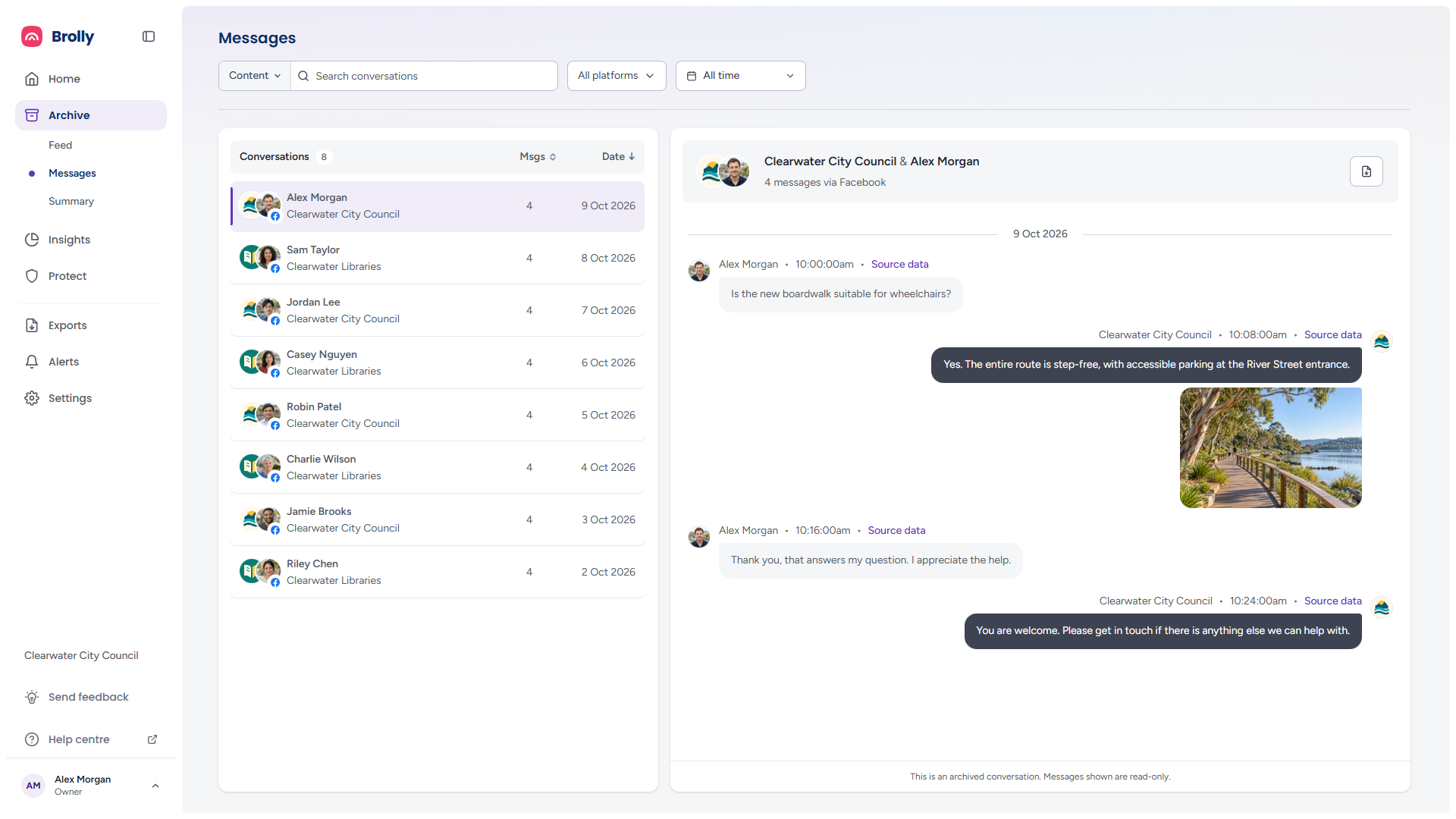
Archive Messages is a two-panel view of the private and direct-message conversations Brolly has captured from your connected accounts. Conversations are listed on the left; the selected conversation is shown in full on the right, read-only and exactly as captured, with the same compliance-grade record-keeping as the rest of the Archive.
Messages are captured for accounts that have message capture enabled — on Facebook that means Messenger conversations with your Page. Each message is its own record, with the same capture timestamp and metadata as a post or comment.
How to Get There
- Click Archive in the left sidebar — it expands to show Feed, Messages and Summary
- Click Messages
The Toolbar

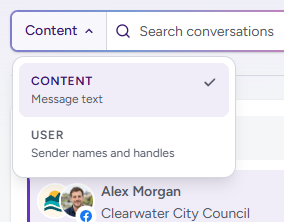
- Content and Search conversations — choose what to search and type to filter the list. The scope button offers Content (message text) and User (sender names and handles)
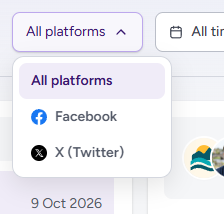
- All platforms — narrow to a single platform; the menu lists only the platforms that have captured conversations (Facebook and X (Twitter) in the sample organisation)
- All time — restrict conversations to a date range
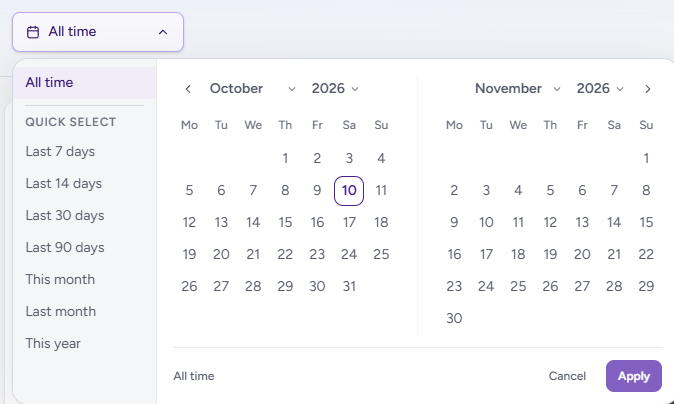
The date picker opens with All time selected and offers Quick select ranges — Last 7 days, Last 14 days, Last 30 days, Last 90 days, This month, Last month, This year — or a two-month calendar for a custom range, with month and year drop-downs. Click Apply to filter, Cancel to close without changing anything, or All time to clear a range.
Once a search, platform or date range has narrowed the list, an Export results button appears at the end of the toolbar. In the current release that export is not yet available: the request is refused. To export messages, open a conversation and use Export conversation (below), or use the Exports wizard with Messages as the source, which takes accounts and a date range (see Exports). Neither follows a keyword search.
When new messages are captured while you are on the page, a toast at the bottom says how many ("2 new messages") with Refresh to bring them in.
Left Panel — Conversations
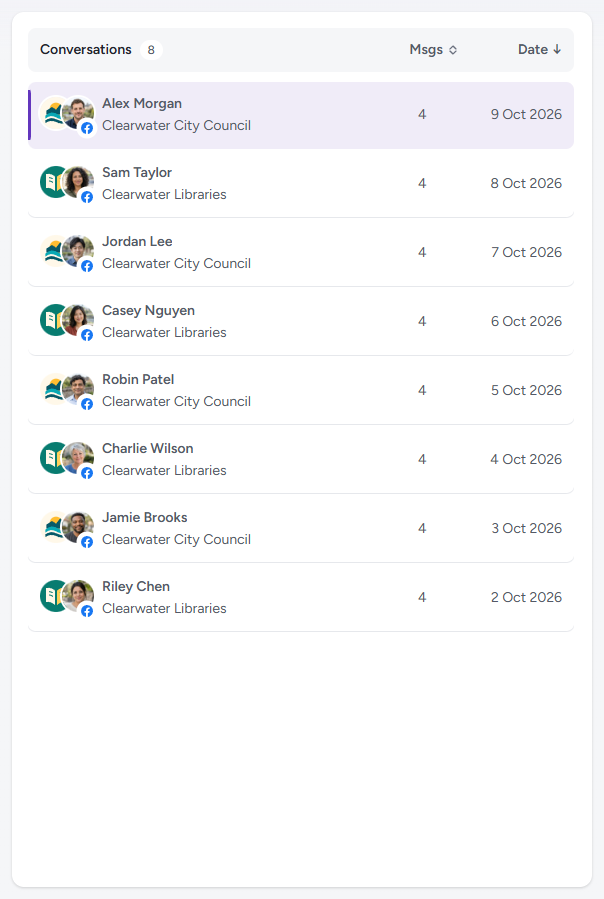
The list header shows Conversations with the total number ("8"). Each row shows:
- Contact — who the conversation is with, with the platform icon on their avatar
- Account — which of your connected accounts they messaged
- Msgs — how many messages the conversation holds
- Date — when the most recent message was sent
Click the Msgs or Date header to sort by that column (the arrow shows the direction; the list opens on Date, newest first), and click a conversation to open it. On a narrow screen the conversation replaces the list, with Back to conversations to return.
Right Panel — The Conversation

The header names both participants and shows the message count and platform — "Clearwater City Council & Alex Morgan — 4 messages via Facebook" — with an Export conversation icon button (a document with an arrow) on the right. Messages are grouped by date and shown oldest to newest, your account's on the right and the contact's on the left, each with:
- the sender, their avatar and the time it was sent
- a Source data link
- the message content
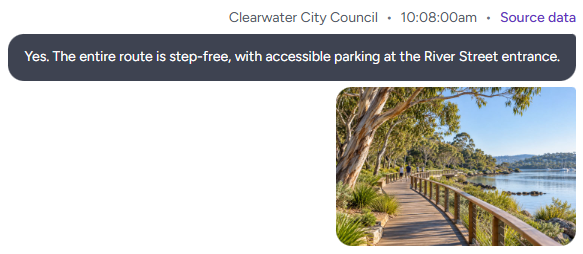
An image sent in the conversation shows as a tile under the message; click it (View followed by the image's name, for example "View A new chapter for Riverside Park") to open it full size. A link shared in a message shows as a link chip with the address and when Brolly captured it, with a thumbnail of the captured page beside it that opens the full screenshot.
The note at the bottom of the thread — "This is an archived conversation. Messages shown are read-only." — is a reminder that nothing can be edited or replied to from the archive.
Source Data
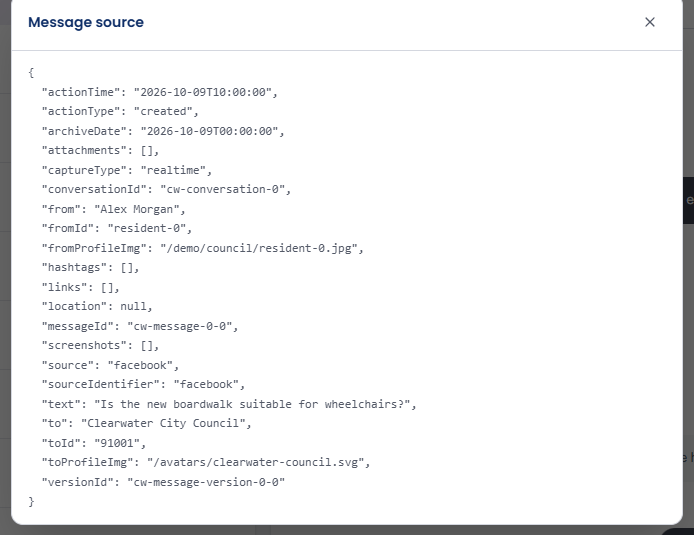
Source data opens Message source — the raw captured record for that message: the action and archive timestamps, capture type, conversation and message identifiers, source platform, sender and recipient, any attachments, links and screenshots, and the message text. This is the underlying evidence behind what you see on screen, and is what an export contains. Close it with ×, Escape or a click outside.
Exporting a Conversation
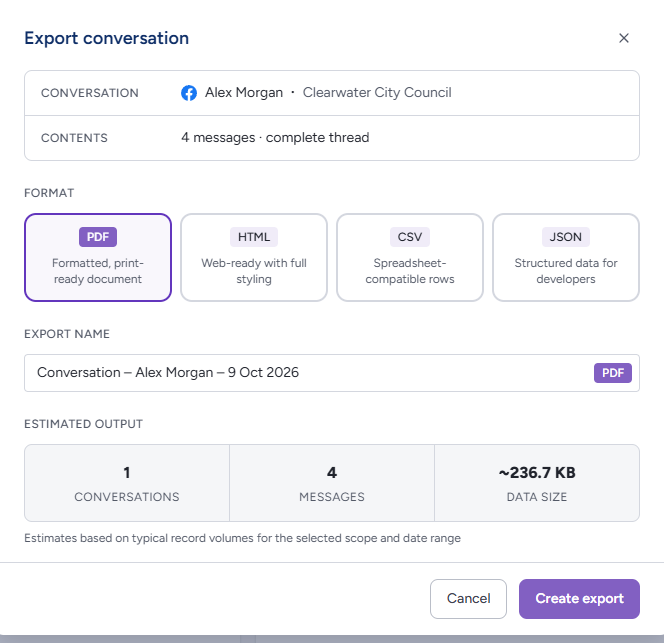
- Open the conversation in the right panel
- Click the Export conversation icon in the header
- The dialog states the Conversation (contact, platform and account) and its Contents ("4 messages · complete thread"); keep or change the suggested name ("Conversation – Alex Morgan – 9 Oct 2026") and choose a format, PDF to start with
- Click Create export (Cancel closes without exporting), and the export is generated and listed on the Exports page for download
See Exports.
Turning Message Capture On or Off
Whether direct messages are captured is chosen per account when a supported account is connected, and shown afterwards as Messages enabled in the account's details under Settings → Accounts. There is no switch on an existing account: to turn message capture on or off later, email support@brolly.com.au with the account. Turning it off stops new messages being archived while posts and comments continue as normal. See Message Capture.
Messages already captured stay in the archive when capture is turned off — they remain searchable here and exportable, subject to your organisation's retention settings. If you believe previously captured messages should be removed, contact support@brolly.com.au.
Tips
Messages are captured where platform permissions allow — check Messages enabled in an account's details under Settings → Accounts if a conversation you expect is missing.
Combine a keyword with a platform and date range to find a specific exchange quickly when responding to a request, then open it and use Export conversation.
A message Brolly has already captured stays in the archive even if the conversation is later deleted on the social platform.