Archive Summary
Totals for everything Brolly has archived, by account, platform and group — records or moderation actions, over any date range, with a printable report.
Overview
Archive Summary steps back from the records to the accounts they come from. It tables every connected account with its status and how much Brolly has archived from it, rolls the same figures up by platform and by group, and switches between what was captured (Records) and what happened to it (Actions). It does not change an account; to connect, re-connect or hold one, go to Settings → Accounts.
If you used the old Connections page, this is where its figures now live.
How to Get There
- Click Archive in the left sidebar, then Summary
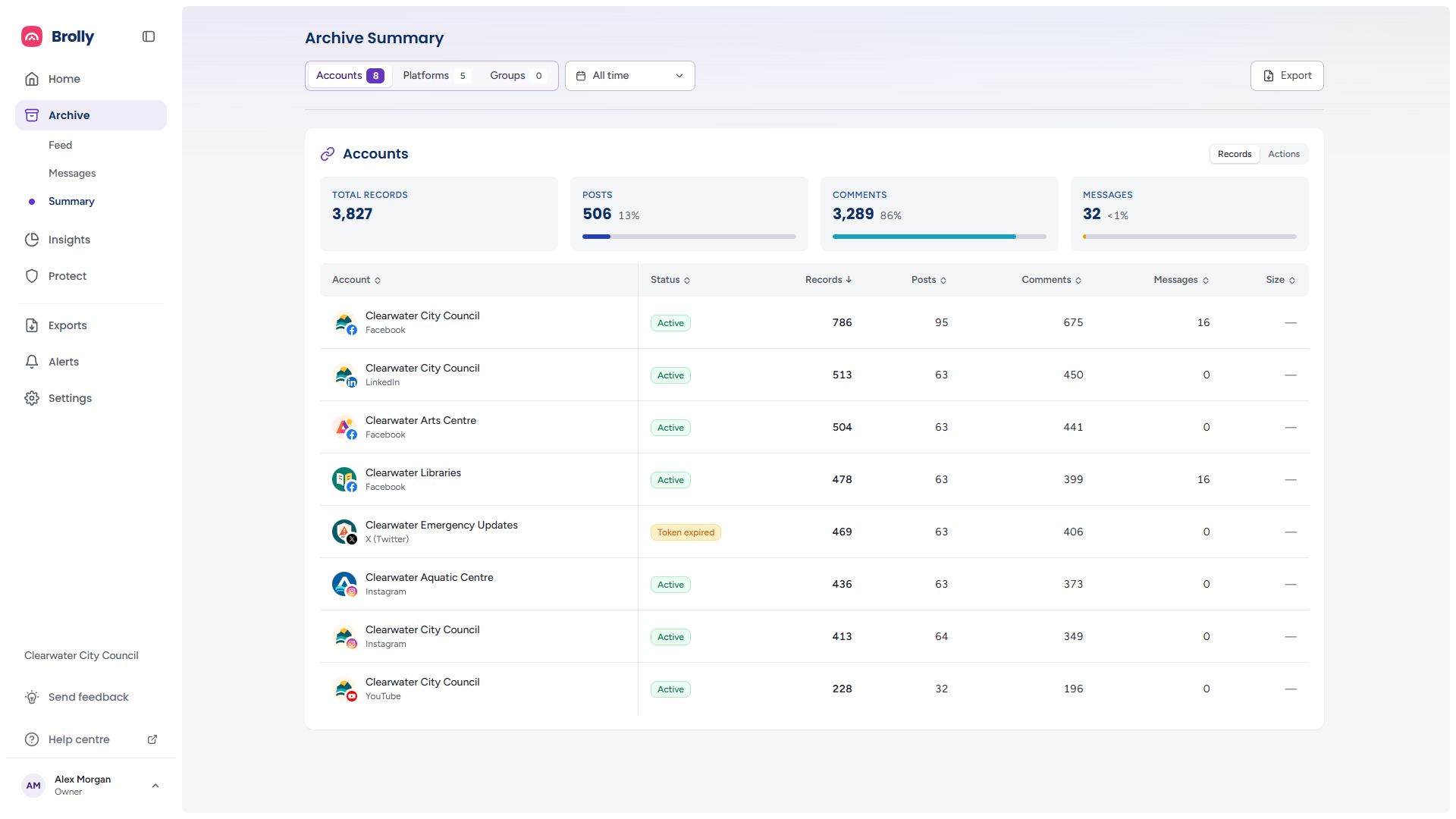
The Toolbar

- Accounts / Platforms / Groups — tabs that switch the view, each with a count of what it lists ("Accounts 8", "Platforms 5", "Groups 0"). Groups is offered to organisations with groups set up; see Groups
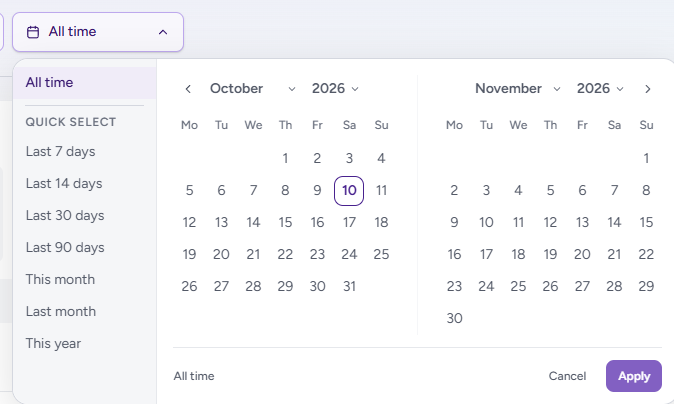
- All time — the date range the figures cover. It opens the same picker as Archive Messages: Quick select ranges (Last 7 days, Last 14 days, Last 30 days, Last 90 days, This month, Last month, This year) or a two-month calendar for a custom range, with Apply, Cancel and All time to clear
- Export — produces a spreadsheet or the printable report, described below. It is greyed out until the page has loaded
Accounts
The Accounts view has a Records / Actions toggle at the top right of its panel. Both views share a totals row and a table.
Records

The totals row shows Total records for the period, then Posts, Comments and Messages, each with its share of the total and a bar — "506 13%", "3,289 86%", "32 <1%" in the sample organisation.
The table has one row per connected account, with the account's avatar, name and platform:
- Account and Status — the status badge matches Settings → Accounts (Active, Token expired, On hold, and so on)
- Records — everything archived from the account in the period; the table opens sorted by this column, highest first
- Posts, Comments, Messages — the records broken down by type
- Size — the storage the account's records take, where Brolly has measured it ("—" otherwise)
Click any column header to sort by it — the arrow on the header shows the direction — and click a row to open the account's inspector. An organisation with nothing connected reads "No accounts are connected yet."; if the figures cannot be fetched the panel reads "Unable to load accounts" with Retry, and placeholder rows stand in while it loads.
Actions
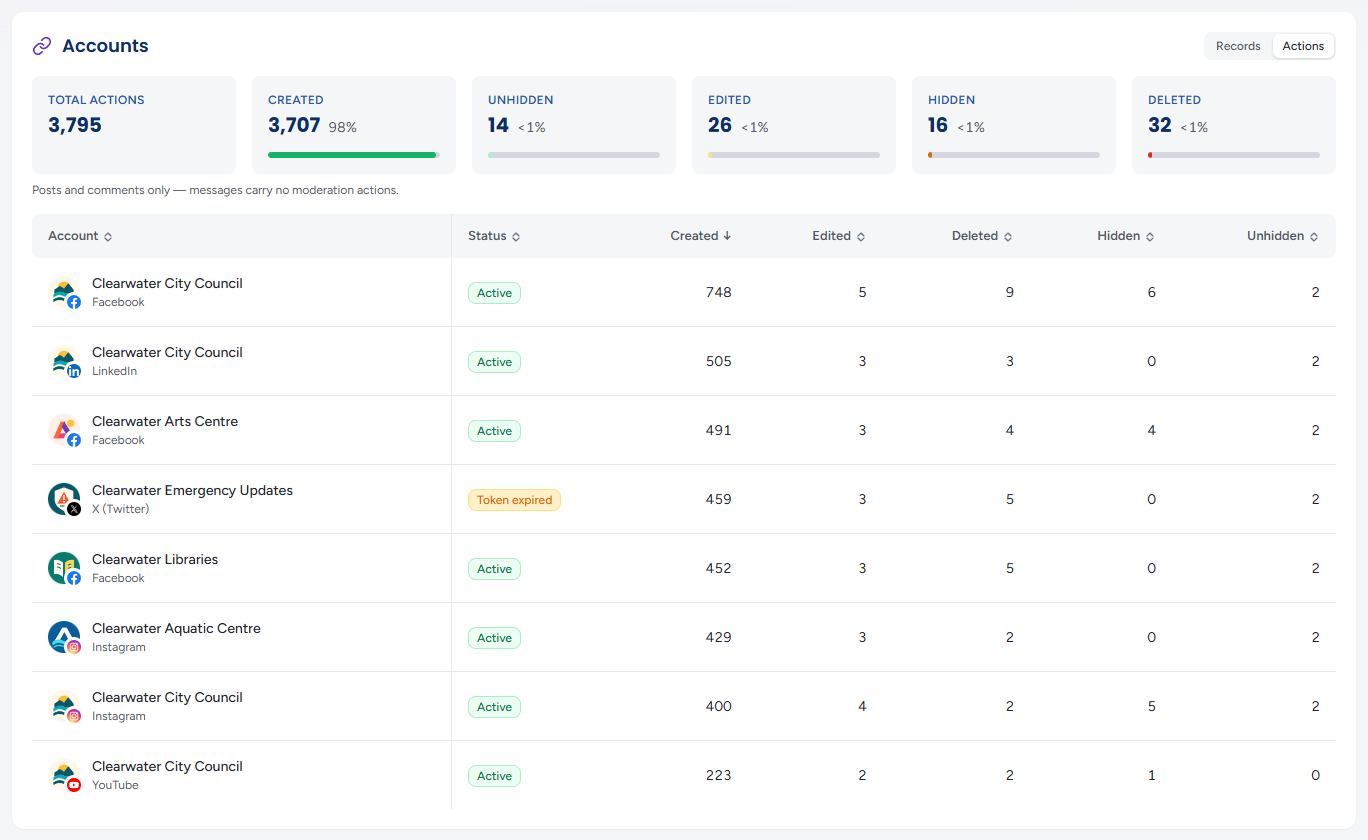
Switch to Actions and the figure columns become Created, Edited, Deleted, Hidden and Unhidden — how many times each happened to the account's posts and comments in the period. The totals row becomes Total actions with a tile and share for each kind ("Created 3,707 98%", "Unhidden 14 <1%" and so on), under the note "Posts and comments only — messages carry no moderation actions.
The Account Inspector
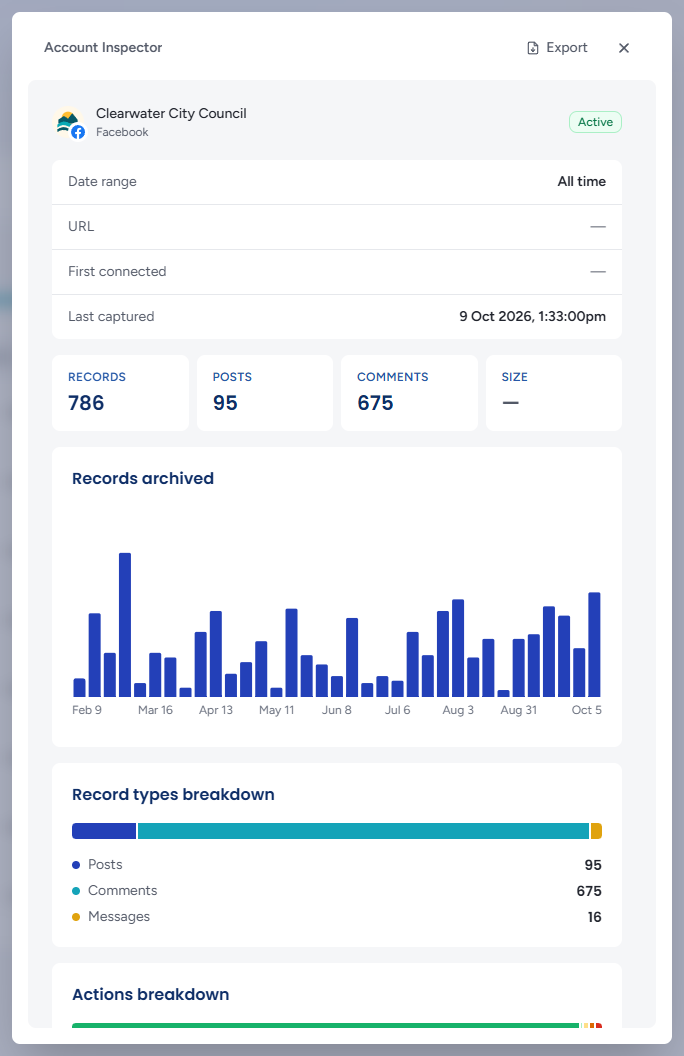
Clicking a row opens an Account Inspector drawer headed with the account, its platform and its status badge, then the Date range the figures cover, the account's URL, First connected and Last captured, figure tiles for its Records, Posts, Comments and Size, a Records archived bar chart across the period (hover a bar for its posts, comments and messages), and Record types breakdown, Actions breakdown and Storage breakdown bars with their figures. Its own Export offers CSV ("One spreadsheet holding every figure in the inspector") or PDF ("A printable copy of the inspector, opened in a new tab"). Close it with × or Escape.
Platforms
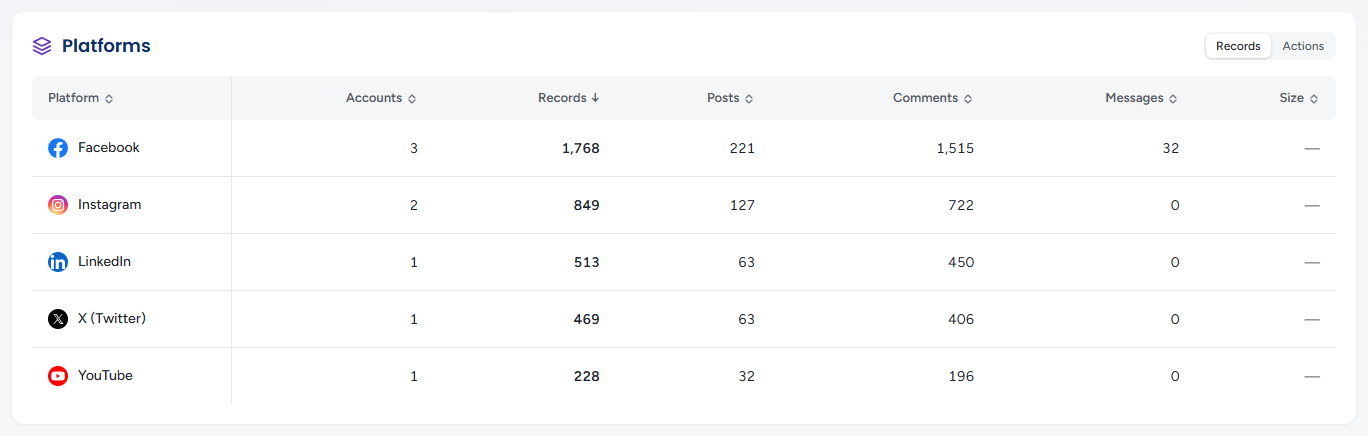
Platforms rolls the accounts up by platform — Facebook, Instagram, LinkedIn, X (Twitter), YouTube — with an Accounts column for how many each has, then the same Records (or Actions) columns as the Accounts view, sortable the same way. Click a platform's row for a Platform Inspector with the platform's figures and the accounts under it. With nothing connected it reads "No accounts are connected yet, so there are no platforms to report."
Groups
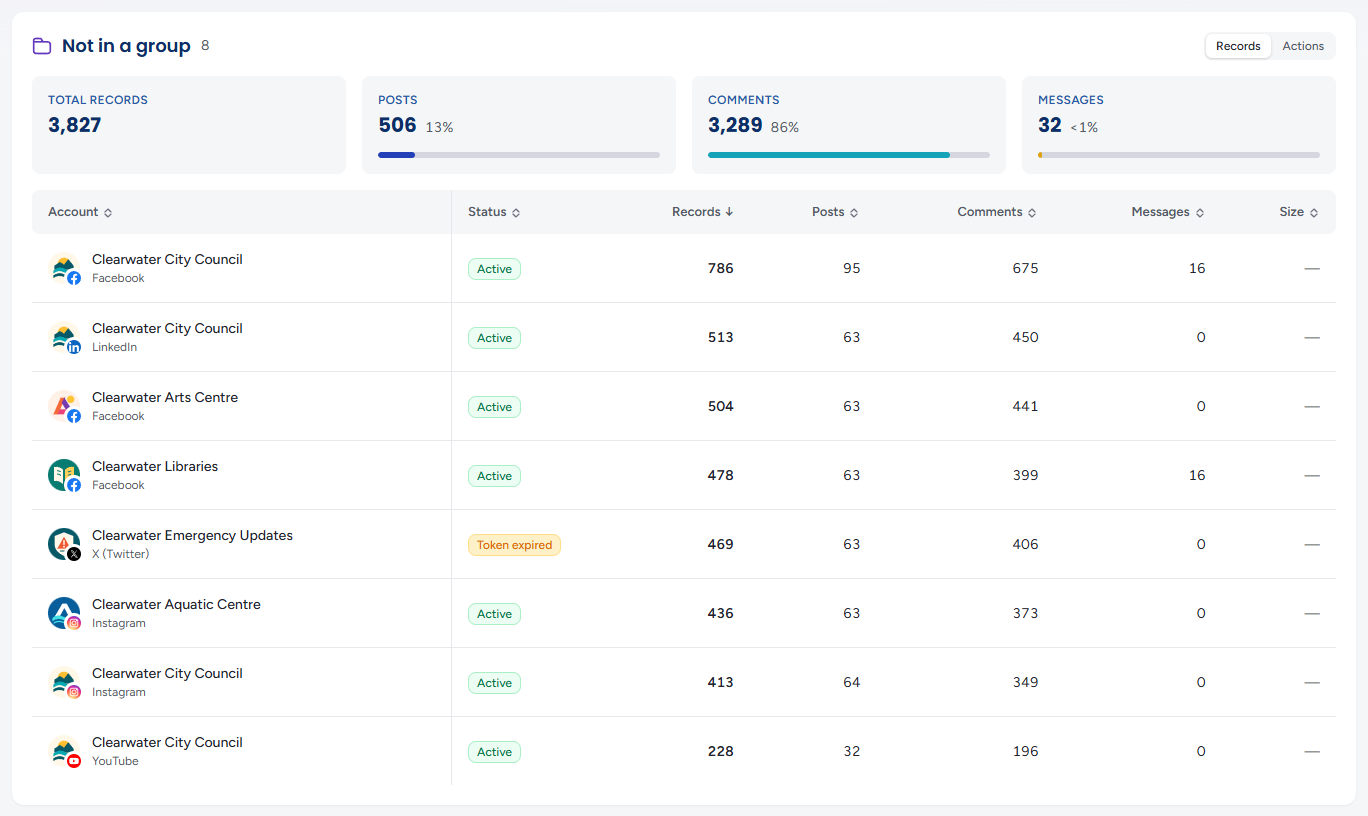
Groups lists the accounts under the group each one sits in, one panel per group headed with the group's name and account count, with accounts that belong to no group under Not in a group. Each panel is the Accounts view in miniature: its own totals row, the same columns and its own Records / Actions toggle.
Export
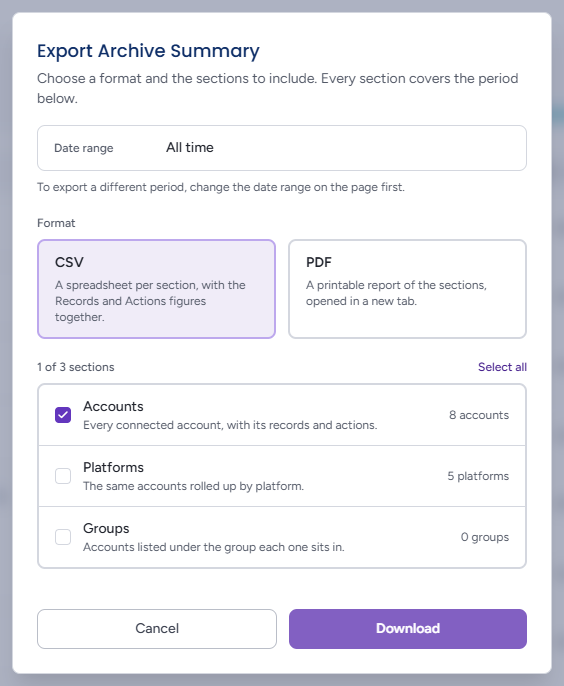
Export opens the Export Archive Summary dialog ("Choose a format and the sections to include. Every section covers the period below."). It states the Date range it covers — the one chosen on the page; as the note says, to export a different period change the date range on the page first — then asks for:
- a format: CSV ("a spreadsheet per section, with the Records and Actions figures together") or PDF ("a printable report of the sections, opened in a new tab")
- the sections to include — Accounts, Platforms and, where offered, Groups, each with a line on what it holds and its count ("8 accounts"). The tab you were on starts ticked, "1 of 3 sections" keeps score, and Select all / Clear all toggles the lot
The primary button reads Download for CSV and Print for PDF; Cancel closes the dialog. Nothing can be exported with no section ticked.
The Printable Report
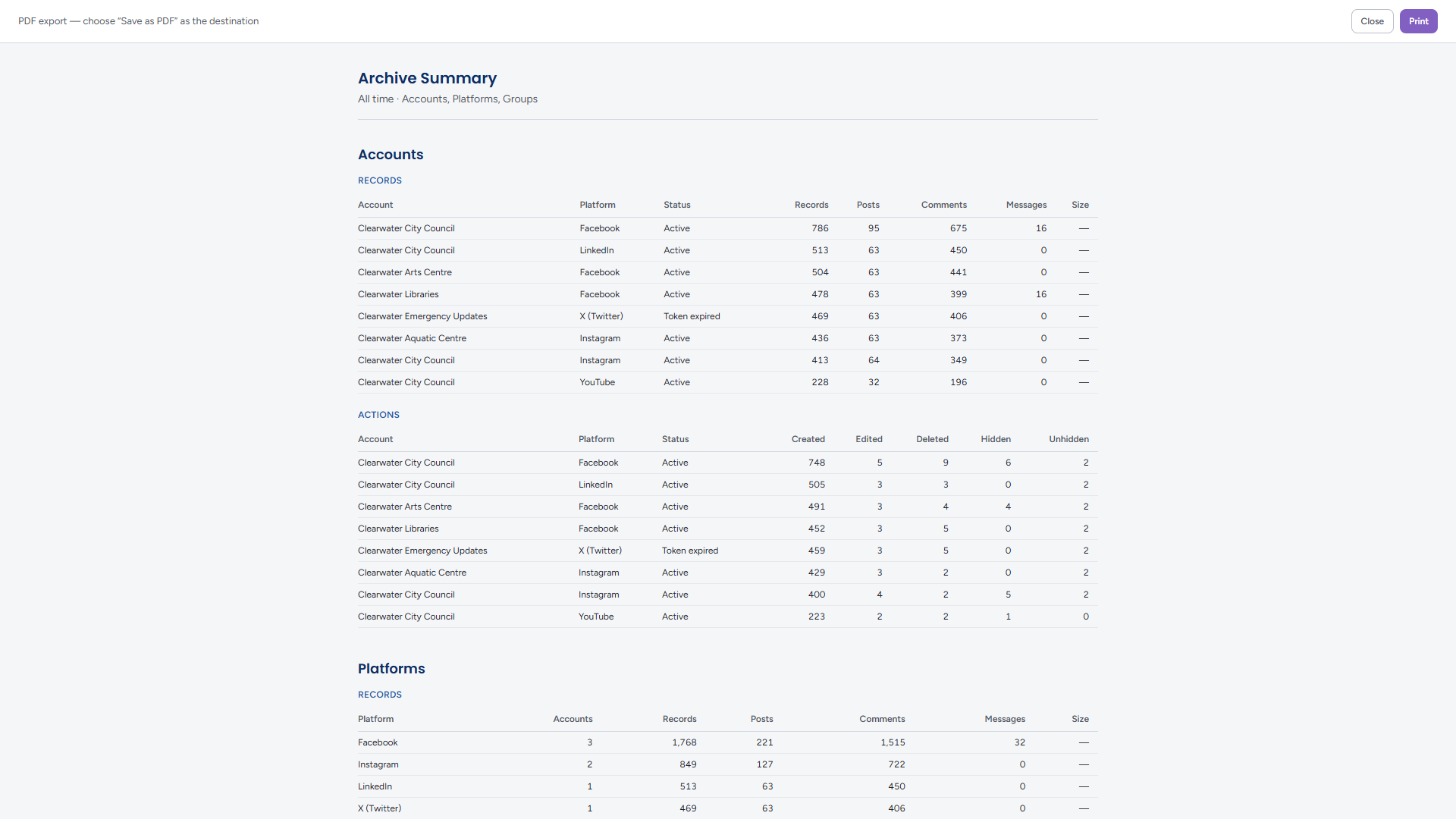
Choosing PDF opens the report in a new tab. A bar across the top reads "PDF export — choose 'Save as PDF' as the destination" with Close and Print; click Print and pick Save as PDF in your browser's print dialog to keep it as a file. The report is headed Archive Summary with its period and sections ("All time · Accounts, Platforms, Groups"), then for each section a RECORDS table and an ACTIONS table — the Accounts tables with Account, Platform, Status and the figure columns; the Platforms tables with Platform and Accounts; the Groups section one pair of tables per group, including Not in a group.
Tips
Summary is the quickest answer to "is everything still capturing?": an account whose Status is not Active is the one to check, and the inspector's Last captured tells you when it stopped.
Compare Records and Actions for the same period to see how much moderation an account needed — a high Hidden or Deleted count against a modest record count is worth a look.
Set the date range before exporting: the report covers exactly what the page shows, and the period is printed on it.