Managing Social Accounts
The Social accounts page: every connected account's status and records, its details drawer, its action tiles, and how to regroup or delete an account.
Overview
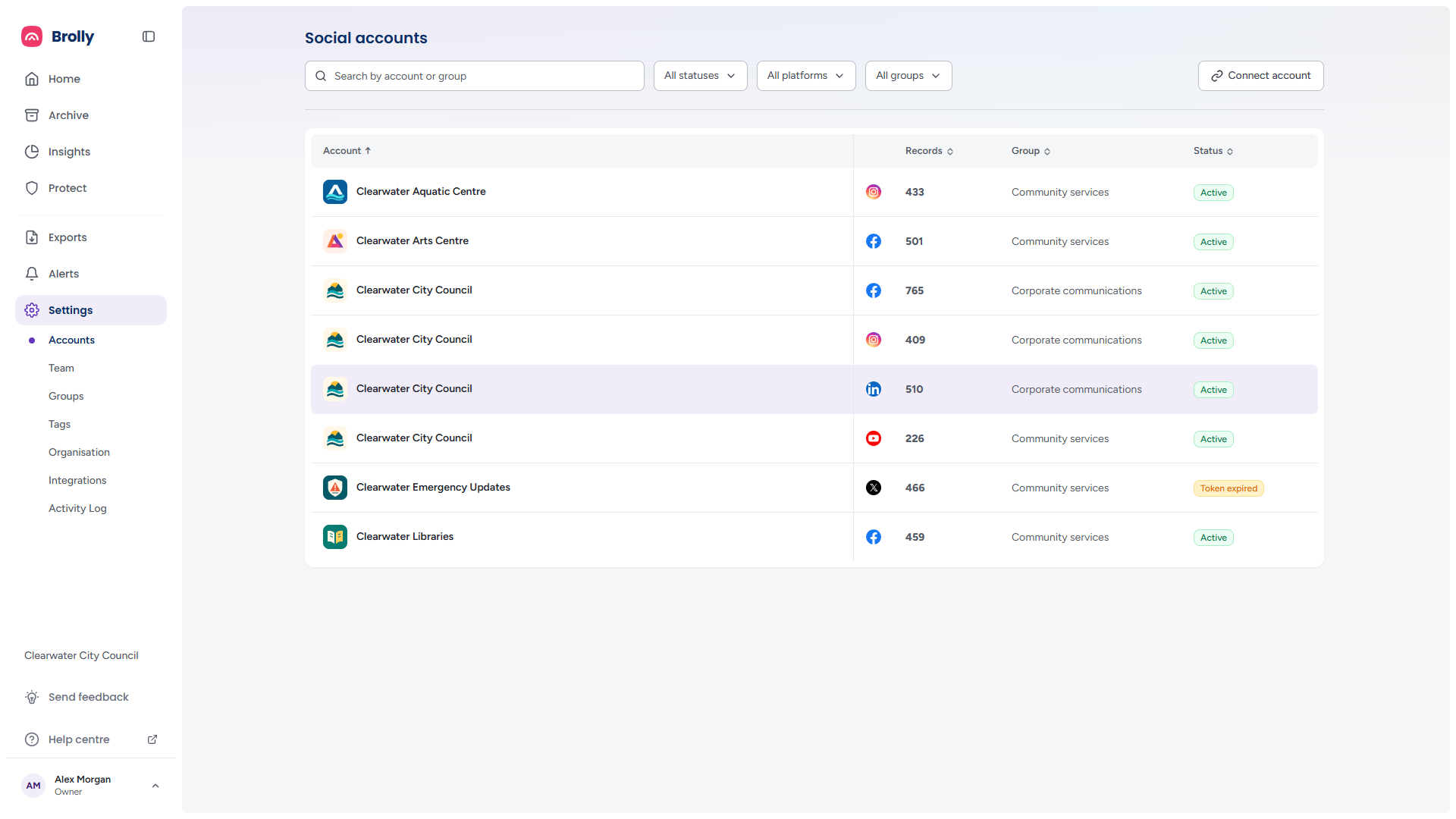
Settings → Accounts lists every social media account connected to your organisation — what platform it is on, how many records it has produced, which permission group it belongs to and whether it is capturing right now. Open any account for its full details and the actions that manage its connection: putting it on hold, re-connecting it, moving it to another group or deleting it. This article covers the page, the drawer and deleting an account; holding, re-connecting and turning on message capture each have a walkthrough in Holding, Re-connecting and Message Capture.
How to Get There
- Click Settings in the left sidebar — Accounts is the first page and opens by default
- Or click Accounts beneath Settings
The Toolbar

- Search by account or group — find accounts by name, or by the group they are in. The list narrows as you type, and an × appears in the box to clear it
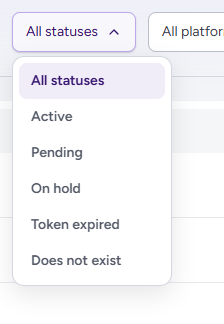
- All statuses — show only accounts in one state (see below)
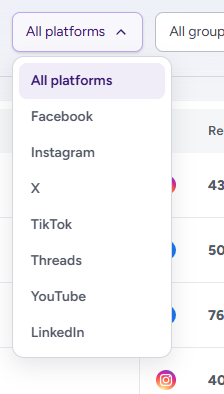
- All platforms — show accounts from one platform: Facebook, Instagram, X, TikTok, Threads, YouTube or LinkedIn
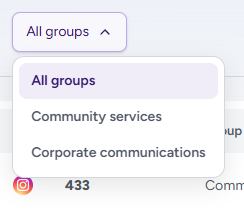
- All groups — show the accounts in one permission group. On a narrow window this dropdown is hidden; searching by group name still works
- Connect account — start connecting a new account; see Connecting Your First Account
Once a search or filter is set, a Clear button appears beside the dropdowns and resets all of them at once. Clearing never changes the column sort and never closes an open drawer.
The Accounts Table
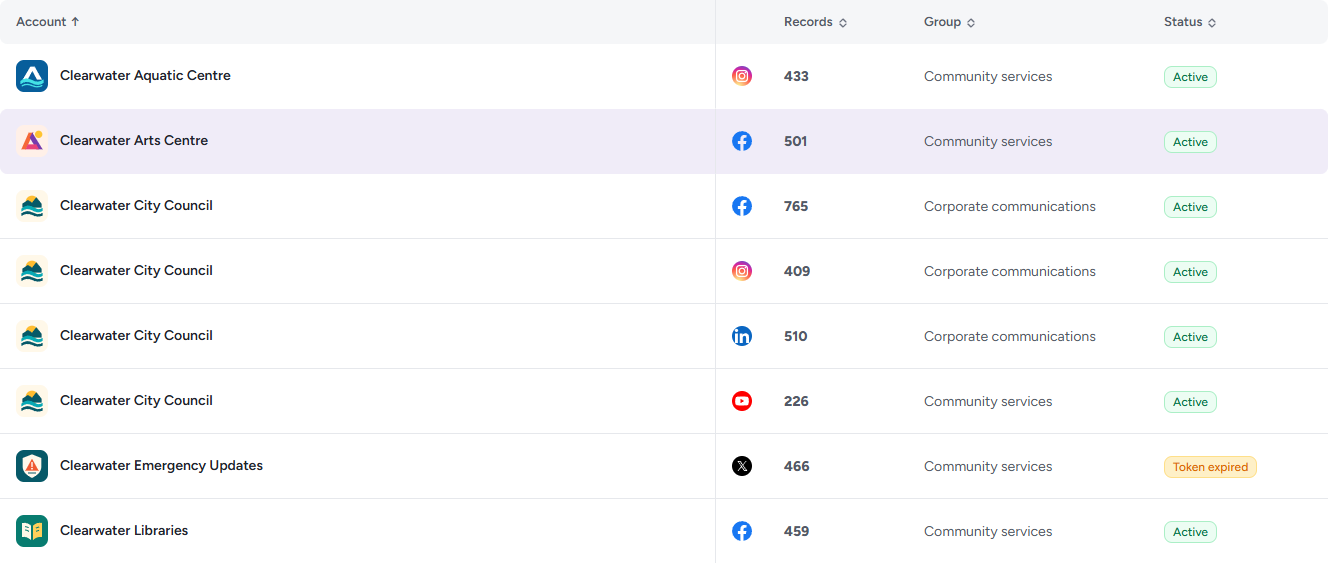
- Account — the account's name and avatar, with its platform icon in the next column. The same organisation name can appear several times when it has a page on more than one platform — the icon tells them apart
- Records — the total number of records captured from it
- Group — its permission group (new accounts land in Organisation (default))
- Status — see below
Click Account, Records, Group or Status to sort; the arrow beside the heading shows the direction and clicking again reverses it. The table opens sorted by Account, A to Z. The platform icon column does not sort. Click anywhere on a row to open the account's drawer.
Account Statuses
- Active — connected and capturing
- Pending — waiting to be activated. X and LinkedIn accounts are Pending from the moment you request them until the Brolly team activates them; for other platforms it means the authorisation was started but not finished. A Pending account has no actions in its drawer yet
- On hold — connected but paused, so not capturing. Use it to stop capture temporarily, or permanently for an account that has closed, without losing any records
- Token expired — the platform's authorisation has lapsed and must be renewed with Re-connect (see Re-connecting an Account)
- Does not exist — the page or profile has been removed on the platform
When Nothing Matches
If a search or filter hides every account, the table shows No accounts found and says what narrowed it — "“parks” didn’t match any connected accounts", "No connected accounts match the filters applied" — with Clear search (or Clear all filters when a dropdown is set) and a Connect account link. An organisation with nothing connected at all sees No accounts connected yet with a Connect your first account button instead of the table.
The Account Drawer
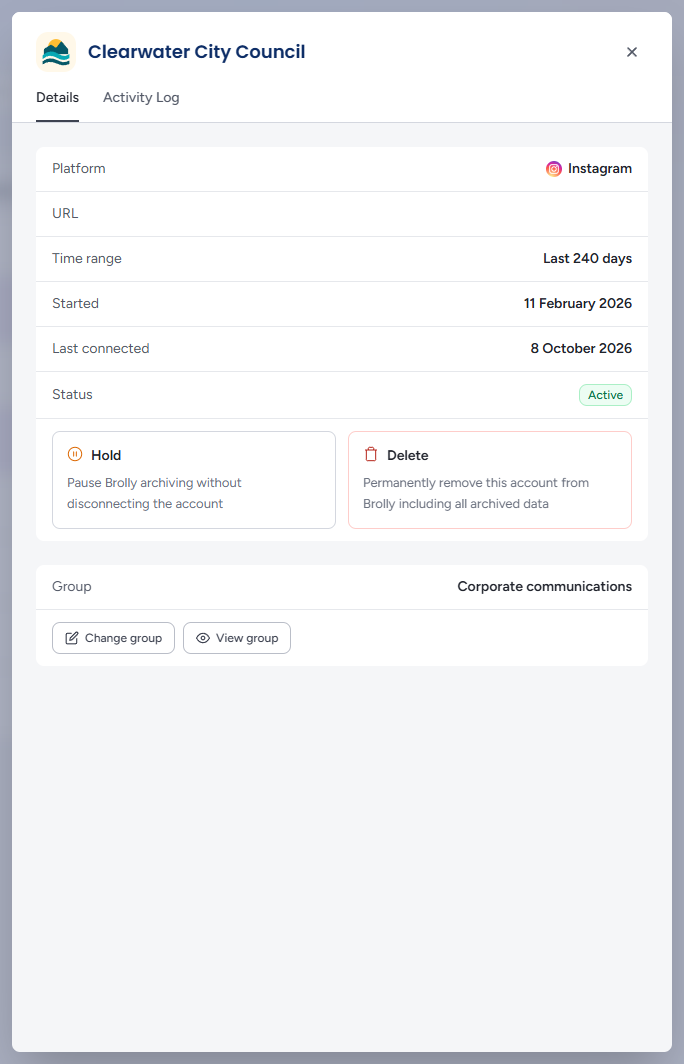
Clicking an account slides a panel in from the right with the account's name at the top and two tabs, Details and Activity Log. Close it with the ×, by pressing Escape, or by clicking the dimmed page behind it. The open account and tab are kept in the page's address, so the browser's Back button and a shared link both return to the same drawer.
Details
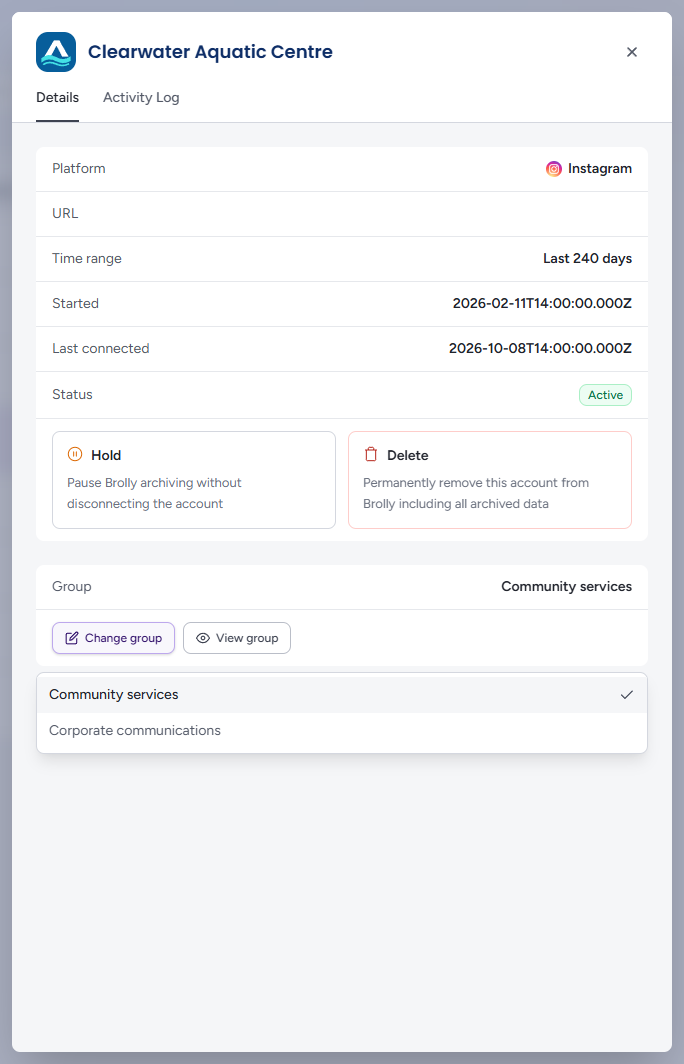
The top card holds the account's facts and its status:
- Platform
- Account type — Facebook accounts only, for example Page
- URL — the account's address on the platform, as a link that opens in a new tab
- Messages enabled — Facebook accounts only: Yes or No, whether Messenger conversations are captured for this page (see Message Capture)
- Time range — the period of content being archived, for example All time or Last 240 days
- Started — when the account was first connected
- Last connected — when its authorisation was last refreshed
- Status — the badge, followed by the action tiles for that state (below)
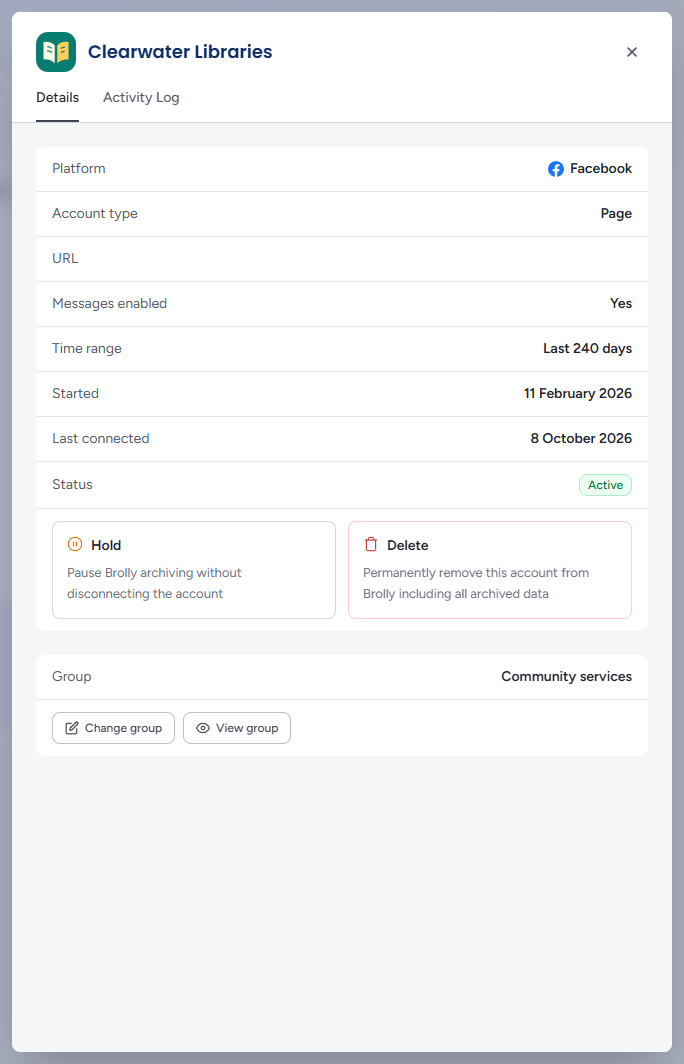
Status and Actions
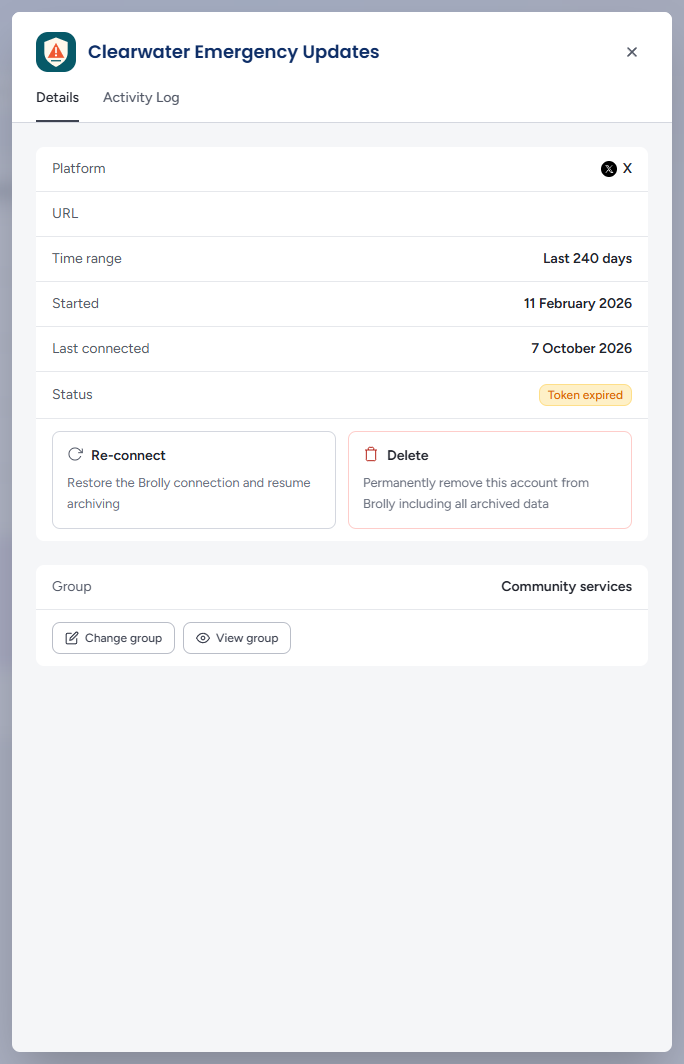
The tiles under the Status row depend on the account's state:
- Hold — Active accounts: "Pause Brolly archiving without disconnecting the account"
- Enable messages — Active Facebook Pages whose messages are not yet captured: "Start archiving Messenger conversations and backfill from the connect date"
- Re-connect — accounts On hold or with a Token expired: "Restore the Brolly connection and resume archiving"
- Delete — every state except Pending: "Permanently remove this account from Brolly including all archived data"
What Hold, Re-connect and Enable messages each do, and what to check before you click them, is in Holding, Re-connecting and Message Capture. Delete is covered under Deleting an Account below.
Confirming an Action
Clicking a tile does not act straight away. A confirmation panel slides over the drawer with the action's name as its heading (Hold connection, Re-connect account, Enable messages or Delete connection), the account's name and platform, and what will happen:
- Hold connection — "This will pause archiving for the selected account. The existing N records will remain in Brolly, however no further records will be captured until the account is re-connected." Tick I understand — hold connection, then click Confirm hold
- Re-connect account — "This will re-establish the connection for the selected account. Brolly will resume capturing new records immediately." Click Confirm re-connect
- Enable messages — "This will start archiving Messenger conversations for this page and backfill past conversations from the date the account was connected. No re-authentication is needed." Click Enable messages
- Delete connection — "This will permanently remove the selected account and all N archived records from Brolly. This action cannot be undone." Tick I understand — delete connection, then click Confirm delete
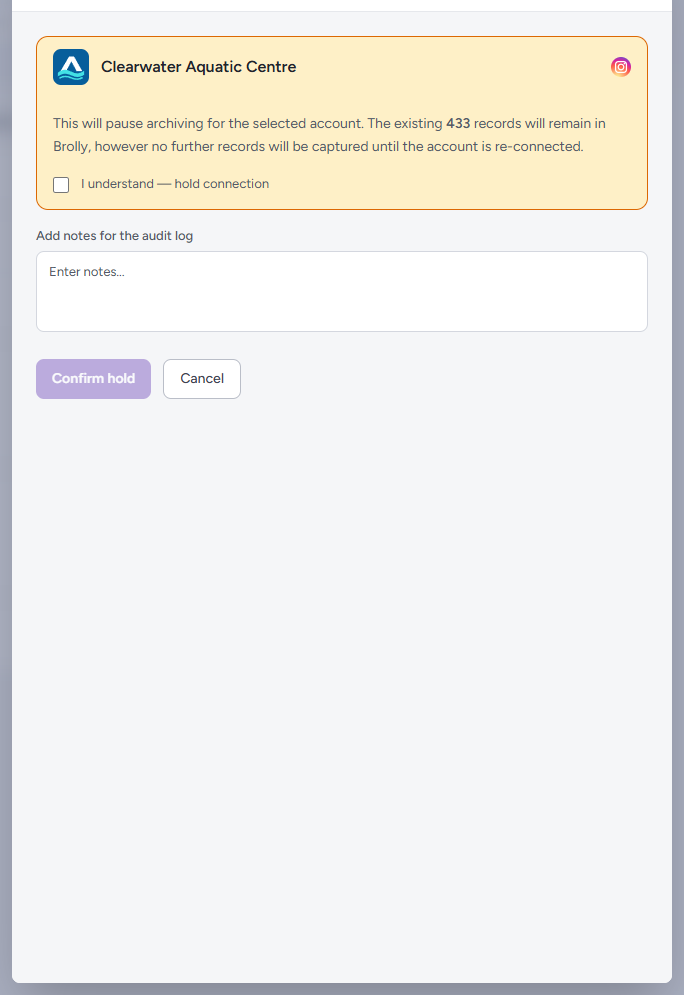
Hold, Re-connect and Delete also offer Add notes for the audit log — a free-text box whose contents are stored with the event in the Activity Log, so write down why you did it. The confirm button stays greyed out until the "I understand" box is ticked. Cancel, the ← back arrow or Escape returns to the drawer without doing anything; the × closes the whole drawer.
After confirming, the drawer closes the panel and the Status badge updates. If the request fails, a red message appears at the top of the drawer (for example "Could not hold this account") — or, if the drawer has already closed, as a banner above the table naming the account, with a Dismiss ×.
Group
The lower card shows the account's permission group with two buttons:
- Change group — opens a list of your groups with a tick beside the current one; click another to move the account. The change takes effect immediately and decides who in your team can see the account's records
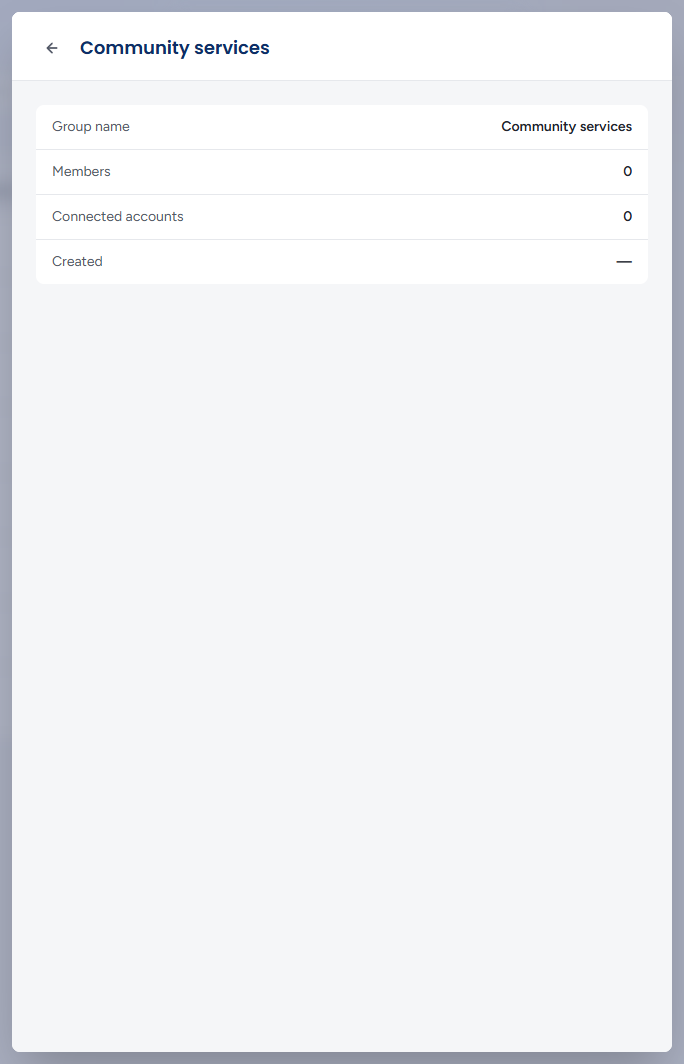
- View group — slides in a summary of the group (Group name, Members, Connected accounts, Created) with a ← back arrow to return to the account
Organisations without the Groups add-on do not see this card, the Group column or the group filter — see Managing Groups.
Activity Log
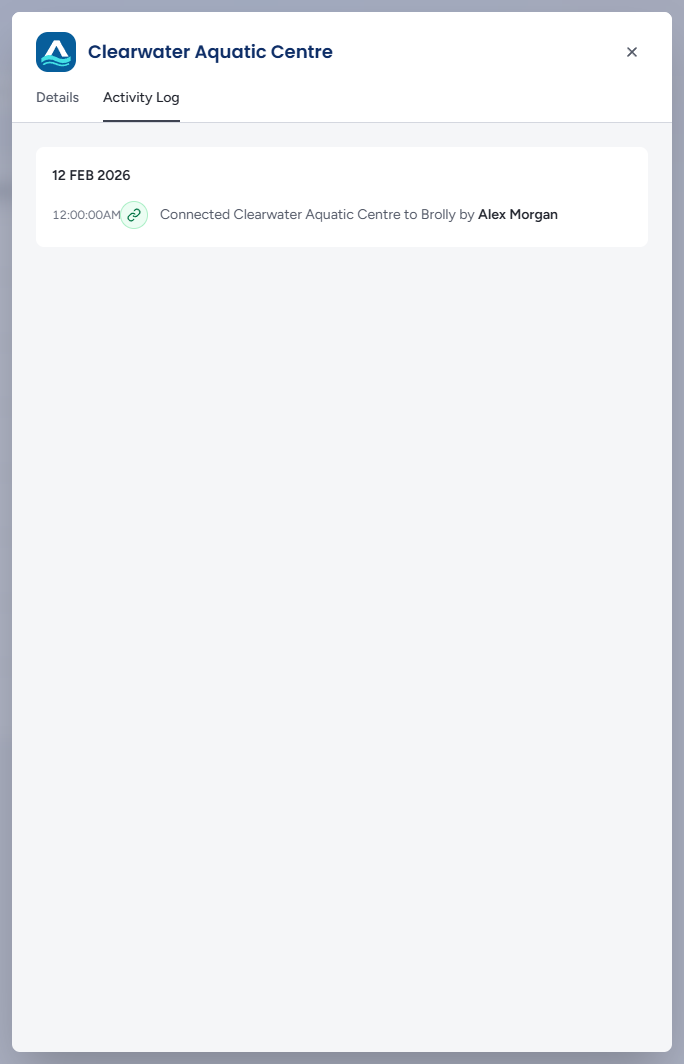
The Activity Log tab lists what has happened to this account — connected, re-connected, put on hold, group changed — grouped by day, with the time and who did it. A new account shows "No activity recorded yet." until something happens to it.
Deleting an Account
Open the account, click Delete, tick I understand — delete connection, add a note for the audit log if your records policy asks for one, and click Confirm delete. The drawer closes and the account leaves the table.
Warning: Deleting an account permanently removes the connection and every record captured from it. This cannot be undone. If you only need to stop capturing, use Hold instead — it keeps everything (see Putting an Account on Hold).
Tips
Suspect content is not being captured? Filter All statuses to On hold and Token expired — those accounts are not archiving.
The Records count is a health check: an active account whose count has stopped growing is worth opening to check Last connected.
Every connection, hold and group change here is also recorded in the organisation-wide Activity Log — and the note you add when confirming an action is stored with it.