Holding, Re-connecting and Message Capture
Pause an account without losing its records, renew a platform connection that has expired, refresh an older Instagram connection for Stories, and turn on Messenger capture for a Facebook Page.
Overview
Three of the actions in an account's drawer change what Brolly captures from it without removing anything: Hold pauses capture, Re-connect restores a connection that has been paused or whose platform authorisation has expired, and Enable messages turns on Messenger capture for a Facebook Page. This article covers each in turn. The Social accounts page itself — its table, the drawer's tabs, changing an account's group and deleting an account — is covered in Managing Social Accounts.
How to Get There
- Click Settings in the left sidebar — Accounts opens by default
- Click the account's row to open its drawer. The action tiles sit beneath Status on the Details tab, and each opens a confirmation panel before anything happens
Putting an Account on Hold
Organisations close official accounts for all sorts of reasons: a restructure, the end of a campaign or project, or the end of an elected official's term. You do not want to lose the archive you have built. Putting the account on hold stops Brolly capturing new records from it while everything already captured stays in your archive.
- Open the account from the Social accounts table
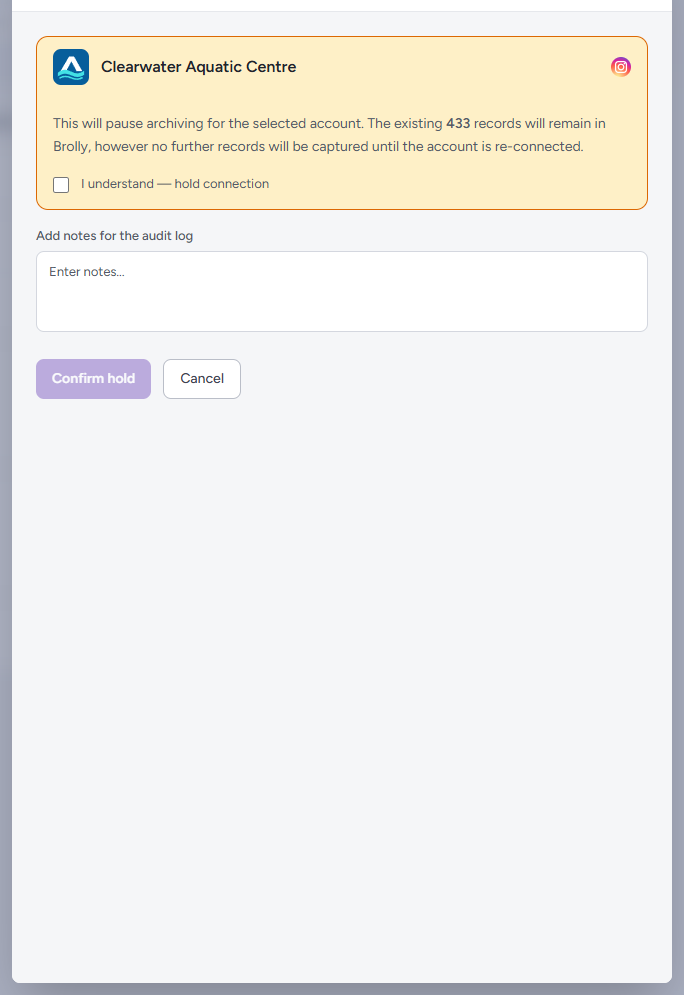
- Click Hold, read the confirmation, tick I understand — hold connection, optionally add a note for the audit log, and click Confirm hold
After that:
- Brolly stops capturing new posts, comments and messages from the account
- Every record already captured is kept, and stays searchable and exportable
- The account's status shows On hold in the table, so you can see at a glance which accounts are paused
To start capturing again, open the account and click Re-connect.
Re-connecting an Account
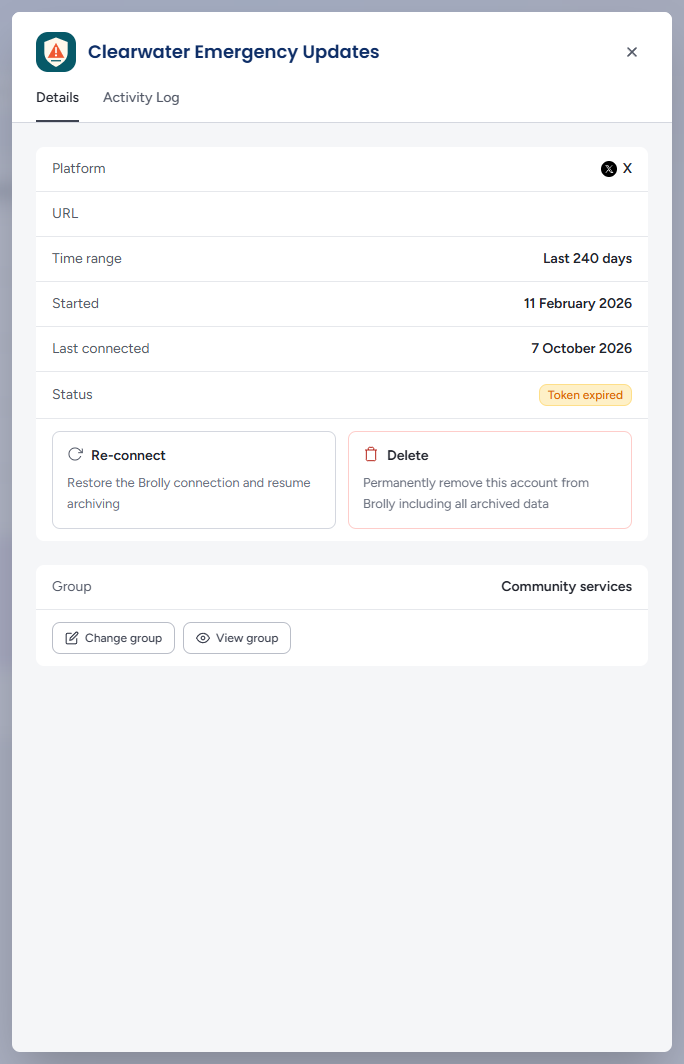
Facebook, Instagram, Threads and TikTok connect with a sign-in and use an access token — a system-generated credential that works like a password between Brolly and the page. The platform expires these periodically as a security measure, or when it changes how your account is accessed. When that happens the account shows Token expired and stops capturing until it is re-connected.
Before you begin:
- Sign in to the platform first, with the account that manages the page — the same one used to connect it originally
- Confirm that account is still an admin of the page; losing admin rights is the most common cause of repeat disconnections
- Allow pop-ups for the platform in your browser
Then:
- Open the account from the Social accounts table — filter All statuses to Token expired to find them quickly
- Click Re-connect, then Confirm re-connect
- The platform walks you through granting Brolly read-only access again — sign in if prompted and approve the permissions
- Back in the drawer, the status returns to Active
Records already captured are unaffected. Once the account is re-connected, Brolly backfills what the platform still makes available for the gap; content edited, deleted or expired while capture was interrupted may not be recoverable, so re-connect as soon as you can and check the affected period.
X, YouTube and LinkedIn connect without a sign-in and do not use tokens, so they cannot expire this way. If one of those stops capturing, check its URL or handle is still correct, then email support@brolly.com.au. See the platform guides under Connecting Your First Account.
Instagram Stories on Older Connections
Instagram accounts connected recently capture Stories as part of normal capture. If an Instagram account was connected some time ago, the original connection may not include the permissions needed for Stories. Refreshing the connection fixes it: open the account, click Hold and confirm, then click Re-connect and sign in with the account that has admin access to the Instagram account. Existing records are kept throughout. If Stories still do not appear after a re-connect, contact support@brolly.com.au.
Message Capture
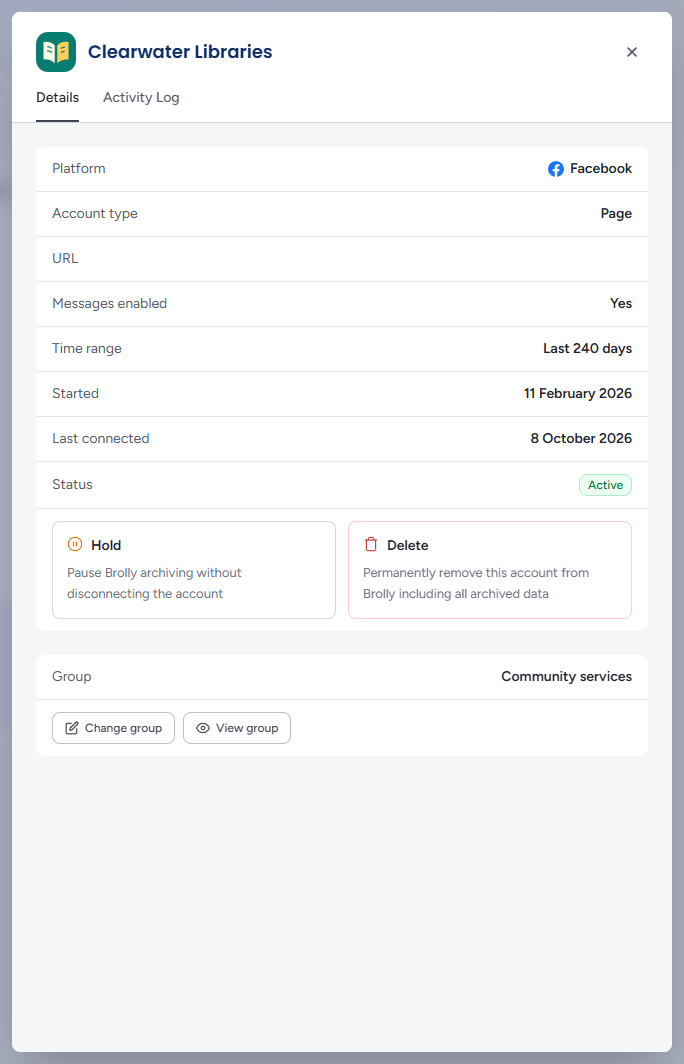
When a Facebook Page is connected with messages enabled, Messenger conversations sent to it are captured and appear under Archive → Messages — see Archive Messages. The drawer's Messages enabled row shows whether that is on for each Facebook account.
To turn it on later, open the account and click Enable messages: Brolly starts archiving conversations and backfills past ones from the date the account was connected, without asking you to sign in to Facebook again.
There is no switch to turn message capture off. If your organisation decides it no longer wants to archive private messages for a particular account, email support@brolly.com.au and the team will turn it off; posts, comments and other public activity continue to be archived as normal. Turning message capture off stops new messages being archived; it does not delete the message records already in your archive. Those remain, subject to your organisation's retention arrangements. If you believe previously captured messages should be removed, discuss it with the Brolly team.
Tips
Suspect content is not being captured? Filter All statuses to On hold and Token expired — those accounts are not archiving.
Add a note when you confirm a hold or re-connect: it is stored with the event in the organisation-wide Activity Log, which is where an auditor will look for why.
Facebook, Instagram, Threads and TikTok are the only platforms that can show Token expired. If an X, YouTube or LinkedIn account stops capturing, it is not a token problem — see Account Stopped Capturing.