Filters and Saved Searches
Narrow the Archive feed with the Filters dialog — record type, who posted, sources, action types, media types and timeframe — and save a view you keep rebuilding as a named search.
Overview
The Archive toolbar's keyword search, search scope, match mode, content filter and sources picker are covered in Using the Archive. This article covers the two controls at the right-hand end of that toolbar: Filters, the dialog that narrows the feed by everything else — record type, who posted, sources, action types, media types and timeframe — and Saved searches, which keeps a view you have set up so you can reopen it in a click.
How to Get There
- Click Archive in the left sidebar — the Feed opens by default
- Filters is the button towards the right of the toolbar above the cards; the bookmark at the far right is Saved searches
The Filters Dialog
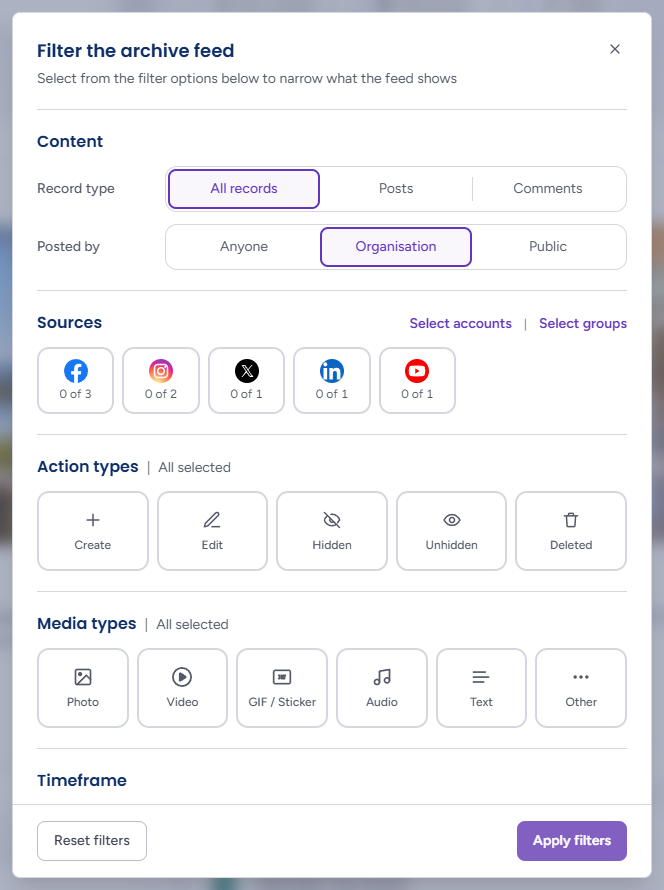
Filters opens the Filter the archive feed dialog, covering everything else:
- Content — Record type (All records, Posts or Comments) and Posted by (Anyone, Organisation — your accounts — or Public, other people). Posted by mirrors the toolbar's content filter
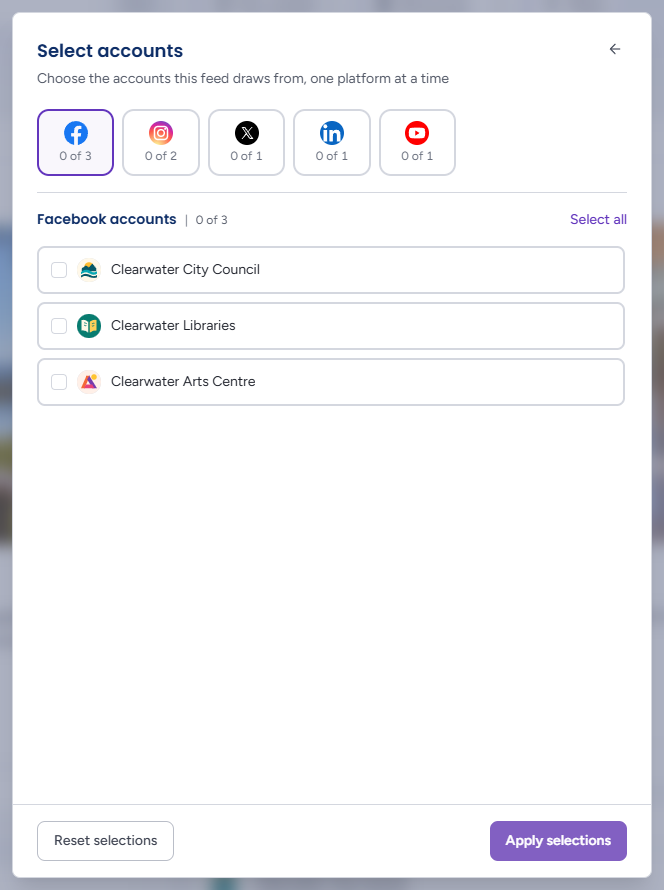
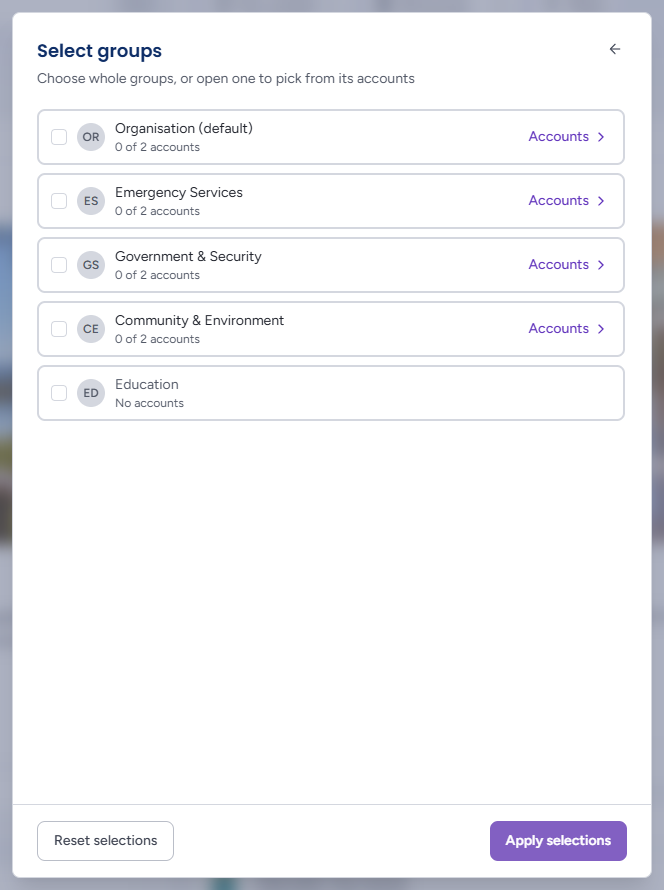
- Sources — one tile per connected platform reporting how much of it the feed draws from ("0 of 3"). Select accounts opens a step ("Choose the accounts this feed draws from, one platform at a time"): click a platform tile to list its accounts, tick them individually or Select all for that platform, then Apply selections (or Reset selections to clear). A platform with many accounts gets a search field above its list. Select groups does the same by group ("Choose whole groups, or open one to pick from its accounts"): tick a whole group — each row says how many of its accounts are in, "0 of 2 accounts" — or click Accounts on a row to pick within it; a group with no accounts is greyed out. This does the same job as the All sources picker on the toolbar (see Sources), which drops off the toolbar on a narrow window
- Action types — Create, Edit, Hidden, Unhidden, Deleted — the actions that produced a record version. The heading reads "All selected" until you deselect one. Deselect Create to see only moderation activity, for example
- Media types — Photo, Video, GIF / Sticker, Audio, Text, Other
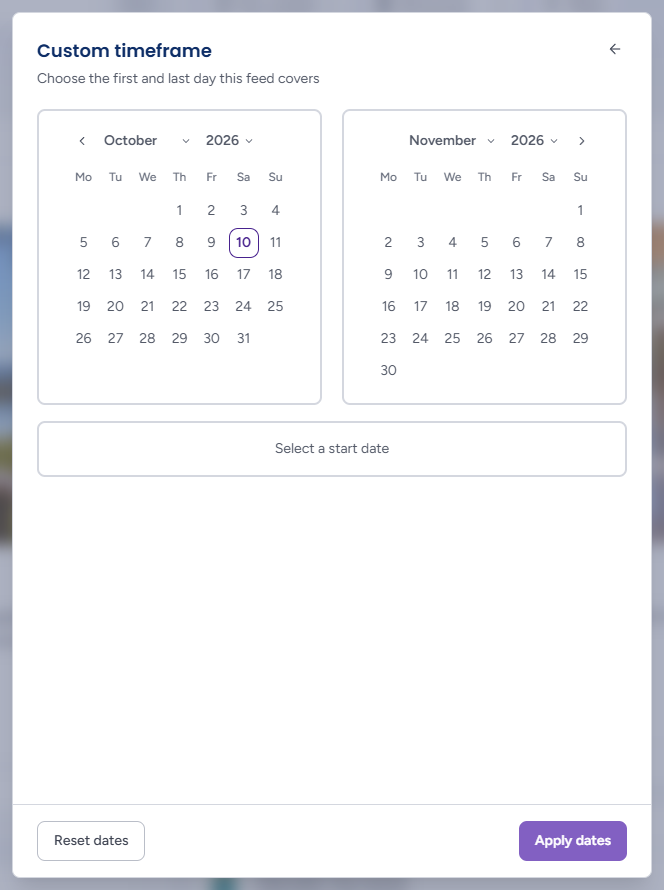
- Timeframe — Last 7 days, Last month, Last year, All time, or Custom, which opens a Custom timeframe step inside the dialog ("Choose the first and last day this feed covers"): two months side by side with month and year drop-downs, a bar beneath that prompts Select a start date and then the end date, and its own Reset dates and Apply dates
The back arrow in a step's corner returns you to the main filters without losing what you chose there. Click Apply filters to update the feed or Reset filters to clear the dialog. A feed narrowed to a handful of accounts counts on the Filters badge, so it says so even where the Sources field is not on screen.
Once filters are applied, the Filters button shows a count badge, a Reset button appears beside it, and Export results and Save Search join the toolbar — see When Filters Are Active.
Saved Searches
If there is a view you keep rebuilding — one account's posts over the last quarter, everything tagged with a case reference, only deleted items — save it once and reopen it in a click.
Saving a Search
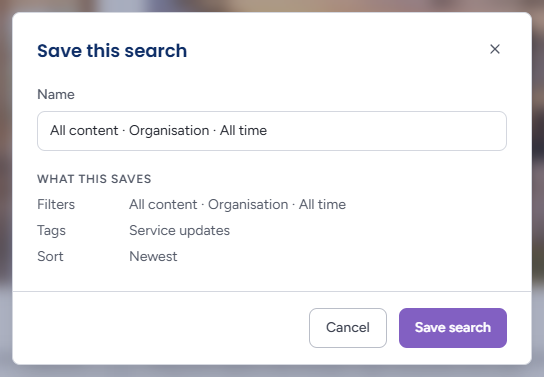
- Set up the feed the way you want it — search, filters, sources, tags and sort
- Click Save Search in the toolbar (it appears once a filter or keyword is in place — there is nothing to save on the unfiltered feed)
- Give it a Name (Brolly suggests one from the filters, such as "All content · Organisation · All time") and check What this saves — the Filters, any Tags and the Sort order
- Click Save search (or Cancel). A toast confirms it — "Saved: Roadworks" — with Undo
Opening a Saved Search
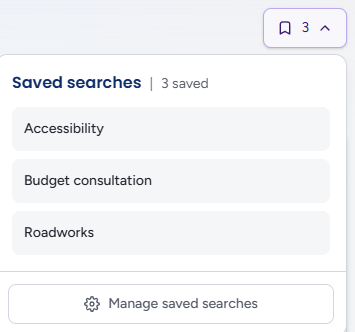
Click the bookmark button to list your saved searches — the one that matches the current view is marked On screen now — and click one to apply it. The count on the button tells you how many you have.
Managing Saved Searches
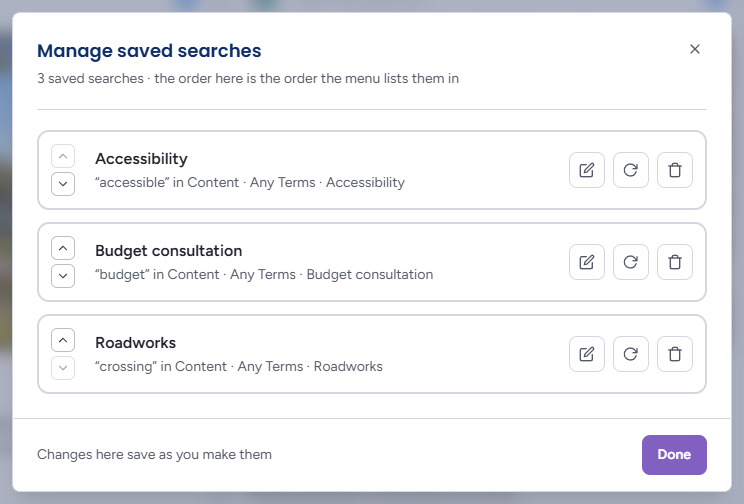
Manage saved searches at the bottom of the menu opens a dialog headed with the count ("3 saved searches · the order here is the order the menu lists them in"). Each saved search shows its name and a one-line summary of what it saves ("“crossing” in Content · Any Terms · Roadworks") and has four controls: the up and down arrows reorder the list, the pencil renames it in place (press Enter to keep the new name), the refresh icon updates it to whatever is on screen now, and the bin deletes it. As the footer says, changes here save as you make them — an update or a removal shows a toast ("Updated: Roadworks", "Removed: Roadworks") with Undo — and Done closes the dialog.
Saved searches and the Home shortcut are both personal: each is saved in your own browser, not shared with the team. For a view everyone should have one click away, share the Archive address of the filtered feed (the filters are written into it) or the steps to recreate it. Seeing the records themselves still depends on each person's groups.
Tips
Filter Action types to Hidden and Deleted only for an instant audit of moderation activity across every account — then save it, so the audit is one click next time.
For a request that may come back — a standing matter, a recurring complainant — save the search beside the export so the same filters are ready next time. See Exporting records for an FOI or records request.