Viewing a Record
The Post and Comment Inspector — every captured version of a record, its comment thread, media, annotations, details and log in one place.
Overview
Clicking a record anywhere in Brolly opens it in the Inspector — a full-screen view of everything Brolly holds for that record. For a post it is the Post Inspector; for a comment, the Comment Inspector, which also shows what the comment was replying to. It is the place to read a record in full, review its history, add your own notes and tags, and export it on its own.
How to Get There
- Click any record card in the Archive feed
- Click an item under Recent posts or Recent comments on Home
- Follow a link to a record from an alert or a tag
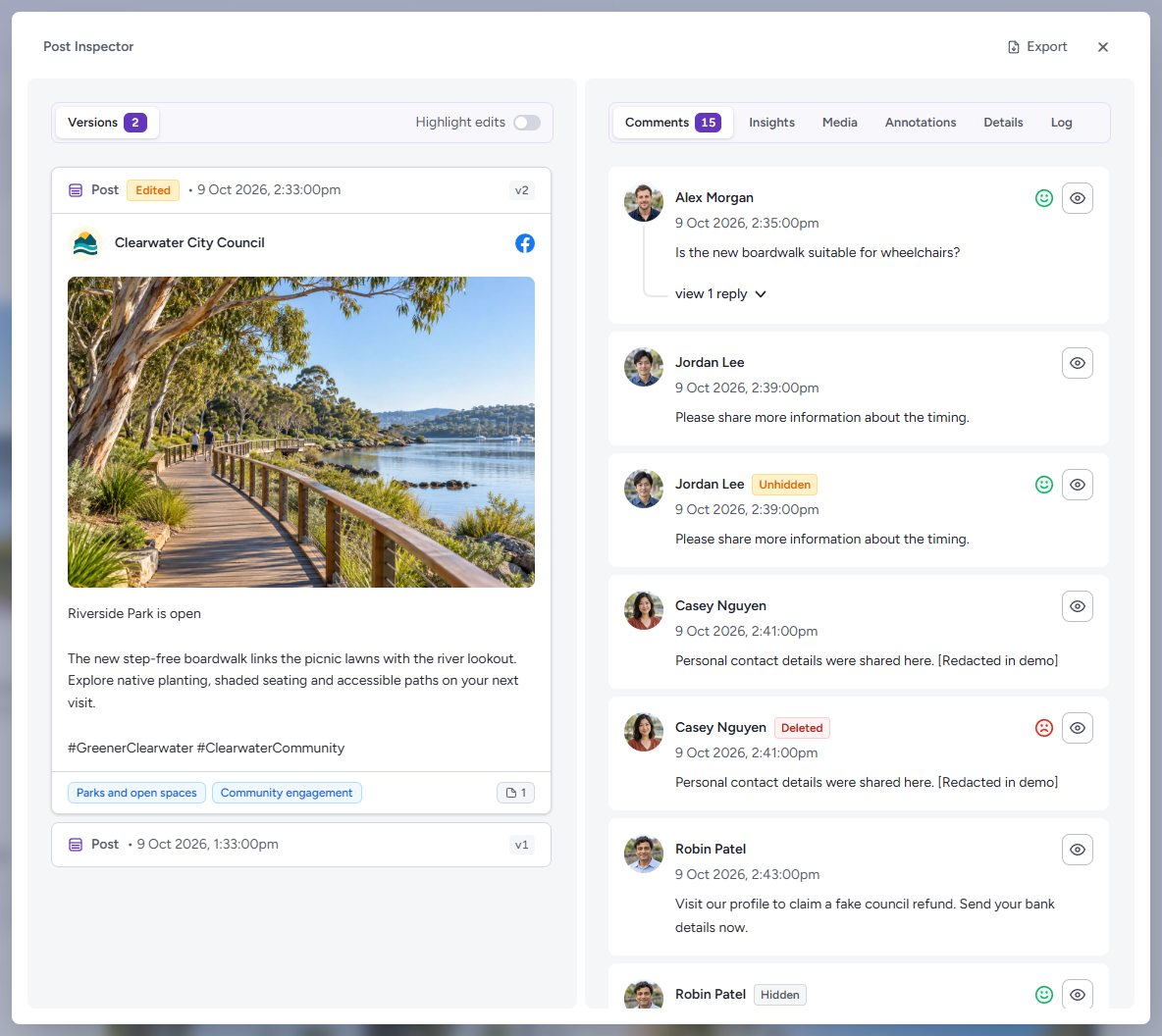
Header
The header names the inspector type and has three controls:
- View live — opens the original on the social platform in a new tab (shown only where Brolly holds a link to it)
- Export — exports this record on its own, described below
- × — closes the inspector and returns you to where you were (Escape does the same)
Exporting One Record
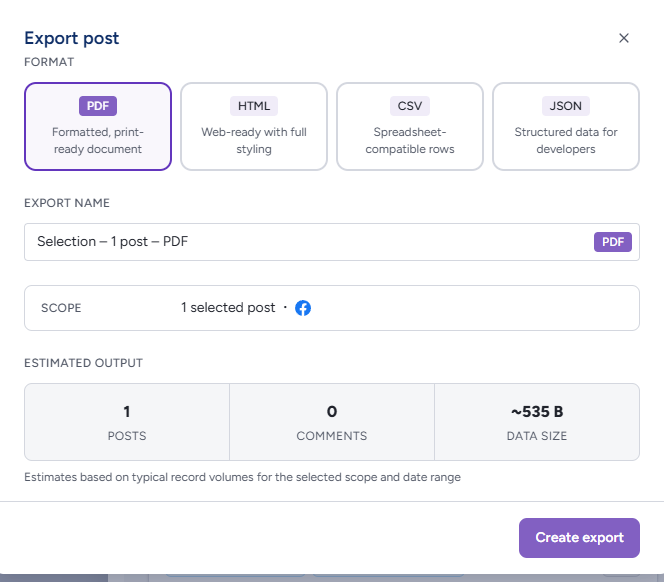
Export opens the Export post (or Export comment) dialog with the record already chosen — "1 selected post" with its platform. Pick a format (PDF, HTML, CSV or JSON), keep or change the suggested file name, and check the Output estimate of posts, comments and data size; link screenshots are counted in it. Create export queues the file, which appears on the Exports page; × closes the dialog without exporting. See Exports for the formats.
On a phone the inspector fills the screen, and where there is no room for the versions beside the tabs they become the first tab instead.
Left Panel — Versions
The left panel shows the record itself. The Versions count tells you how many captured versions Brolly holds: one for the original capture, plus one for each time the record was edited, hidden, unhidden or deleted afterwards. Each version card shows the record type, a badge for what produced it (Edited, Hidden, Unhidden, Deleted), its date and time, a version label (v1, v2…), the account and platform, the full content, and a footer with its tags and attachment count. The newest version is expanded; click any other version card to read that version in full. Tags and notes are kept per version, so the version you expand here is the one the Annotations tab edits.
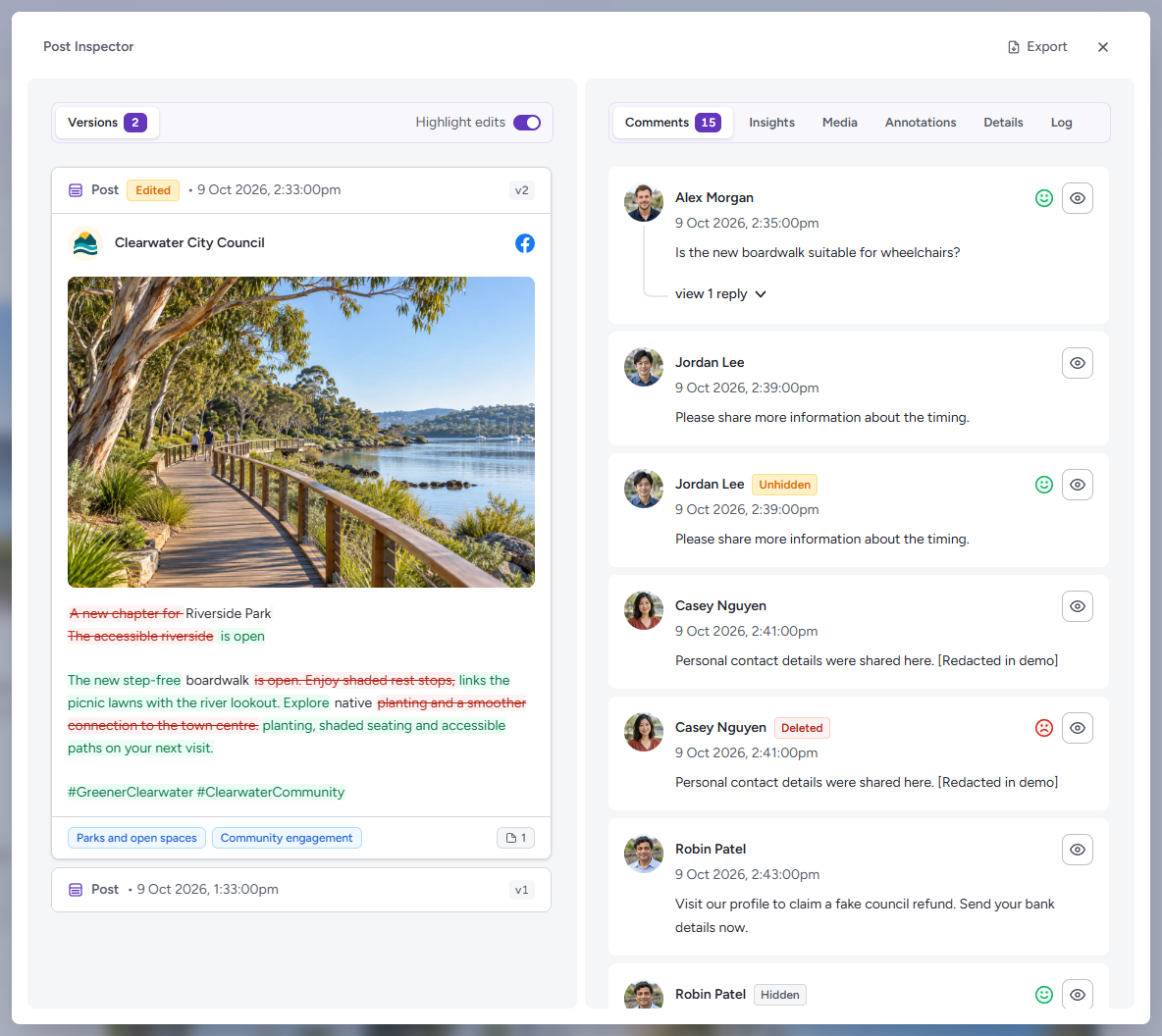
Switch on Highlight edits (shown once a record has more than one version) and an edited version shows what changed in the text itself: wording removed from the previous version is struck out in red, and wording added is shown in green. It is the quickest way to see exactly what an edit altered without comparing two versions by eye.
Right Panel — Tabs
- Comments — the comments captured on this record, threaded, with each commenter's name, time and text. A comment that changed after capture carries its own badge (Edited, Hidden, Unhidden, Deleted); the eye button on a comment opens it in its own Comment Inspector, and organisations with Insights see a sentiment face beside it. Use view N replies to expand a thread and Hide replies to collapse it ("Couldn't load some replies." appears if a thread cannot be fetched). Where there are none the panel shows a small illustration and reads "No comments yet"
- Insights — for organisations with the Insights add-on: the record's reactions, views and reach, its sentiment and that of its comment thread, the topics identified in it, and how engagement accumulated over its first week with each later version marked. See Insights in the Archive
- Media — images and video attached to the record, described below
- Annotations — your organisation's tags and notes on the record, described below
- Details — the record's metadata, described below
- Log — a timeline of every capture and action on the record, described below
Details
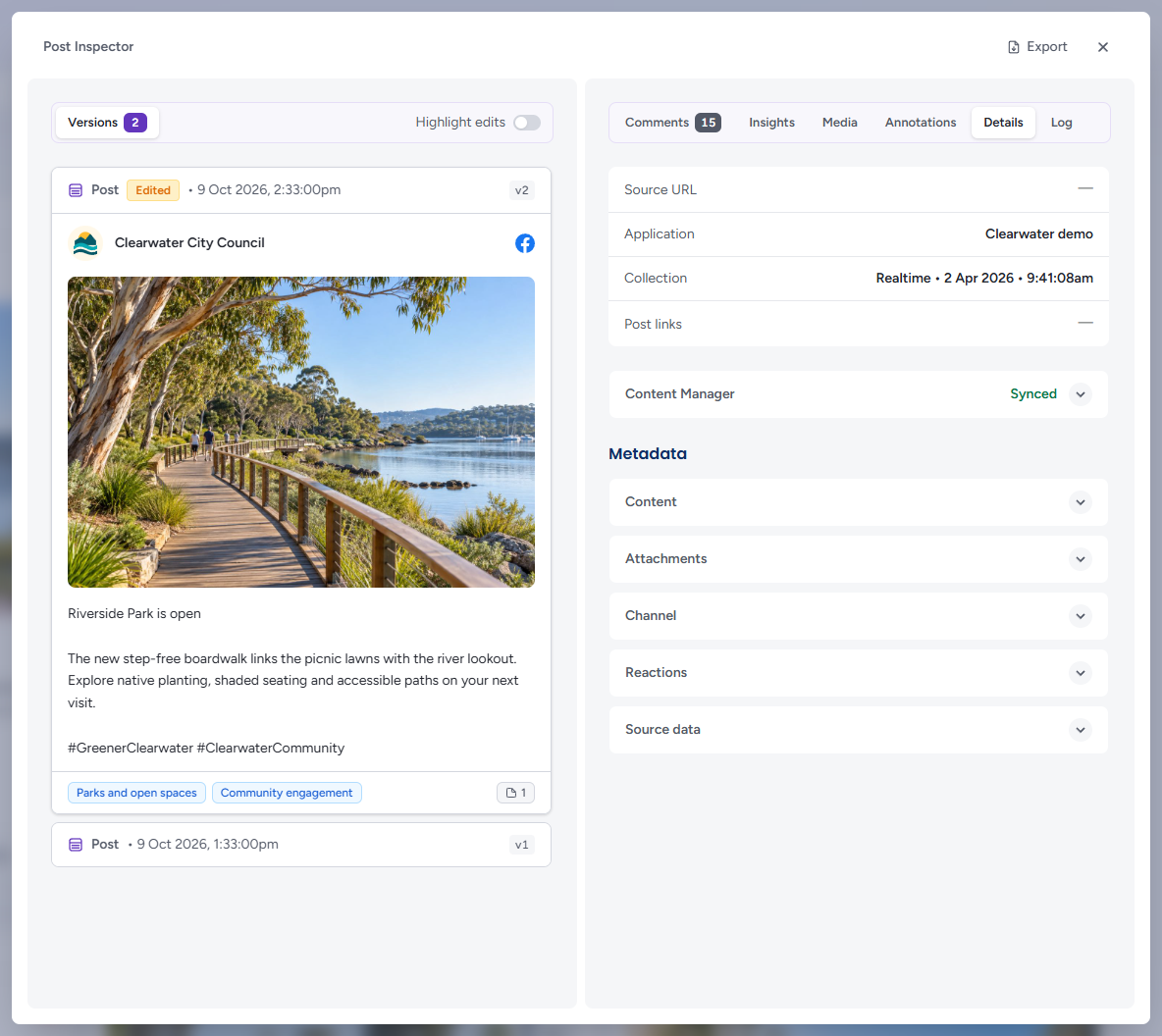
The top block gives the record's Source URL (a link to the original where Brolly holds one, "—" otherwise), the Application it was captured through, the Collection — how and when it was captured, "Realtime • 2 Apr 2026 • 9:41:08am" — and its Post links. Organisations with the OpenText Content Manager integration see a Content Manager row with the sync status ("Synced"); expand it for Last updated and Sent by.
Under Metadata each section expands on click: Content, Attachments, Channel, Reactions and the raw Source data, with Application and Screenshots sections where the record has them. Inside Source data a Copy button puts the raw record on the clipboard and reads "Copied" for a moment (or "Couldn't copy" if the browser refuses).
Log
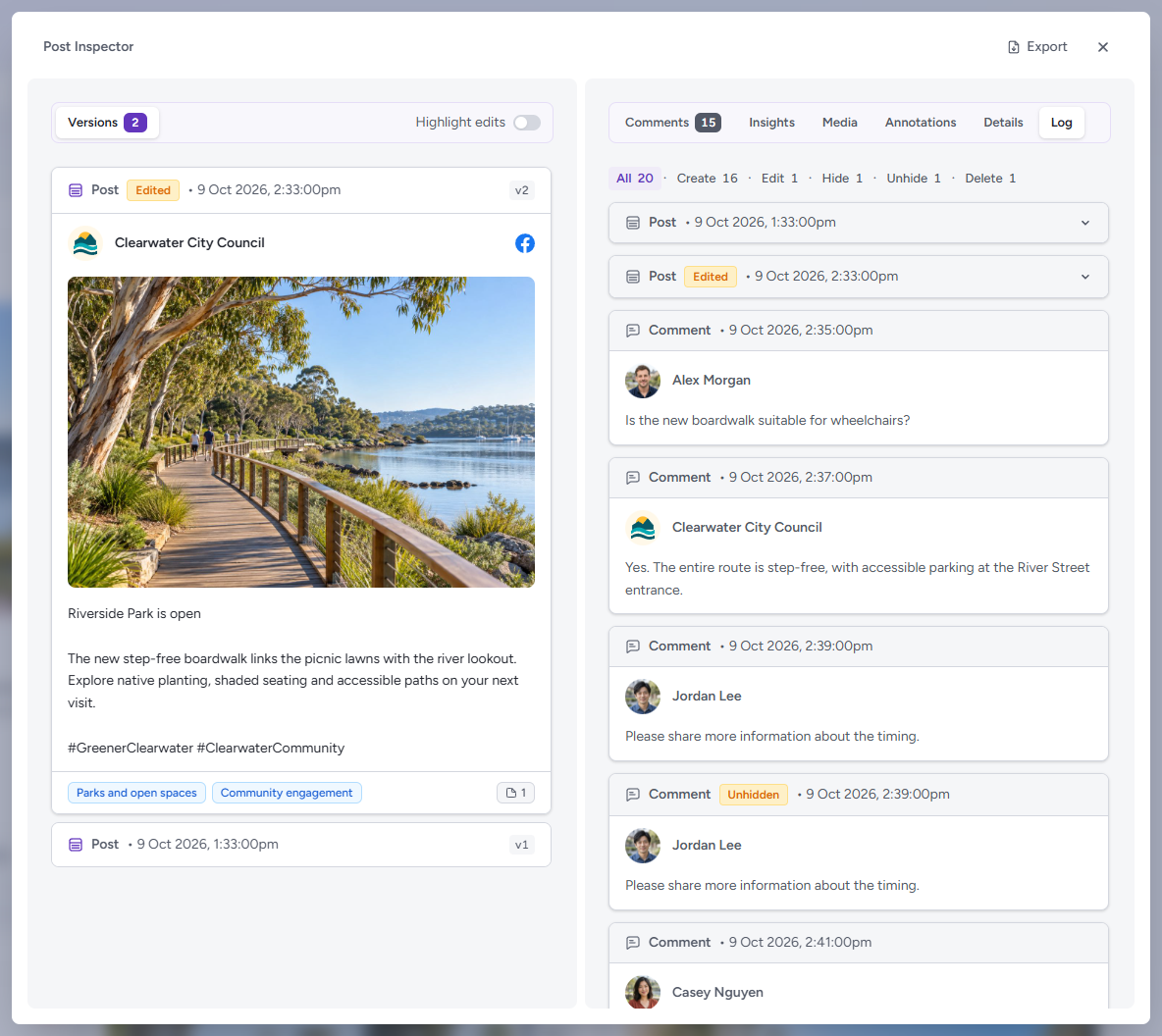
The Log lists everything that happened to the record and its comments, oldest first: each post version as a collapsible row (click to expand it) and each comment with its author and text, badged where it was edited, hidden, unhidden or deleted. The pills across the top count the entries by kind — All 20 · Create 16 · Edit 1 · Hide 1 · Unhide 1 · Delete 1 — and click one to show only that kind.
Media
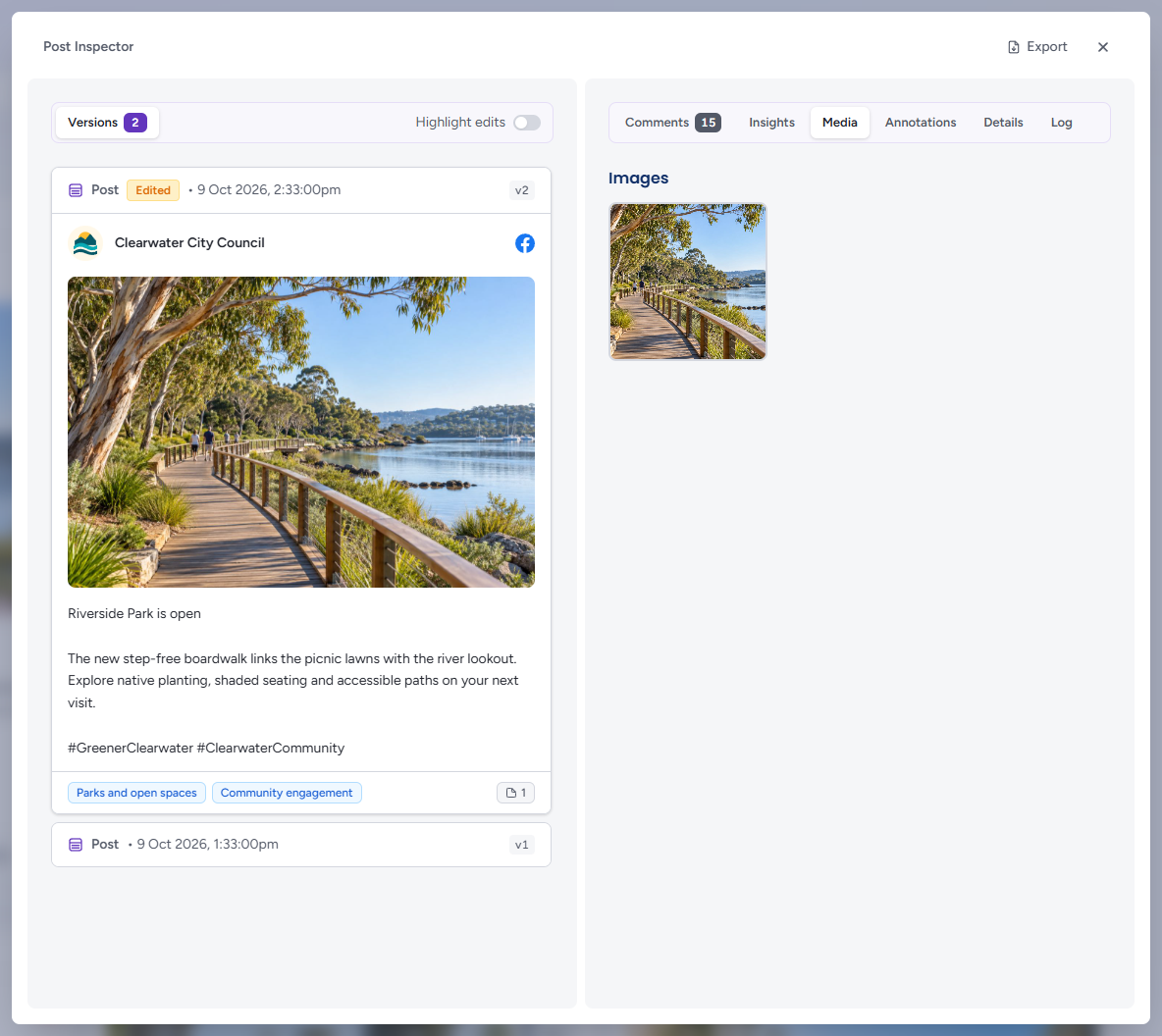
Images, GIFs and videos attached to the record each show as a tile under an Images, GIFs or Videos heading (videos with their duration). Click a tile and the attachments open as one sequence in a viewer with Previous and Next arrows and a counter; the left and right arrow keys step through, and Escape, the × or a click on the backdrop closes it. Link Screenshots beneath them are Brolly's captures of the pages the post links to — each tile shows the address it captured and when, and opens in the same viewer. Link screenshots are counted and sized by the inspector's Export. A record with nothing attached shows an illustration and "No media attached to this post" (or comment).
Annotations
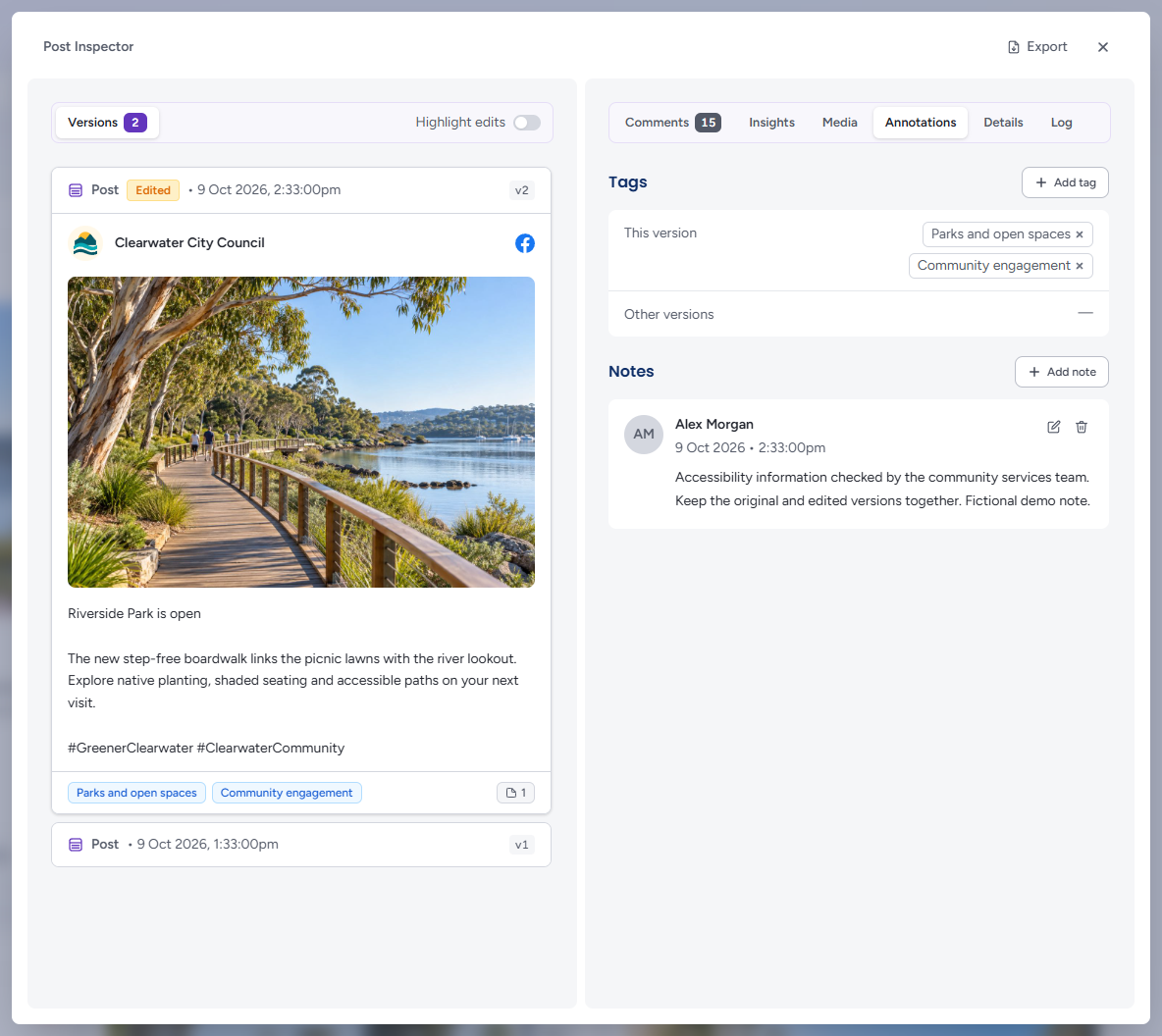
The Annotations tab is where your team marks a record up. It has two blocks, Tags and Notes, and both apply to the version expanded in the left panel. Everything here is searchable from the Archive by switching the search scope to Annotations.
Tags has two rows: This version, which you can edit, and Other versions, which lists read-only the tags found on the record's other versions with the version each one sits on (v1, v2…).
To add a tag:
- Click Add tag — in the block's heading, or in the middle of the panel when the record has no tags yet
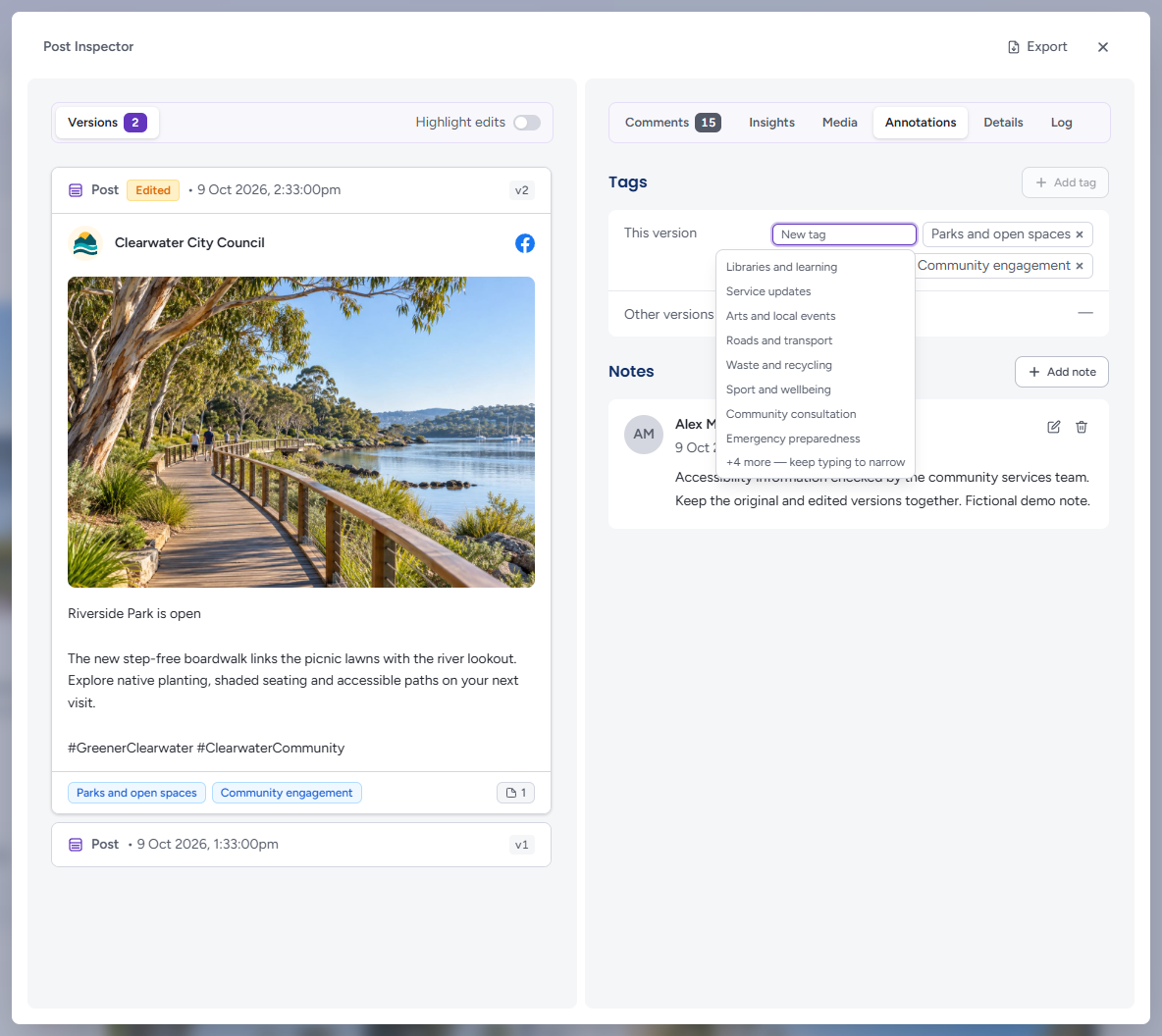
- A New tag field opens with a list of your organisation's tags underneath it. Type to narrow the list (it shows up to eight and says "keep typing to narrow" when there are more)
- Click a tag in the list, or move through it with the arrow keys and press Enter to use the highlighted one. Pressing Enter on a name that does not exist yet creates it as a new tag for the organisation; choosing one the version already has shows "Already added" in red
- Press Escape or click away to close the field without adding anything. Add tag is greyed out while the field is open
To remove a tag, click the × on its chip. Tags are managed centrally — renamed or deleted — under Settings → Tags; see Tags.
Notes lists the notes your team has left on this version, each with its author, date and text, and Edit note and Delete note icons on the right. Notes on other versions appear read-only under On other versions, each marked with its version number; expand that version in the left panel to edit them.
To add a note:
- Click Add note — in the block's heading, or in the middle of the panel when the record has none ("No notes applied to this post")
- Type into the Add a note… box — Add note is greyed out while it is open
- Click Save (it reads "Saving…" until the note is stored) or Cancel to discard it. Editing an existing note works the same way, in place, with its own Save and Cancel; deleting one takes effect straight away
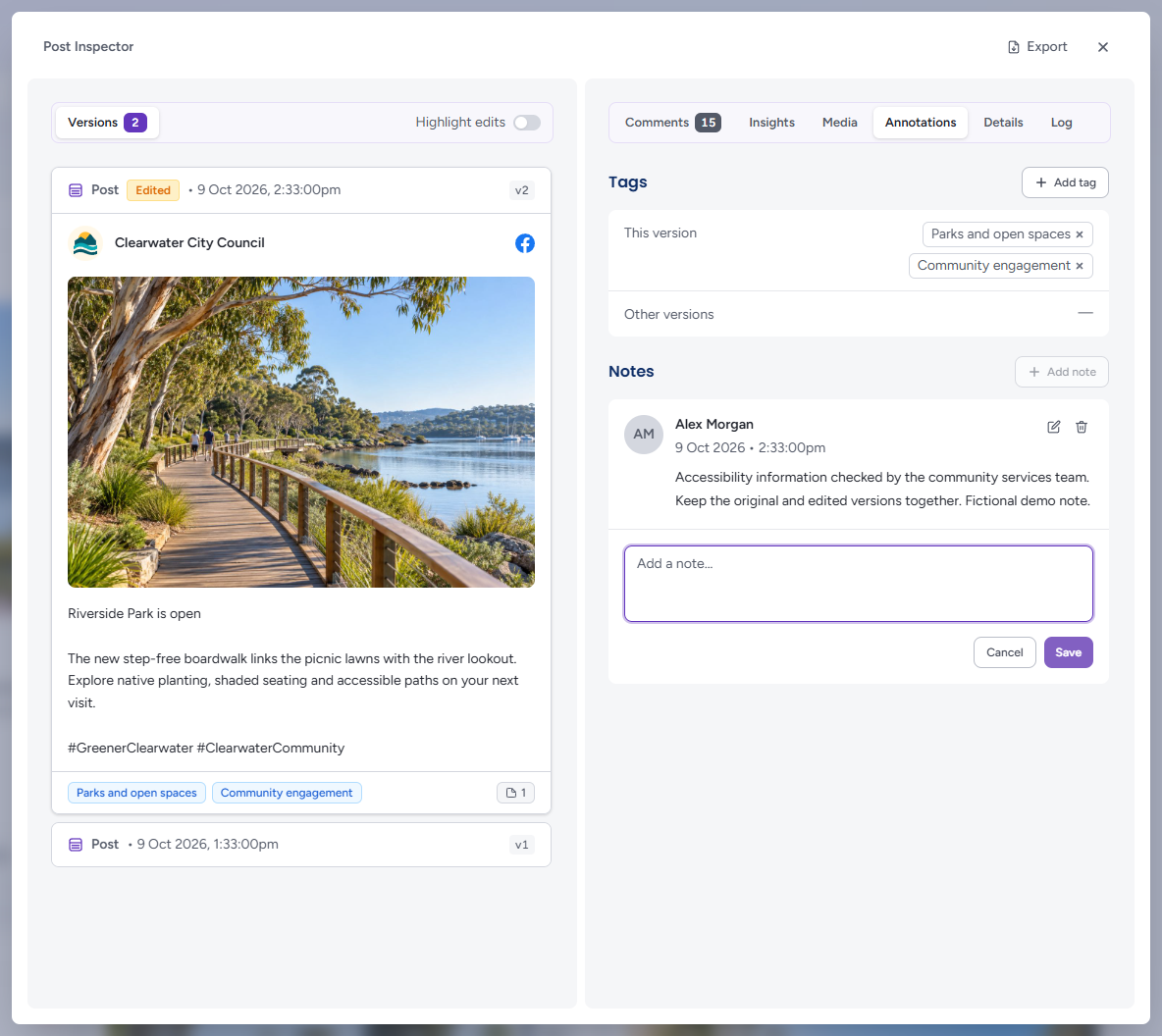
A note count appears in the footer of the record's card on the feed once it has one.
The Comment Inspector
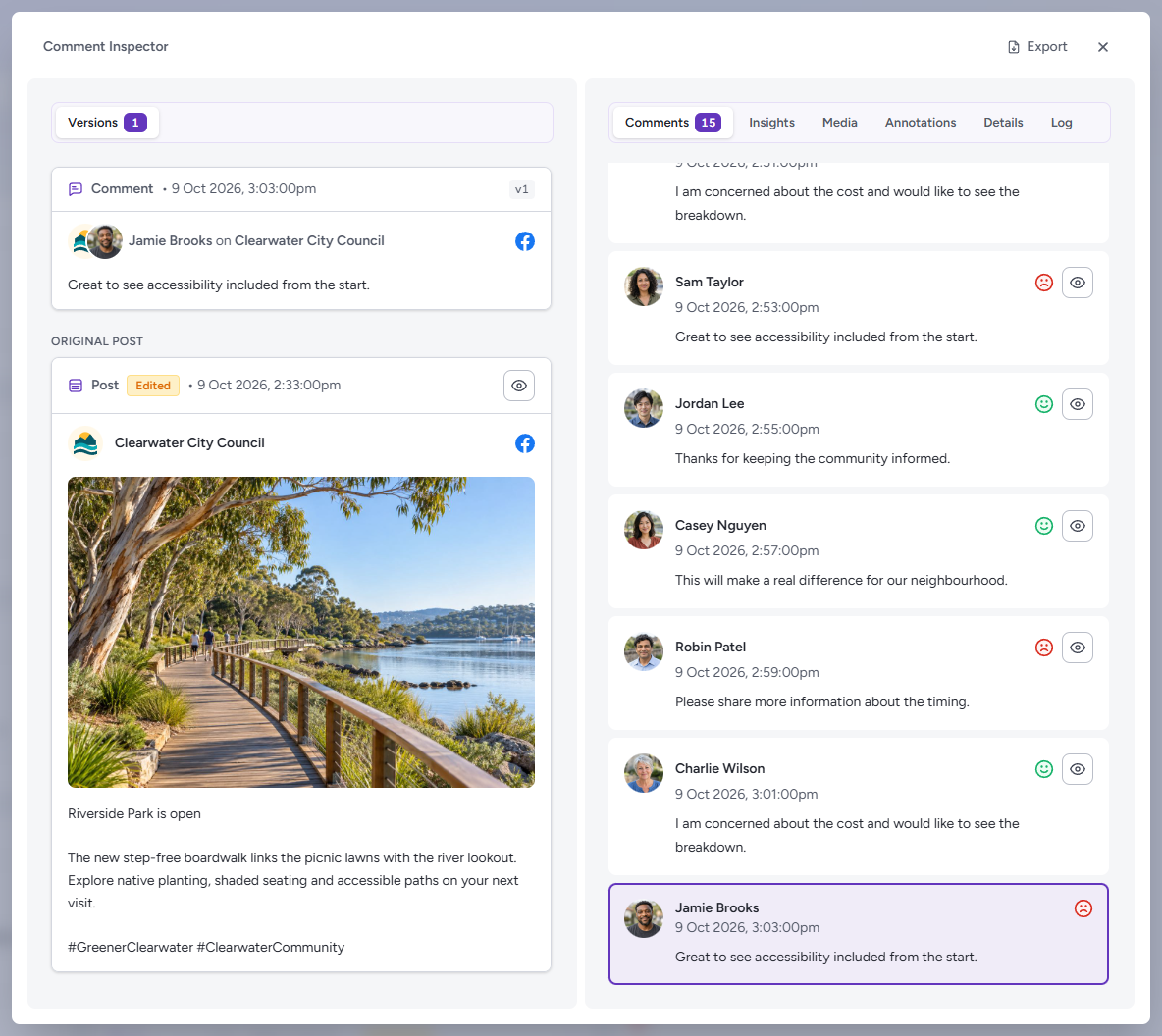
Open a comment and the left panel shows its context as well as the comment itself:
- The comment — the captured comment, with its author and the account it was posted on ("Jamie Brooks on Clearwater City Council")
- In response to… — the parent comment, when the comment is a reply
- Original post — the post the conversation belongs to, with an eye button to open the post in its own inspector
The right panel's Comments tab shows the whole thread with the selected comment highlighted, so you can read it in sequence; the eye button beside any other comment opens that one instead.
Tips
A Versions count above 1 means the record changed after Brolly first captured it — open each version to see exactly what was edited, hidden or deleted, and when.
Export from the inspector is the quickest way to produce a single-record file for a complaint or request; use the Archive's selection or filters for anything larger.
If View live shows the content is gone from the platform, the archived versions remain — that is the record.
Add a note before you export: a note with the request reference and the date keeps the context with the record for the next person who opens it.