Tags
Create and manage the tags that group records for a case, campaign or request, control who can create them, and jump from a tag to its records.
Overview
Tags are labels you put on records in the Archive so related content can be found, reviewed and exported together — everything about a complaint reference, a campaign, a project or an FOI request. Settings → Tags is where tags are created, renamed, removed and audited, and where you decide who is allowed to create them. Tags are shared across the whole organisation.
How to Get There
- Click Settings in the left sidebar
- Click Tags beneath it
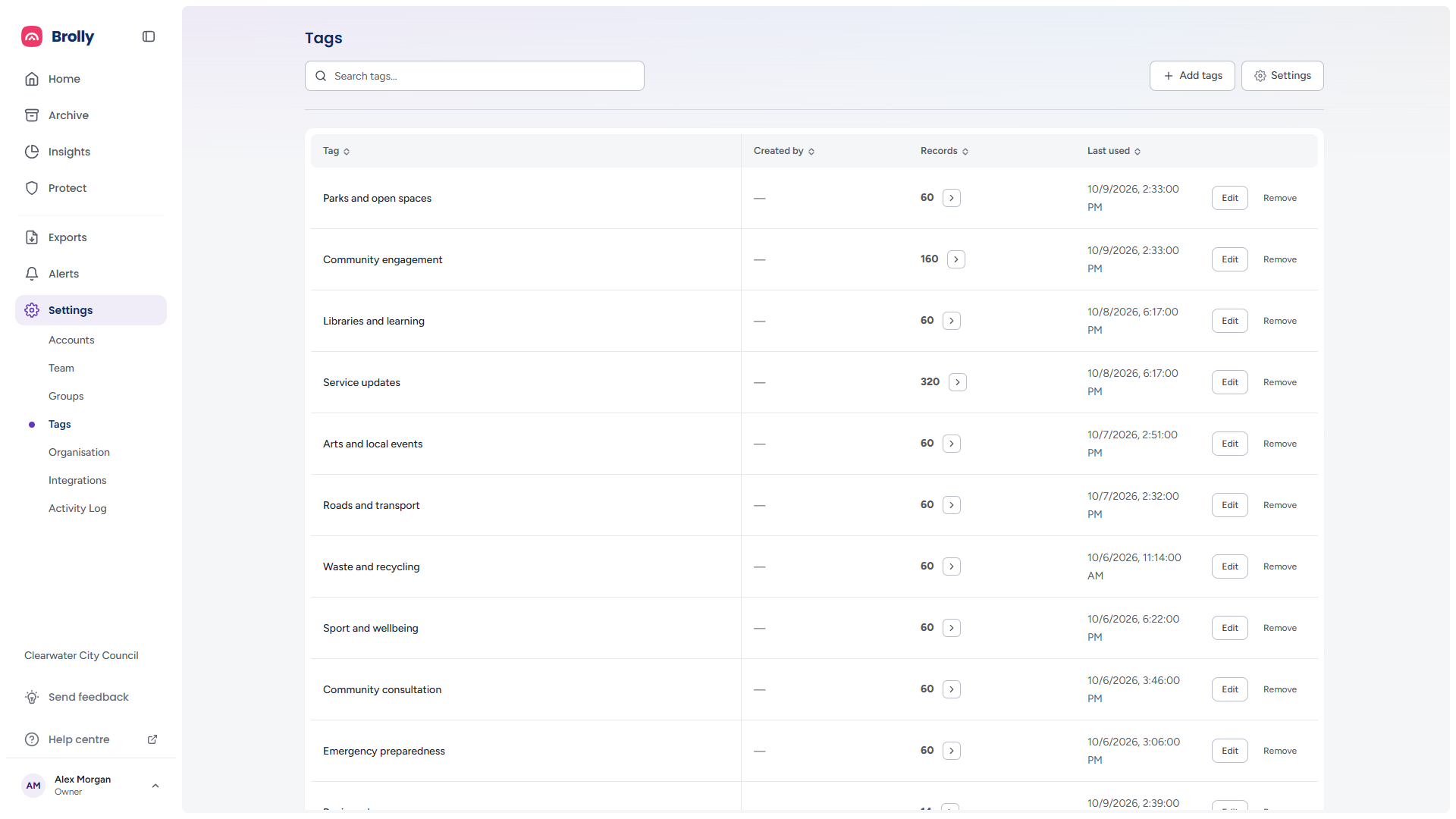
The Toolbar

- Search tags… — find a tag in a long list; the table narrows as you type and an × in the box clears it
- Add tags — create one or more tags
- Settings — control who can create tags
If a search matches nothing, the table shows No tags found — "“urgent” didn’t match any tags." — with Clear search and a Create “urgent” link that opens the create dialog with that tag already queued. An organisation with no tags at all sees No tags yet ("Tags help you label and find archived posts and comments.") with an Add tag button.
The Tags Table
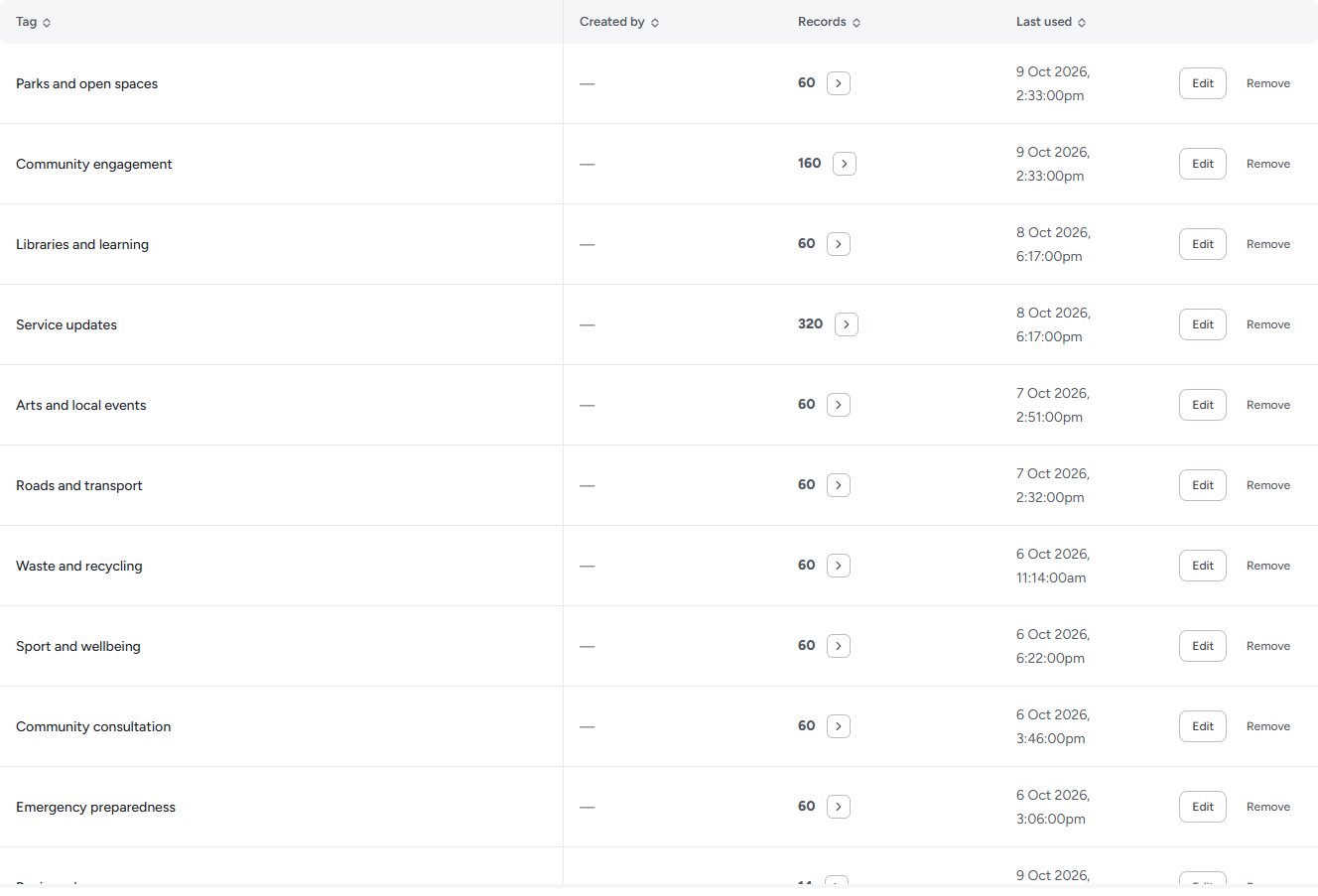
Every tag in your organisation is listed with:
- Tag — its name
- Created by — who created it (a dash when that is not recorded)
- Records — how many records carry it, with an arrow that opens those records in the Archive (the arrow is only shown when the count is above zero)
- Last used — the date and time it was most recently applied, in your own timezone; Never if it has not been used
Click a heading to sort.
Row Actions

- View records (the arrow beside the count; hovering it shows "View records") — opens the Archive filtered to this tag, so you can review or export the tagged records
- Edit — renames the tag in place: the name becomes a text box with the current name selected, and Save and Cancel sit beside it while the Edit and Remove buttons disappear for that row. Enter saves, Escape cancels. Records keep the tag under its new name
- Remove — opens the Remove tag dialog (below)

If a rename or removal fails, the reason appears in red above the table.
Creating Tags
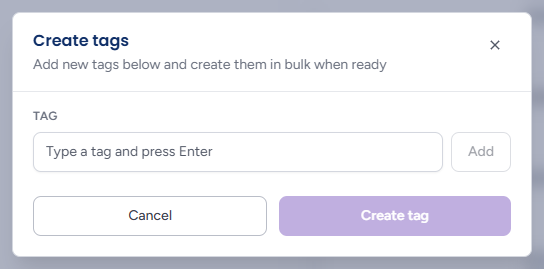
- Click Add tags — the Create tags dialog opens ("Add new tags below and create them in bulk when ready")
- Type a tag name and press Enter (or click Add). The name becomes a chip below the box; click the × on a chip to drop it. Repeat to queue several
- Click Create tag — or Create 3 tags when several are queued — or Cancel
A name that already exists, or is already queued, cannot be added: the box turns red, Add is greyed out and the dialog says "“Spam” already exists." A name still typed in the box when you click Create is included, so you do not have to press Enter for the last one. The button reads Creating… while the tags are made; clicking the dimmed page does not close the dialog, so queued names are not lost.
New tags are available immediately when tagging records.
Removing a Tag
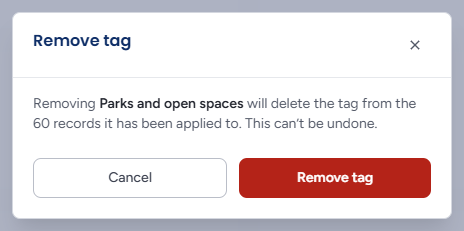
Remove opens a confirmation: "Removing Spam will delete the tag from the 32 records it has been applied to. This can’t be undone." (or "Spam isn’t currently applied to any records. Removing it can’t be undone."). Click Remove tag to go ahead or Cancel. The records themselves are unaffected — only the tag comes off them.
Tag Settings
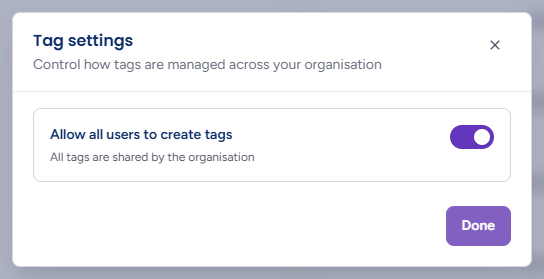
Settings opens the Tag settings dialog ("Control how tags are managed across your organisation") with one switch: Allow all users to create tags — "All tags are shared by the organisation". Off, only Owners can create tags and everyone else chooses from the existing list — which keeps naming consistent. On, anyone can create tags as they work. The switch takes effect as soon as you flip it; Done simply closes the dialog.
Applying Tags and Notes to Records
Tags are applied from the Archive, not from this page:
- In bulk — tick records in the feed and choose Apply Tags from the bar that appears at the bottom of the screen (up to 25 records at a time). See Using the Archive
- On one record — open it in the inspector and use the Annotations tab, which holds the record's tags and your organisation's notes. See The Record Inspector
Applied tags appear as chips on each record's card. Notes are free text for the context your records team will need later — why a record was reviewed, which request it relates to — and, like tags, are searchable from the Archive by switching the search scope to Annotations.
Tips
Agree a naming convention before your team starts tagging — a case reference such as "Complaint 2345B" is easy to find later; "misc" is not.
Turn Allow all users to create tags off if you are seeing duplicates like "Covid" and "Covid-19"; then merge by retagging and removing the stray.
Tagging first makes exporting for a request a one-step job: open the tag's records with the arrow, then export the filtered view — see Exports.