Export formats and contents
What PDF, HTML, CSV and JSON exports are each suited to, why Feed and Messages are exported separately, what every export contains, and how to verify a download with its checksum.
Overview
Every export you create in Brolly asks two questions that decide what you get: which format the file should be in, and whether it covers your Feed or your Messages. This article explains both, lists what an export always contains, and shows how to check a downloaded file against its checksum. For where the buttons are, see Exports.
Choosing a Format
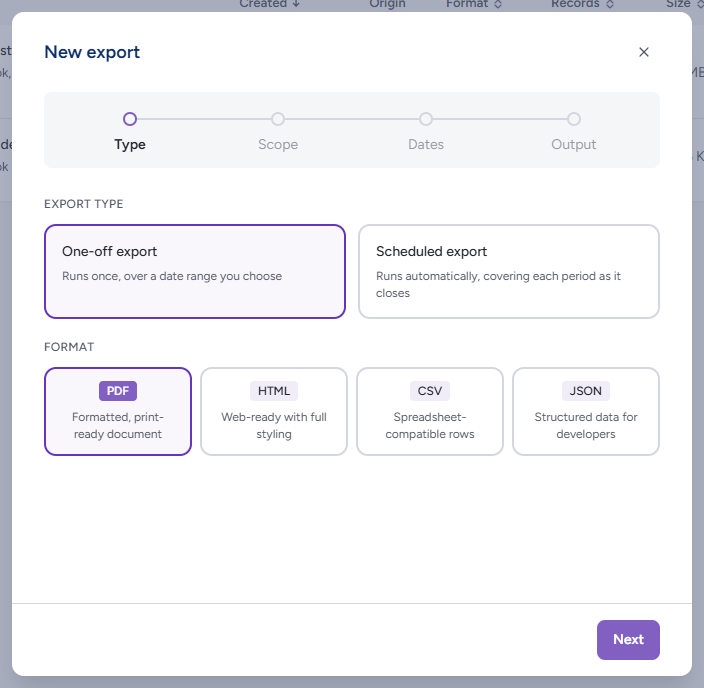
The Format tiles on the wizard's first step offer four formats. The right choice depends on where the export is headed — a records system, a spreadsheet, a reader, or another application.
PDF — formatted, print-ready document
A single, flat file with everything in one place, laid out to be read or printed. It carries header information about the export — the date range, record types and accounts it covers — so the file explains itself when it is filed. PDF is the most popular choice and suits most FOI responses and uploads to an eDRMS. The wizard opens on PDF.
HTML — web-ready with full styling
A richer export delivered as a zip file: an index page and a folder per record holding its text and its images and video. Choose HTML when the recipient needs to browse records with their media in a browser rather than read a flat document.
CSV — spreadsheet-compatible rows
A spreadsheet-style export, one row per record, delivered as a zip file. Choose CSV for databases and analysis — counting, sorting and filtering records in Excel or a similar tool. CSV is the one format that leaves out media, since a spreadsheet cannot carry it; the text, metadata and version history are all there.
JSON — structured data for developers
A raw, machine-readable format. It is not meant to be read by people — opened directly, it looks like code. It exists for organisations whose records management software or other systems are set up to ingest and parse JSON and present the content in readable form.
Why Feed and Messages Are Exported Separately
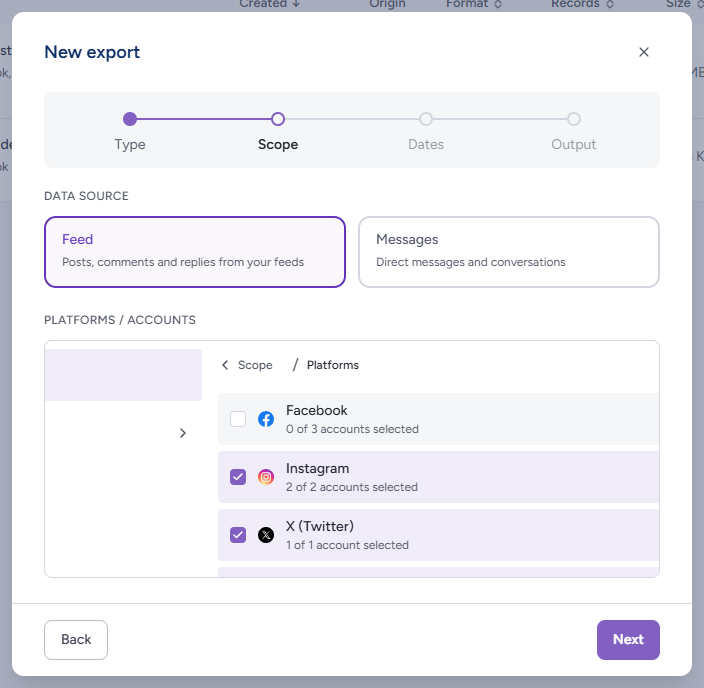
The wizard's Scope step asks you to choose a Data source — Feed or Messages — deliberately.
- Your Feed contains posts, comments and replies: communication the author never intended to be private.
- Messages are private conversations between an individual and your organisation.
Records managers typically store and protect these two kinds of record differently, and combining them in one export risks private message content being handled in ways that are not appropriate. So each export covers one or the other. If you need both, create two exports — or two scheduled exports. The same split applies to the shorter export panels: Export conversation on a message thread produces a Messages export, and Export on the Archive feed produces a Feed export.
Messages are archived from Facebook only, so a Messages export offers Facebook channels alone.
What Every Export Contains
There is no step in the wizard for choosing inclusions: every export carries everything it can hold. For each record that means:
- The content — the text of the post, comment, reply or message
- Every captured version — if a post was edited, hidden or deleted after Brolly first captured it, each version is in the export with the action that produced it. It is this history that makes a record defensible
- The comments thread — for a post, the comments and replies captured on it
- Metadata — who published it, when, on which platform and account, the platform's own identifiers, and when Brolly captured it
- Media — images, video and Brolly's screenshots of linked pages (except in CSV)
- Your notes and tags — annotations your team has added to the record
- Sentiment — where your organisation has the Insights add-on, the sentiment score Brolly assigned
A Messages export carries each conversation's messages with their sender, recipient, timestamps and identifiers — the same source data you can see under Source data in Archive Messages.
What about the activity log and Insights?
Export log on Settings → Activity Log downloads a CSV of the audit trail as filtered straight to your browser; it does not pass through Exports. Export on any Insights page produces an Insights report, which does appear under Files alongside your record exports and is filtered by the All types menu there. See Activity Log and Insights.
Verifying a Download
When Brolly has recorded a SHA-256 checksum for a finished export, the row under Files has a Checksum button beside Download. The checksum is a fingerprint of the exact file Brolly produced: if a copy of the file has been altered in any way, even by one character, its checksum will not match.
- Download the file
- Click Checksum on the same row. A panel shows the SHA-256 value and the file name; click Copy to copy the value (the button reads Copied for a moment)
- Compute the checksum of your downloaded file and compare it with the copied value. On Windows, open PowerShell and run
Get-FileHash <path to file>; on macOS, open Terminal and runshasum -a 256 <path to file>
If the two values match, the file is the one Brolly produced. Include the checksum when you hand the file on — a recipient can repeat step 3 to confirm the copy they received is intact.
Tips
Choose PDF when the recipient just needs to read it, CSV when they will analyse it in a spreadsheet, and JSON when another system will ingest it.
Need the images and video alongside the text, but not a flat document? HTML keeps each record's media in its own folder.
Record the checksum alongside the case file at the time you export. It is the simplest way to show later that the file has not changed.