Activity Log
The audit trail of sign-ins, security events and changes across your organisation — how to read, filter and export it.
Overview
The Activity Log is your organisation's audit trail. It records who did what in Brolly and when — successful and failed sign-ins, password resets, and changes to accounts, team, groups, settings, alerts and exports — with the IP address and location each action came from. It is the place to look when reviewing security or producing evidence for an audit.
How to Get There
- Click Settings in the left sidebar
- Click Activity Log beneath it
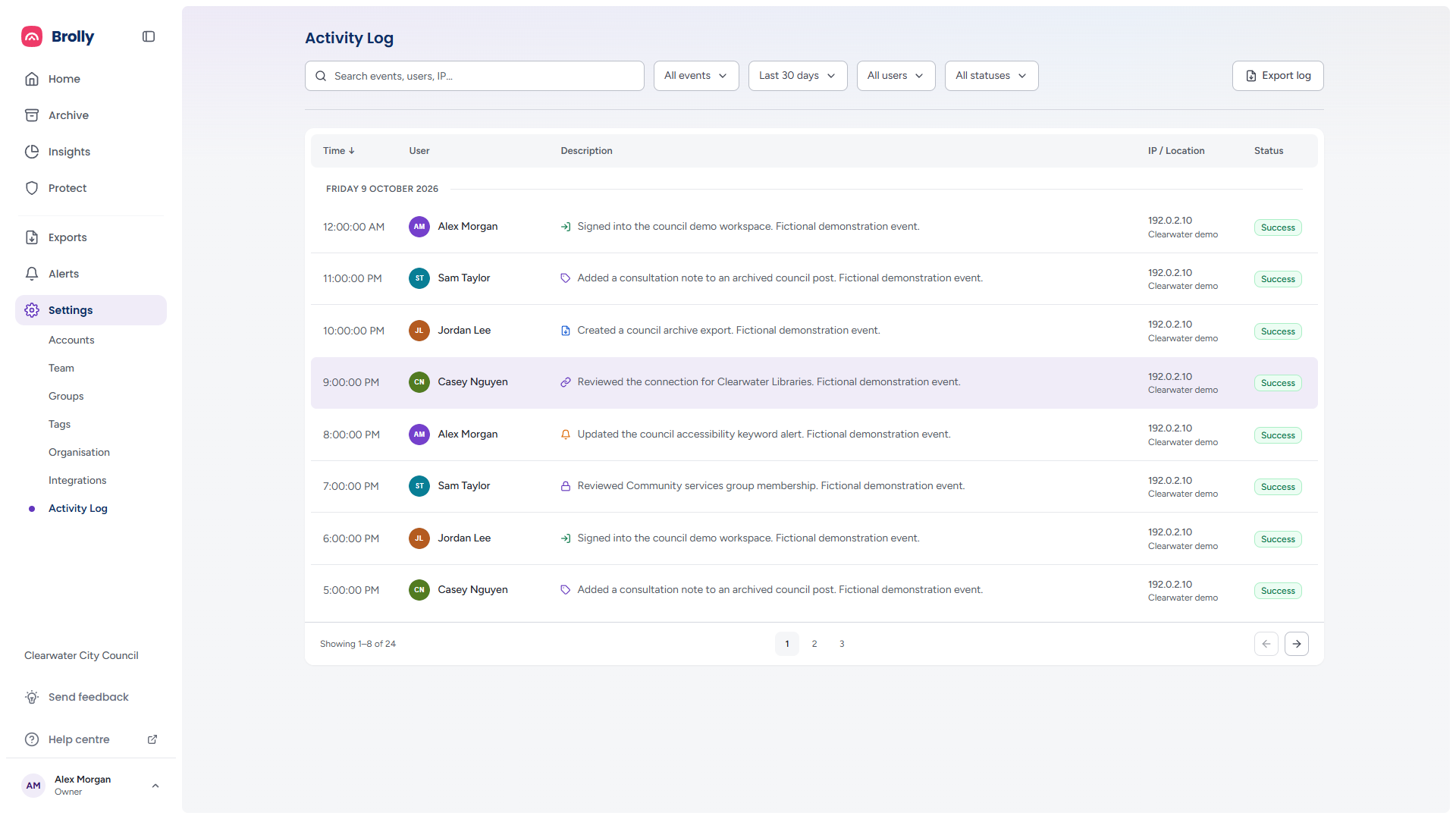
The log opens on the last 30 days, newest first. If it cannot load it shows Unable to load activity log with the reason and a Retry button.
The Toolbar

- Search events, users, IP… — free-text search across descriptions, user names and IP addresses. Unlike the other Settings pages the search runs on the server, so the list updates a moment after you stop typing
- All events — one category of event (see below)
- Last 30 days — the time period
- All users — one team member's activity. The list only offers people with events in the chosen period; if you narrow the period so your chosen person has none, the filter resets to All users
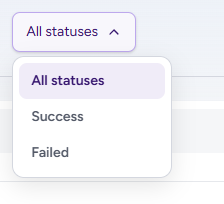
- All statuses — Success or Failed events only
- Export log — download the log as currently filtered (see below)
A Clear button appears after the dropdowns once anything is set, and resets the search and every filter. Changing any filter takes you back to page 1. If nothing matches, the table shows No events found — "Try adjusting your filters or date range" — with a Clear all filters link.
Event Categories
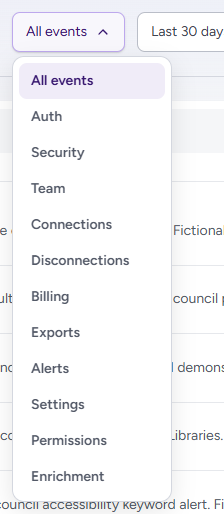
Auth (sign-ins and sign-outs), Security (password resets, two-factor changes), Team, Connections and Disconnections (social accounts), Billing, Exports, Alerts, Settings, Permissions (groups and roles) and Enrichment.
Time Period
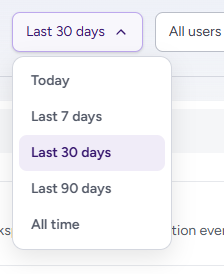
Today, Last 7 days, Last 30 days, Last 90 days or All time.
Status
Reading the Log
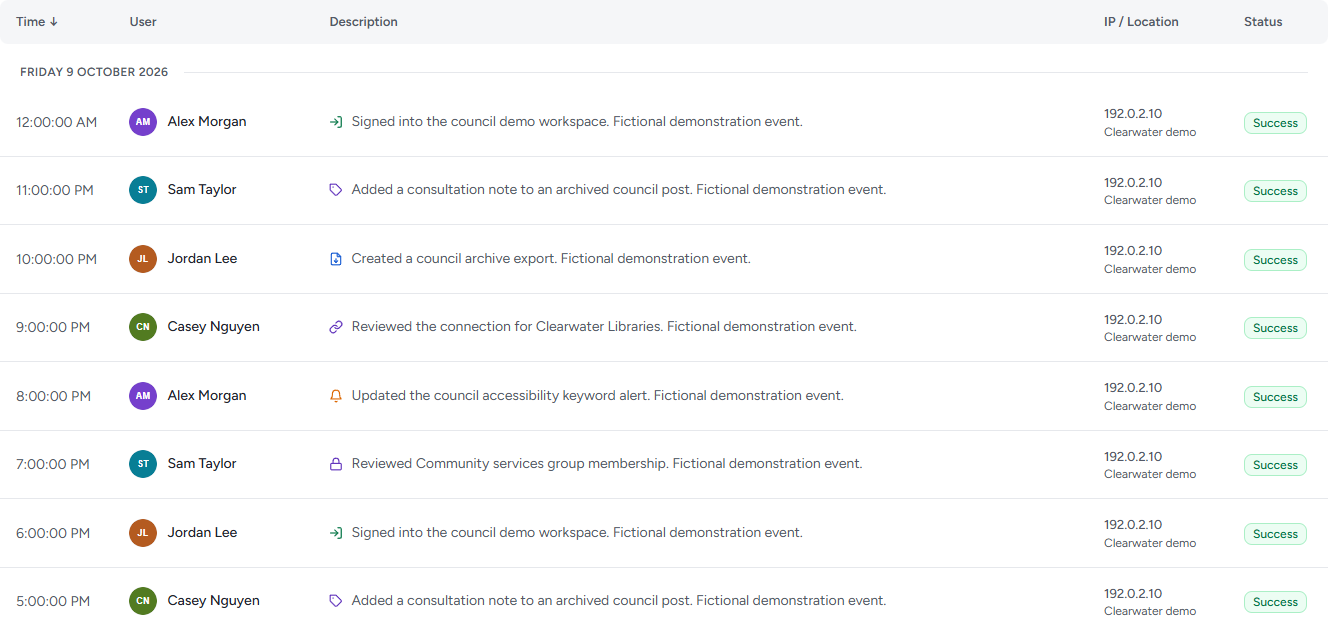
Events are grouped under a heading for each day, newest first. Each entry shows:
- Time — the only sortable column; its arrow shows the order and clicking the heading flips between newest and oldest first
- User — the team member involved
- Description — what happened, with an icon for the kind of event: a sign-in, a note or tag added to a record, an export created, a connection reviewed, an alert updated, a group's membership changed
- IP / Location — the IP address and approximate location the action came from
- Status — Success or Failed
On a narrow window the table becomes a list of cards — user and time, then the description, then origin and status — headed by "Displaying 24 events" and a Newest / Oldest sort pill that does the same job as the Time heading.
Pagination

The log is paged. The footer says which events you are looking at ("Showing 1–8 of 24") and moves through the rest with the page numbers or the Previous page and Next page arrows; the bar is hidden when everything fits on one page. Paging reaches the most recent 10,000 matching events — if a filter matches more than that, the footer says so and asks you to narrow the date range or filters to see older events.
Exporting the Log
Set the filters you need, then click Export log. The button reads Exporting… while the file is prepared, and your browser downloads a CSV named for the day, for example activity-log-2026-10-10.csv, containing the events that match the current search and filters. If it fails, "Couldn't export the activity log. Please try again." appears above the table. The export is a direct download — it does not appear on the Exports page.
Tips
A run of Failed sign-ins against one account is worth investigating — Brolly temporarily locks an account after repeated failures, and the log shows where the attempts came from.
Filter to a single user and export before someone leaves the organisation, to keep a record of their activity.
Individual accounts, team members and groups each have their own Activity Log tab in their drawer when you only need the history of one item — and the notes you add when confirming a hold, delete or deactivation are stored with those events.