Connecting Facebook
Authorise Brolly on Facebook and choose which Pages to archive, including message archiving and how far back to capture — plus what to know about new Pages, personal profiles and paid posts.
Overview
Facebook connects through Facebook's own authorisation screen. You sign in there with your own login, grant Brolly access, then come back to Brolly and tick the Pages you want to archive. The whole thing takes a minute or two, and Brolly never sees or stores the Page's password.
Before You Start
- Be signed in to Facebook as an administrator (or editor) of the Page, with the Facebook account that manages it. A personal profile that only follows or likes the Page cannot authorise it. If the Page was created under a different profile, that is the account to connect with
- If the Page belongs to a Business Portfolio (Meta Business Suite), make sure your login has full control of the Page there
- Allow pop-ups for Facebook in your browser so nothing from Facebook is blocked mid-way
- Brolly archives Facebook Pages, not personal profiles — see Pages, not profiles below
Step 1 — Choose Facebook
- Click Settings in the left sidebar, then Connect account at the top right of the Social accounts page
- Choose Facebook
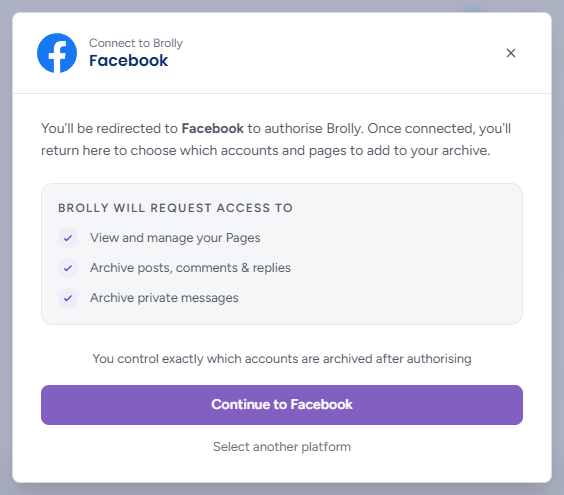
The dialog explains that you will be redirected to Facebook to authorise Brolly and will return to choose which accounts and Pages to add, and lists what Brolly will request access to:
- View and manage your Pages
- Archive posts, comments & replies
- Archive private messages
You control exactly which accounts are archived after authorising.
Step 2 — Authorise Brolly on Facebook
- Click Continue to Facebook. You are redirected to Facebook's authorisation screen
- Sign in if asked, and approve every permission listed. Declining one leaves the connection incomplete
Step 3 — Choose Your Pages
While Brolly talks to Facebook the dialog shows "Authorising with Facebook..." with a loading animation. Then the Select accounts to connect step lists the Pages your login can administer, each with its avatar, name and address. Nothing is archived until you choose:
- Tick the Pages you want to add, or use Select all at the top (it shows how many are available and switches to Deselect all). Pages already in Brolly are listed as Already connected with no checkbox, so you cannot add them twice; a Page whose connection has lapsed shows Token expired — reconnect and can be ticked to renew it
- For each Page, use the Messages switch to turn private message archiving on or off. It is on to start with; leave it on if you need messages captured
- Under Historic capture, leave All time selected to backfill the Page's whole history, or choose Custom and pick the earliest day to capture from. The date cannot be in the future
- If your organisation has more than one permission group, choose the Group the Pages should land in
- The footer counts "n of m selected"; click Connect n accounts (greyed out until at least one is ticked; "Connecting..." while it works). The Pages appear in the Social accounts table as Active and capture begins straight away
After Connecting
Open the new row in the Social accounts table and check:
- Status reads Active
- Messages enabled is Yes if you expect private messages to be captured
- Time range matches what you chose under Historic capture
- Group is right. Unless you chose one in the dialog, new accounts land in Organisation (default), which every team member can see. Use Change group if only some people should see this Page's records. See Managing Groups
Within a few minutes the Records column starts to climb.
Pages, Not Profiles
Facebook profiles are for people; Facebook Pages are for organisations and public roles. Brolly captures records from Pages, not personal profiles, so:
- Posts and comments made from a personal profile are not captured — including an elected official commenting in a community group or on another Page, unless that Page is already connected to Brolly
- Elected officials and other public figures should use a Facebook Page for work-related conversations and connect that Page to the organisation's Brolly. Constituents' messages to the Page and comments on its posts are then all archived
- Some Facebook groups allow only profiles to post. To take part as a Page, ask the group's admin to allow both profiles and Pages in the group's membership settings
Paid ("Dark") Posts
Paid posts that target a chosen audience and never appear on the Page's public feed are archived once they attract comments: the comments are captured in real time and the post record follows a little later, so the comments may appear in the Archive slightly before the post. A paid post that attracts no comments is not archived, because Facebook does not expose it the way it does published content. If you need the creative itself on file, keep a copy in your own records.
Troubleshooting
- The Page was not listed — you signed in to Facebook as someone who is not an administrator or editor of it, or your account manages several Pages and the one you want is further down the list. Sign out of Facebook, sign back in with an admin login and connect again
- A Page you just created was not listed — brand-new Pages can take a while before Facebook makes them available to third-party tools. It is a Facebook-side delay, not a problem with Brolly. Check your admin role, wait a while, then try again from Connect account; a hard refresh of your browser rules out a cached page getting in the way. If it still does not appear, email support@brolly.com.au with the Page name and when you created it
- A permission was declined — start again from Connect account and approve every permission the dialog listed
- You were sent back to Brolly with nothing added — the authorisation was cancelled or timed out. Click Connect account and go through it again
- The Page shows Token expired later — Facebook has expired Brolly's access. Open the account and click Re-connect; capture resumes and Brolly backfills what the platform still makes available for the gap (content edited, deleted or expired in the meantime may not be recoverable, so re-connect promptly). If it keeps disconnecting, confirm the Facebook account you reconnect with is still an admin of the Page — losing admin rights is the most common cause
Facebook expires its authorisation periodically. Home shows a needs attention chip in the Archive at a glance row when that happens.