Connecting Your First Account
Connect a social media account so Brolly starts capturing its records — where to start, which platform guide to follow, what Brolly does and does not need from you, and what to check once it is connected.
Overview
Brolly captures nothing until at least one social media account is connected. Connecting starts from Settings → Accounts → Connect account and takes a minute or two, but the steps differ by platform:
| Platform | How it connects | What you need |
|---|---|---|
| Facebook, Instagram, TikTok, Threads | You authorise Brolly on the platform with your own login, then choose which pages or accounts to archive | Admin (or editor) access to the page or account |
| X (Twitter), LinkedIn | You paste the public page or profile URL and the Brolly team sets it up | The account's public URL |
| YouTube | You paste the channel URL or @handle and confirm the channel Brolly finds | The channel URL or handle |
Each platform has its own guide with the exact steps, the permissions it asks for and its troubleshooting. This page covers the parts that are the same for every platform.
Step 1 — Open the Connect Dialog
- Click Settings in the left sidebar — Accounts opens by default, titled Social accounts
- Click Connect account at the top right

- Choose the platform from the Connect a platform dialog — "Choose a platform to start archiving content into Brolly"
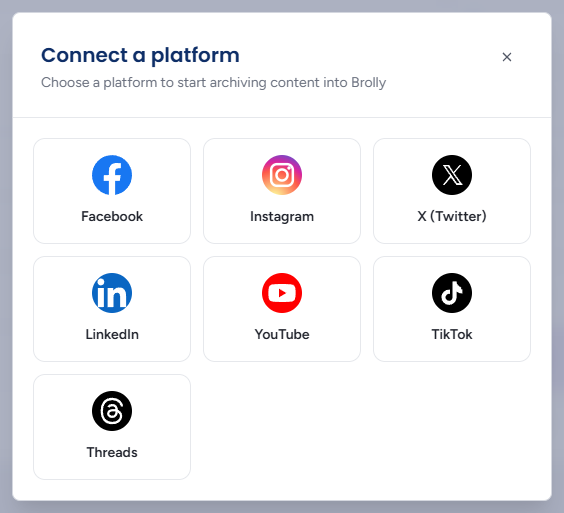
The dialog then changes to the steps for that platform, headed Connect to Brolly with the platform's name. Select another platform at the bottom takes you back to this list at any time, and the × (or Escape) closes the dialog without connecting anything. Clicking the shaded page behind the dialog does not close it, so a stray click cannot throw away a half-finished connection.
What the Dialog Does Next
The platform decides the path:
- Facebook, Instagram, TikTok, Threads — an authorise step lists what Brolly will request access to, with Continue to platform. While Brolly talks to the platform the dialog shows "Authorising with platform..." with a loading animation, then a Select accounts to connect step lists the pages or accounts your login can administer (see the platform guide for the controls). If nothing comes back it says "No pages found for this account."
- YouTube — a Channel URL or handle field with Find channel, then Connect channel once the channel is confirmed
- X (Twitter), LinkedIn — a Page or profile URL field with Request connection, then a Connection requested confirmation with Done
On every path a Group dropdown appears when your organisation has more than one permission group, so you can file the new account somewhere other than Organisation (default) as you connect it. With only one group there is nothing to choose and the dropdown is not shown. If anything goes wrong — the platform refuses, a URL cannot be resolved — the reason appears in a red box inside the dialog and you can try again without starting over.
Step 2 — Follow the Guide for Your Platform
- Connecting Facebook — authorise on Facebook, then choose Pages, message archiving and how far back to capture
- Connecting Instagram — authorise on Instagram, then choose professional accounts
- Connecting TikTok — authorise on TikTok and confirm the account
- Connecting Threads — authorise on Threads and confirm the profile
- Connecting X (Twitter) — paste the profile URL, choose a group and request the connection
- Connecting LinkedIn — paste the page or profile URL, choose a group and request the connection
- Connecting YouTube — paste the channel URL or @handle and confirm the channel
Come back here for Step 3 once the account is in the Social accounts table.
Step 3 — Check the New Account
Find the new row in the Social accounts table — the search box (Search by account or group) and the All platforms filter narrow it down — and click it. Its drawer shows the connection and is where the follow-up settings live:
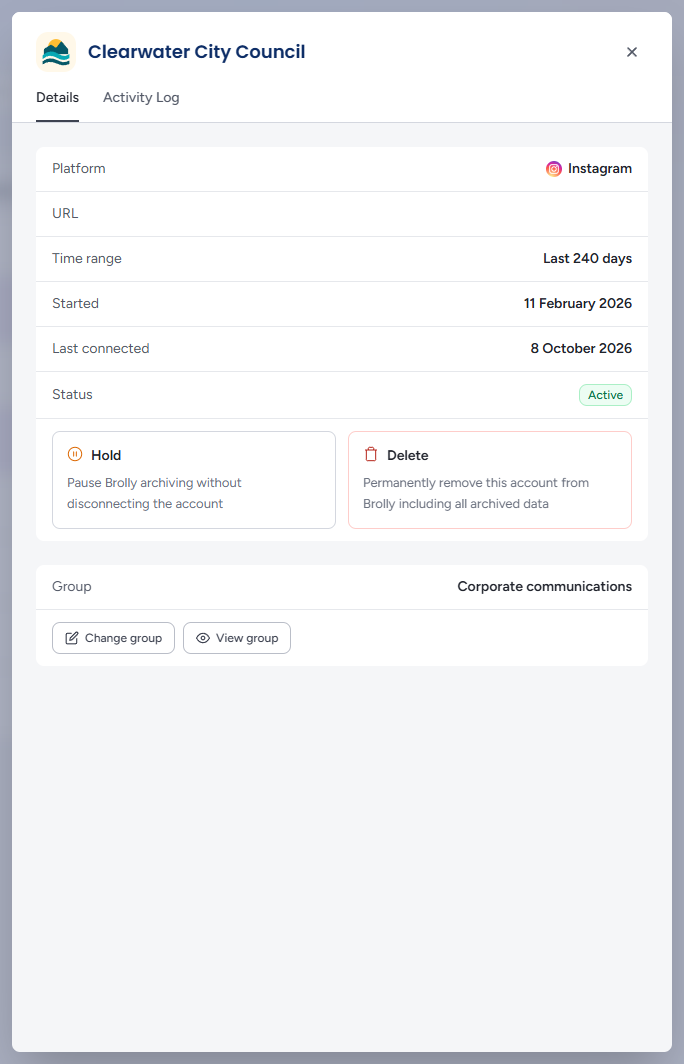
- Status should read Active (or Pending for X and LinkedIn while the team activates it)
- Group — new accounts land in Organisation (default), which every team member can see, unless you chose a group in the connect dialog. If only some people should see this account's records, use Change group to move it to a permission group now, before records build up. See Managing Groups
- Messages enabled — check this is Yes if you expect private messages to be captured (Facebook asks for that permission when you connect)
- Time range, Started and Last connected confirm what is being archived and when the connection was made
Then give it a few minutes and look at:
- the Records column on the Social accounts page — the count starts to climb as content is archived, including the account's earlier content, which Brolly backfills (see What Brolly Captures)
- Home, where the new account's avatar joins the Archive at a glance row and the social accounts connected count goes up by one
- Archive, filtered to the new account under All sources, to see the first captured records
Statuses
- Active — connected and capturing
- Pending — waiting for activation (X and LinkedIn), or an authorisation that was started but not finished
- On hold — connected but paused, so not capturing
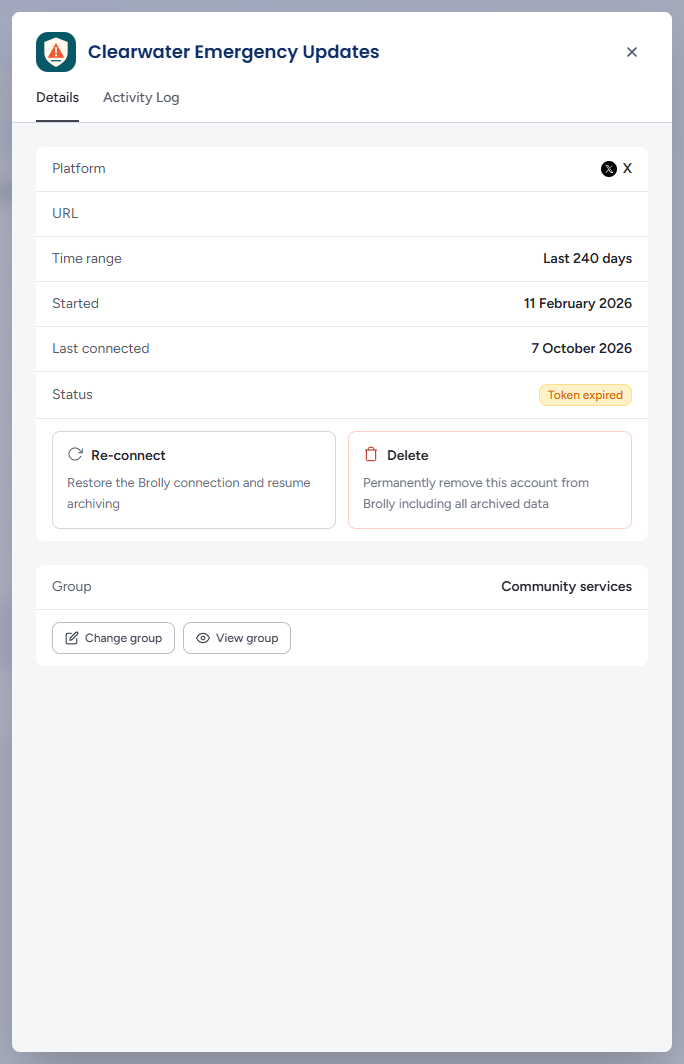
- Token expired — the platform has revoked or expired Brolly's access; Re-connect it from the drawer
- Does not exist — the page, profile or channel has been removed on the platform
What to Do Next
- Connect the rest of your accounts — the archive is only defensible if it is complete, so include inactive and legacy accounts too
- Set up permission groups so the right people see the right accounts — Managing Groups
- Invite your team — Managing Team Members
- Create a keyword alert for the terms you need to know about the moment they are captured — Alerts
Tips
Facebook, Instagram, TikTok and Threads expire their authorisation periodically. Home shows a needs attention chip in the Archive at a glance row when that happens, so you will not miss it. Open the account and click Re-connect; capture resumes and Brolly backfills anything published while it was down.

X, LinkedIn and YouTube have no authorisation to expire. If one of those stops capturing, check its URL or handle is still correct — a renamed handle or moved page breaks capture — then email support@brolly.com.au.
Every connection, hold and re-connection is recorded in the Activity Log, with who did it and when.