Connecting YouTube
Paste a YouTube channel URL or @handle, confirm the channel Brolly finds, and start archiving it — no sign-in needed.
Overview
YouTube connects by channel lookup. You paste the channel's URL or @handle, Brolly finds the channel and shows you what it found, and you confirm. There is no authorisation screen and no sign-in, and because no token is involved the connection does not expire the way an authorised one can, though platform changes can still interrupt capture. Connect only accounts your organisation owns, controls or is authorised to archive; a public address being reachable is not authorisation in itself.
Before You Start
- Have the channel URL or its @handle ready, for example
https://www.youtube.com/@channel
Step 1 — Choose YouTube
- Click Settings in the left sidebar, then Connect account at the top right of the Social accounts page
- Choose YouTube
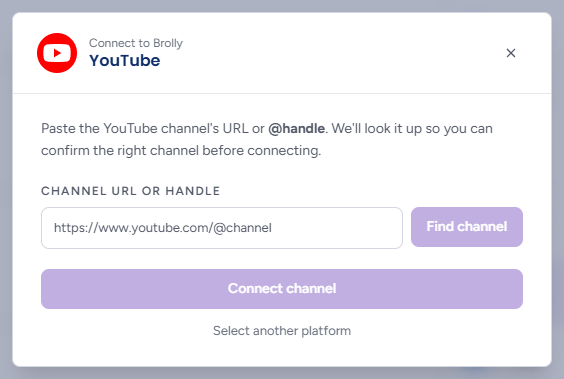
The dialog asks for the channel's URL or @handle and explains that Brolly will look it up so you can confirm the right channel before connecting.
Step 2 — Find the Channel
- Paste the address or handle into Channel URL or handle
- Click Find channel (or press Enter). The button reads "Finding…" while Brolly looks the channel up, then a preview appears beneath the field: the channel's avatar, its name and its @handle
- Check it is the right channel. If the preview says Already connected, the channel is in Brolly already and cannot be added again. If the lookup fails, the reason appears in a red box — correct the address and try again
Step 3 — Connect It
If your organisation has more than one permission group, a Group dropdown appears under the preview; choose where the channel should land. Then click Connect channel (greyed out until a channel has been found; "Connecting…" while it works). The channel appears in the Social accounts table as Active and capture begins straight away, including the channel's earlier videos.
After Connecting
Open the new row in the Social accounts table and check:
- Status reads Active
- Group is right. New accounts land in Organisation (default), which every team member can see. Use Change group if only some people should see this channel's records. See Managing Groups
Within a few minutes the Records column starts to climb.
Troubleshooting
- Find channel returned the wrong channel — check the handle. Channel names are not unique but @handles are, so paste the @handle rather than searching by name
- Find channel found nothing — check the URL opens the channel in a browser. A link to a single video will not work
- The channel shows Does not exist later — the channel has been removed or renamed on YouTube. Check the current URL and connect again
- The channel stopped capturing — there is nothing to re-connect on your side. Check the handle on the account's row is still correct (a renamed @handle breaks capture), and if it looks right, email support@brolly.com.au