I Can't See Settings
Settings is role-based, so not everyone has it — but if you should, a hard refresh, a fresh sign-in or a private window usually brings it back.
Overview
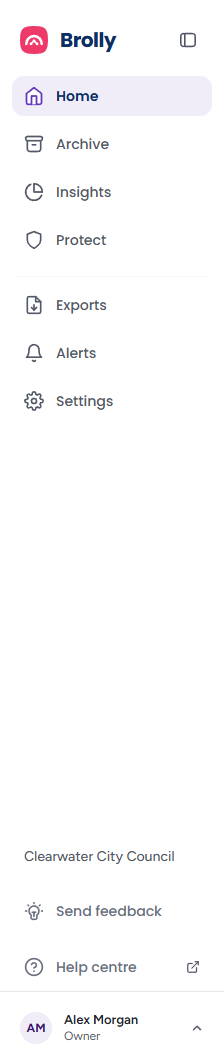
Settings normally appears at the bottom of the main list in the left sidebar, beneath Alerts, and opens on Accounts. If it is missing for you, there are two likely explanations: your role does not include it, or your browser is showing you a stale session.
Check Your Role First
Access to Settings is role-based. Brolly has two system roles, set when a person is invited, plus a role inside each permission group:
- Owner — full access to manage accounts, groups, settings and team members
- View only (shown as User in the Team table) — can view accounts, records and reports but cannot make changes
- Group owner — a User who manages one or more groups
An Owner sees every page under Settings. A Group owner sees a restricted Settings menu: Accounts, Team and Activity Log for the groups they own, and Groups where the organisation has that add-on. A User who owns no group does not manage settings, so Settings is not part of what they can do — that is by design, not a fault.
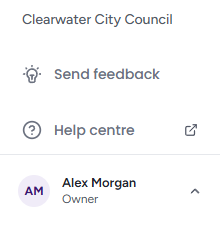
Your role is shown beneath your name in the sidebar footer. If you are not sure what you should have, ask your organisation's Owner — they can see everyone's role under Settings → Team and change it if needed. See Managing Team Members.
If You Should Have Access But Still Can't See It
Browsers cache previous sessions, and this can leave you looking at an out-of-date view — especially when more than one person signs in to Brolly on the same computer. Work through these in order:
- Do a hard refresh so the browser loads the page fresh
- If that does not help, click your name in the sidebar footer, choose Log out, close the browser completely (all windows), reopen it and sign back in with your own credentials
- Still nothing? Open a private window (Incognito in Chrome, Private Browsing in Firefox and Safari, InPrivate in Edge) and sign in there. A private window ignores the cache, so everything your role allows should appear
If your role was changed recently — an Owner promoted you from View only, say — signing out and back in is what picks up the new role.
Still Missing?
A refresh or a new session cannot grant a permission you do not have. If you have tried all of the above and Settings still is not visible although your Owner confirms you have the Owner role, or own a group, report it to support@brolly.com.au with your sign-in email and your organisation's name.
Tips
Your own profile — name, email and password — is not under Settings. Click your name in the sidebar footer and choose View profile. Every role has that. See Navigating Brolly.
If the sidebar is collapsed to icons, Settings is the cog at the bottom of the icon list. Click the arrow at the top of the collapsed bar to expand it again.