An Account Stopped Capturing
How to tell which account has stopped, what each status means, how to re-connect an expired Facebook, Instagram, Threads or TikTok connection, and what to check for X, YouTube and LinkedIn.
Overview
If new posts have stopped appearing in the Archive for one of your accounts, what to check depends on how that account is connected. Facebook, Instagram, Threads and TikTok connect with a sign-in and use an access token, which the platform expires periodically as a security measure — that is the usual cause, and you fix it yourself with Re-connect. X, YouTube and LinkedIn connect from a public URL or handle with no sign-in, so there is no token to renew; for those, check the address and then contact support.
Early Warnings on Home and in the Archive

You usually do not have to go looking. In the Archive at a glance card on Home, a row of account avatars (hover one for the account's name) is followed by "8 social accounts connected" and, at the right, a health reading:
- An amber needs attention chip — "1 needs attention", or "2 need attention" — when any account is in a state other than Active or On hold. The same accounts get an amber ring around their avatar in the row. Click the chip to open Settings → Accounts
- All healthy, in green, when every account is Active or deliberately on hold
View status beside it opens Archive → Summary. An account you put on hold yourself is not counted as needing attention — that was a choice, not a fault — so a paused account never turns the chip amber. The health reading is shown to people who can manage accounts; everyone else still sees the avatars, the count and View status.
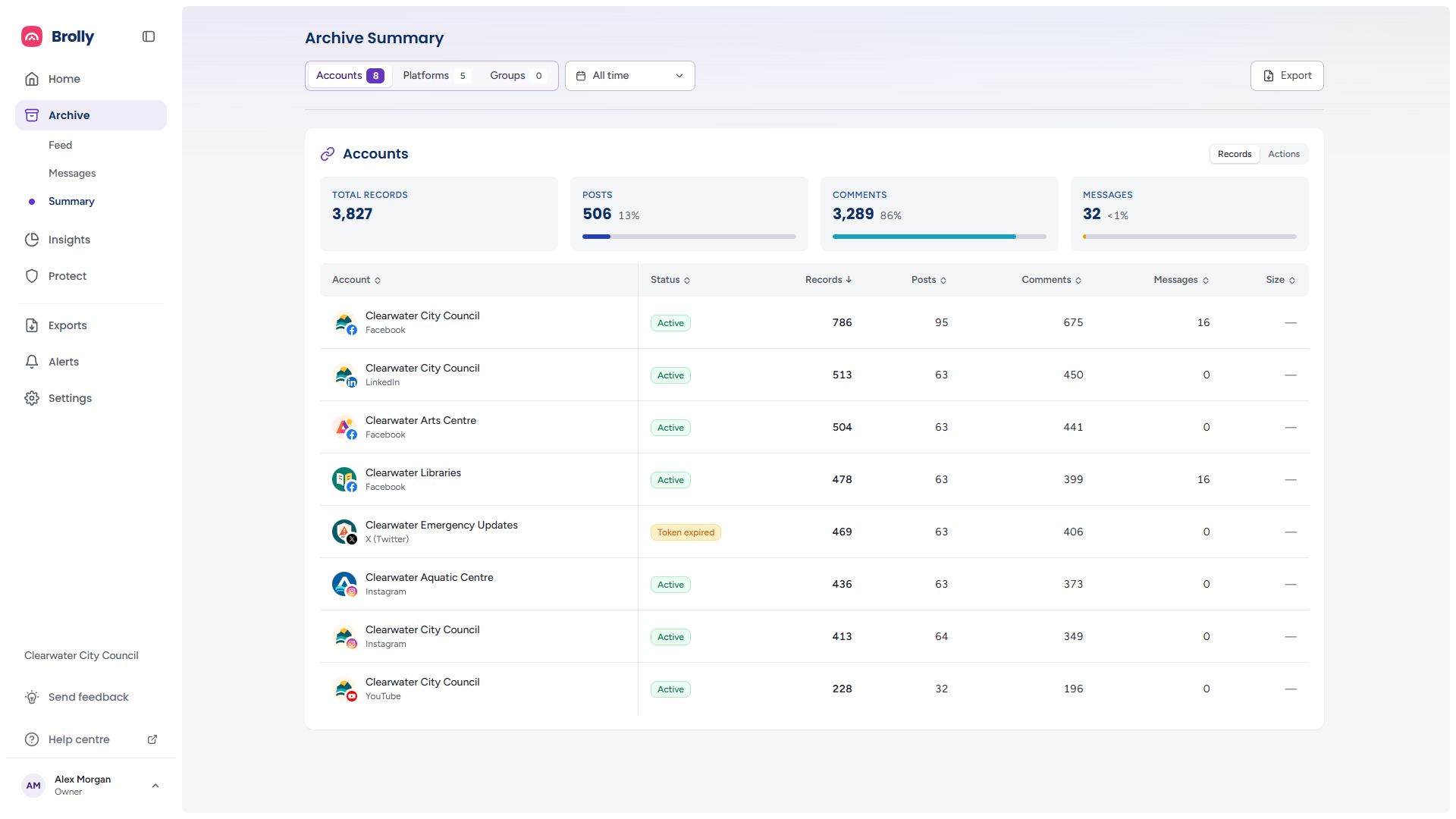
Archive → Summary tables every account with its platform beneath its name and its Status badge beside its record counts, so an account that is not Active stands out in the list. Click the Status heading to sort by it and bring the non-Active rows together (the arrow beside a heading shows the current sort; the table opens sorted by Records). Two other signs worth knowing:
- The Records archived chart on Home — a sudden drop or a gap usually means an account stopped capturing
- The Records column on Settings → Accounts — an active account whose count has stopped growing is worth opening
See Home and Archive Summary.
Check the Account's Status
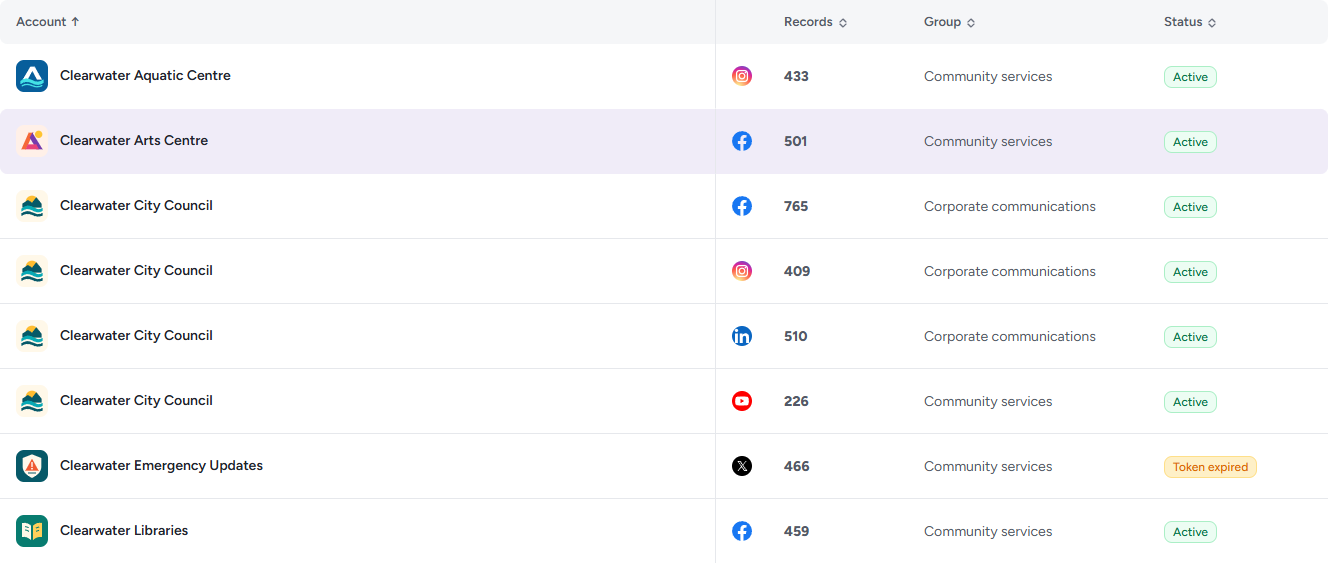
- Click Settings in the left sidebar; Accounts opens by default
- Find the account, or filter All statuses to show one state at a time — the menu lists All statuses, Active, Pending, On hold, Token expired and Does not exist. Choosing All statuses again clears it. Or click the Status column heading to sort by status
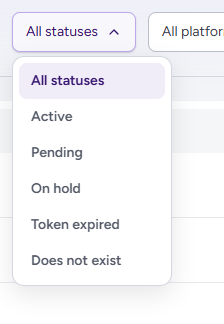
The Status column tells you what is going on:
- Active — connected and capturing. If records are still not arriving, see If an Active account is not capturing below
- Token expired — the platform's authorisation has lapsed. Nothing is captured until you re-connect
- On hold — someone paused it with Hold. It will not capture until it is re-connected; the drawer's Activity Log tab shows who put it on hold and when
- Pending — for X and LinkedIn, waiting for the Brolly team to activate it (normal, not stuck); for other platforms, an authorisation that was started but never finished. Connect it again from Connect account
- Does not exist — the page or profile has been removed or renamed on the platform. Check its current address and connect it again
Re-connect a Token Expired or On Hold Account
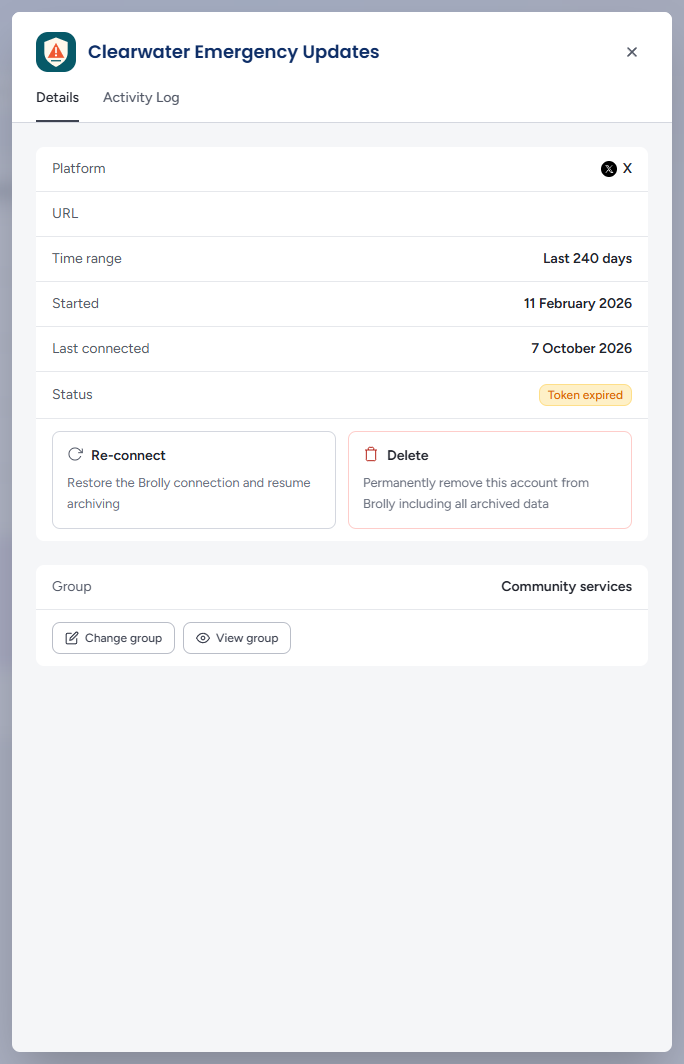
For Facebook, Instagram, Threads and TikTok, sign in to the platform first, with the account that manages the page — the same one used to connect it originally — and allow pop-ups for the platform in your browser. Then:
- Click the account's row to open its drawer. It slides in from the right with two tabs, Details and Activity Log, and the account's name and avatar at the top
- On Details, the first card lists Platform, URL, Time range (for example "Last 240 days"), Started and Last connected — Facebook accounts also show Account type and Messages enabled — and ends with a Status row showing the badge. The actions for that state sit beneath it: for a Token expired or On hold account they are Re-connect ("Restore the Brolly connection and resume archiving") and Delete. An Active account shows Hold instead of Re-connect; a Pending account has no actions at all
- Click Re-connect. The drawer slides across to a Re-connect account panel: "This will re-establish the connection for the selected account. Brolly will resume capturing new records immediately", with the account's name and "Archiving will resume" above an optional Add notes for the audit log box
- Type a note if you want one recorded against this re-connect in the Activity Log (for example why it lapsed), then click Confirm re-connect. Cancel, or the back arrow at the top of the panel, returns to the details without doing anything
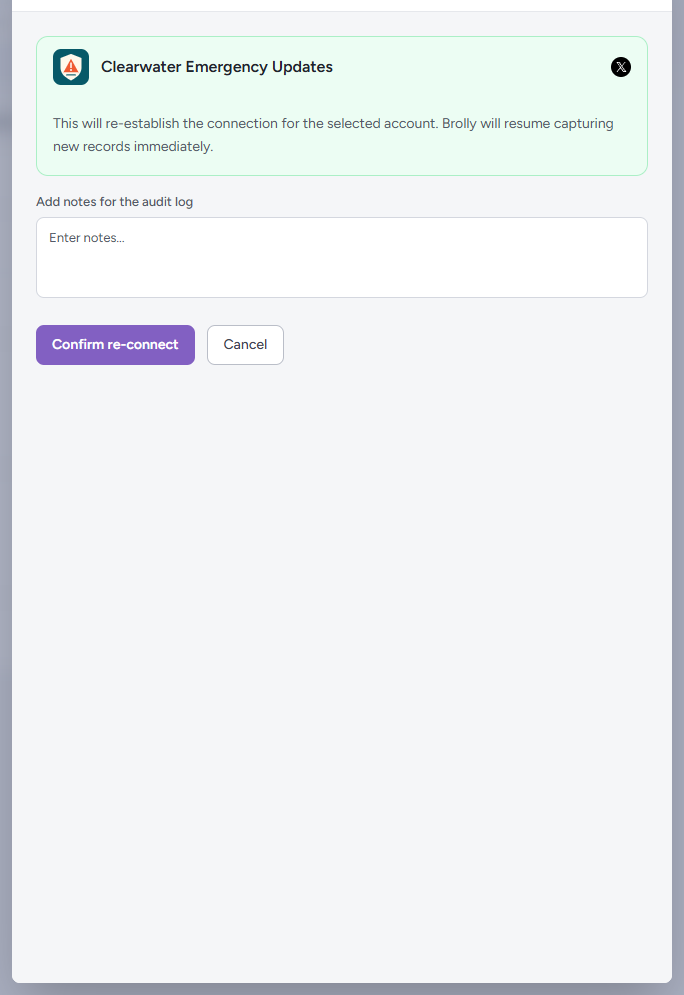 5. If the platform needs you to sign in again, its authorisation screen opens — sign in and approve Brolly's read-only permissions. Back in the drawer, the Status row changes to Active and the actions change back to Hold and Delete
If the re-connect could not be completed, a red message appears at the top of the drawer, above the tabs, saying what went wrong; the status stays as it was, and you can try again. Close the drawer with the × in its corner or by pressing Escape.
Once the account is Active again, Brolly backfills what the platform still makes available for the gap. Records already captured are unaffected; content edited, deleted or expired while capture was interrupted may not be recoverable, so check the affected period. For Facebook specifically, see Re-connecting Facebook.
If It Keeps Disconnecting
Confirm that the platform account you re-connect with is still an admin of the page. Losing page admin rights — for example when the person who connected it changes role or leaves — is the most common cause of repeat disconnections. Re-connect with a login that is a current admin, and consider making sure more than one person holds that role on the platform. If the account is definitely connected by a current admin and it still drops, email support@brolly.com.au with the account name.
X, YouTube or LinkedIn Stopped Capturing
These accounts do not go through a sign-in, so there is nothing to re-authorise on your side. Open the account's drawer and check the URL is still correct: a renamed @handle, a moved page or a changed channel address breaks capture, and the account may then show Does not exist. If the address is right and the status is Active but nothing is arriving, email support@brolly.com.au with the account name and we will check the capture from our side. The platform guides under Connecting Your First Account describe what each platform needs.
If an Active Account Is Not Capturing
- Check the Archive's filters. A saved search or a Timeframe left applied can hide new records — click Reset filters in the Archive toolbar. See Using the Archive
- Check the account's permission group. If the account was moved to a group you are not in, its records are no longer visible to you, although they are still being captured. Ask an Owner to check Group in the account's drawer. See Managing Groups
- Check the drawer's Last connected date and its Activity Log tab for anything recent — connections, holds, re-connects and group changes, grouped by day with who did them. An account with no history yet reads "No activity recorded yet."
- Do a hard refresh in case your browser is showing a stale page
If none of that explains it, report it with the account name and roughly when records stopped.
Tips
Make a habit of glancing at Archive at a glance on Home each morning. The needs attention chip appears as soon as a connection lapses, and every hour it is unresolved is a gap that has to be backfilled later.
Filter All statuses to Token expired and then to On hold when you check — both states mean "not capturing", and an account on hold may have been paused deliberately by a colleague.
Every re-connect and hold is recorded in the organisation's Activity Log, which is the quickest way to see whether someone changed something.