Re-connecting Facebook When Its Token Has Expired
Why a Facebook, Instagram, Threads or TikTok account shows Token expired, what to have ready before you start, how to re-connect it from Settings → Accounts, and how the gap is backfilled.
Overview
Facebook connections rely on a token — a system-generated credential that works like a password between Brolly and your page. Facebook expires or resets tokens from time to time to keep access secure, or when something changes about how your account is accessed: a password change, a change of page roles, or a security review on the Facebook side. When that happens the account shows Token expired in Brolly, capture stops, and the account needs to be re-connected. Instagram, Threads and TikTok connect the same way and are re-connected the same way.
Before You Begin
- Sign in to Facebook first, in the same browser, with a profile that currently has the Page permissions Brolly needs (it does not have to be the profile that connected it originally). The re-connection is much smoother if you are already signed in
- Confirm you are an admin of the page. Without that role on the Facebook side you cannot re-connect it; a profile that only follows or likes the page is not enough. If the page belongs to a Business Portfolio (Meta Business Suite), make sure your login has full control of the page there
- Allow pop-ups for Facebook in your browser, so nothing from Facebook is blocked part-way through
Re-connect the Account
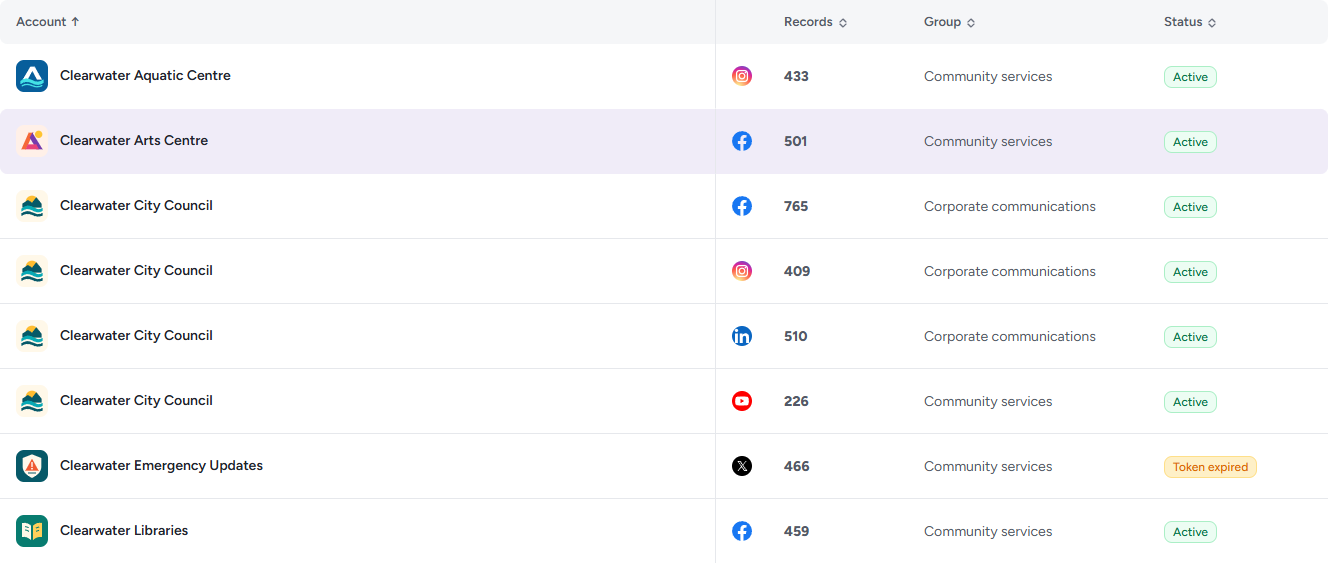
- Click Settings in the left sidebar; Accounts opens by default
- Find the Facebook account. Its Status column reads Token expired (or On hold, if someone paused it). Filter All statuses to Token expired to find them quickly
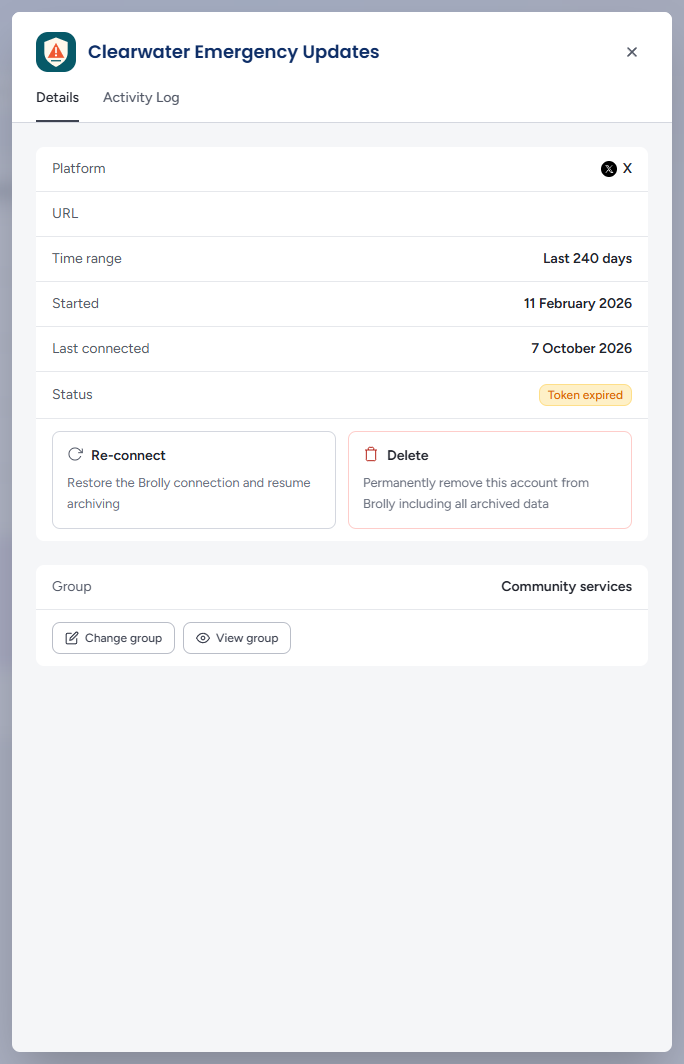
- Click the row to open the account's drawer. On its Details tab, the first card shows the account's Platform, Account type, URL, Messages enabled, Time range, Started and Last connected, then a Status row with the Token expired badge
- Beneath the Status row, click Re-connect ("Restore the Brolly connection and resume archiving")
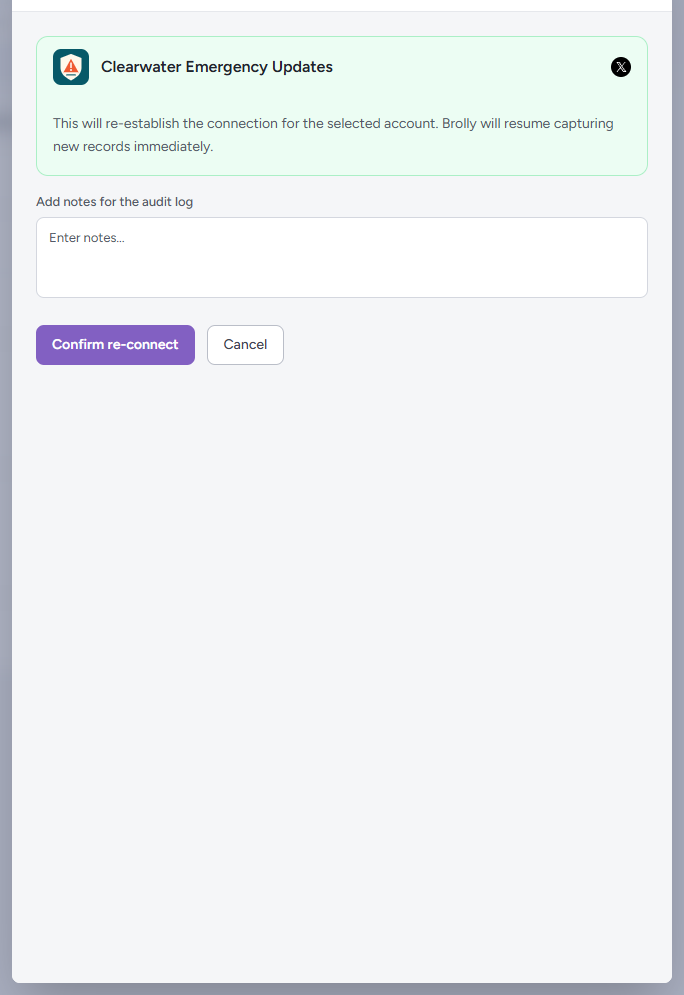
- The drawer slides across to a Re-connect account panel: "This will re-establish the connection for the selected account. Brolly will resume capturing new records immediately." Add a note under Add notes for the audit log if you want the reason recorded, then click Confirm re-connect. Cancel or the back arrow returns to the details without changing anything
- If Facebook needs you to sign in again, its authorisation screen opens — sign in if prompted and approve every permission listed. Declining one leaves the connection incomplete
- Back in the drawer, the Status row returns to Active, the action beneath it changes to Hold, and Last connected updates to today. If something went wrong, a red message at the top of the drawer says so and you can try again
Close the drawer with the × or Escape. The re-connect, and your note, appear on the drawer's Activity Log tab and in Settings → Activity Log.
What About the Gap?
Records already captured are unaffected. Once the account is re-connected, Brolly backfills what Facebook still makes available for the period the connection was down; the backfilled records appear in the Archive in their original order, dated when they were published. Content edited, deleted or expired during the gap may not be recoverable, which is why re-connecting promptly matters. Review the affected period afterwards.
If It Does Not Work
- The page was not offered, or you were sent back without the status changing — you signed in to Facebook as someone who is not an admin of the page. Sign out of Facebook, sign back in with an admin login, and click Re-connect again
- A permission was declined — click Re-connect again and approve everything Facebook lists
- It re-connects but expires again soon after — the login you used has probably lost its admin role on the page, or the page's roles have been changed on Facebook. Re-connect with a current admin; see An Account Stopped Capturing
- A brand-new page is not listed — see A New Facebook Page Will Not Connect
If the account still will not return to Active, email support@brolly.com.au with the account name.
Tips
Home shows a needs attention chip in Archive at a glance the moment a token expires. Clicking it takes you straight to Settings → Accounts.
If one person connected all of your pages, have a second page admin in your team as well — an expired token is easy to fix, but only by someone who is an admin on Facebook.
Each re-connect is written to the account's Activity Log tab, so you can see when it was last done and by whom.