How to Report an Issue
Use Send feedback in the sidebar or email support@brolly.com.au — and what to include so the problem can be reproduced straight away.
Overview
If something in Brolly is not behaving as expected, there are two ways to tell us: Send feedback in the sidebar, which is quickest when you are looking at the problem, and email to support@brolly.com.au, which is better when you need a reply or have files to attach. A well-detailed report means we can usually reproduce the problem straight away instead of writing back with questions, so this article covers what to include.
Send Feedback From the Sidebar
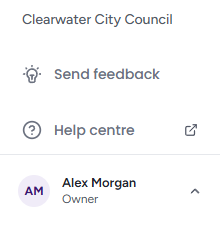
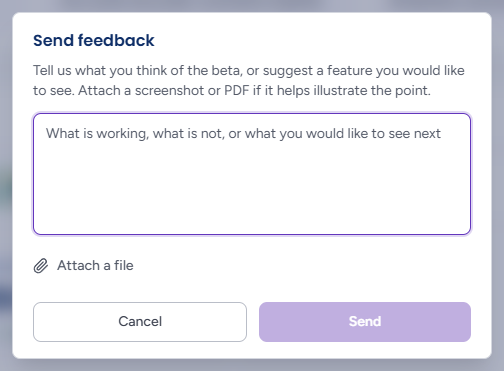
- Click Send feedback in the sidebar footer, beneath the main list. The Send feedback dialog opens in the middle of the screen
- Describe what is working, what is not, or what you would like to see next in the text box
- Optionally click Attach a file to add a screenshot or PDF — a screenshot of the problem is often the fastest way for us to see what you are seeing. You can attach several; images and PDFs only, up to 10 MB each. Each attachment appears as a chip with its name and size and an × to remove it, and a file that is the wrong type or too big is named in a message beneath the box so you know which one was refused
- Click Send (it stays greyed out until you have typed something). Cancel, the × or Escape closes the dialog without sending
The dialog then reads "Thanks — that is on its way" with a note that the team reads everything and will be in touch if your note needs a reply; click Done. If it could not send — "That did not send. Check your connection and try again." — the dialog stays open with your text and attachments intact, so you can retry. Feedback arrives with your name and organisation attached, so you do not need to add them. For anything that needs a reply or a record of the conversation, email instead.
Email Support
Email support@brolly.com.au and include as much of the following as applies:
- Your organisation name, and the email address you sign in to Brolly with. If you belong to more than one organisation, say which one you were in — it is named at the bottom of the sidebar
- The social media account involved, if the issue relates to a specific connected account or its records
- A link to the record, or timestamps. If a particular record looks wrong, open it in the Archive and copy the address from your browser — it points straight at that record. Otherwise tell us roughly when the activity happened and when you noticed the problem
- Which page you were on — for example "Archive → Summary" or "the export wizard, Scope step"
- What you expected to see, and what you saw instead. A sentence on each is plenty
- Screenshots. Not essential, but often the fastest way for us to see exactly what you are seeing
- What you have already tried — for example a hard refresh, a different browser or a private window
- Your browser and operating system, if the problem looks like a display or behaviour fault rather than a data one
Before You Hit Send
Two quick checks solve a surprising number of issues:
- If an account seems to have stopped capturing, look at its status under Settings → Accounts — an account showing Token expired or On hold usually just needs to be re-connected. See An Account Stopped Capturing
- If the screen looks out of date, try a hard refresh first
We will get back to you as quickly as we can — clear reports genuinely speed that up.
Tips
Help centre in the sidebar footer opens this help centre in a new tab, so you can keep the problem on screen while you check whether an article already covers it.
For questions about what someone in your team did — who put an account on hold, who ran an export — check Settings → Activity Log first; it usually has the answer. See Activity Log.
Never include passwords or two-factor codes in a report. Brolly support will never ask for them.