Hashtags
Which hashtags earn reach, engagement and goodwill — headline figures, a landscape chart, activity over time and an impact ranking you can reweight — with a table of every hashtag's figures and an inspector for each.
Overview
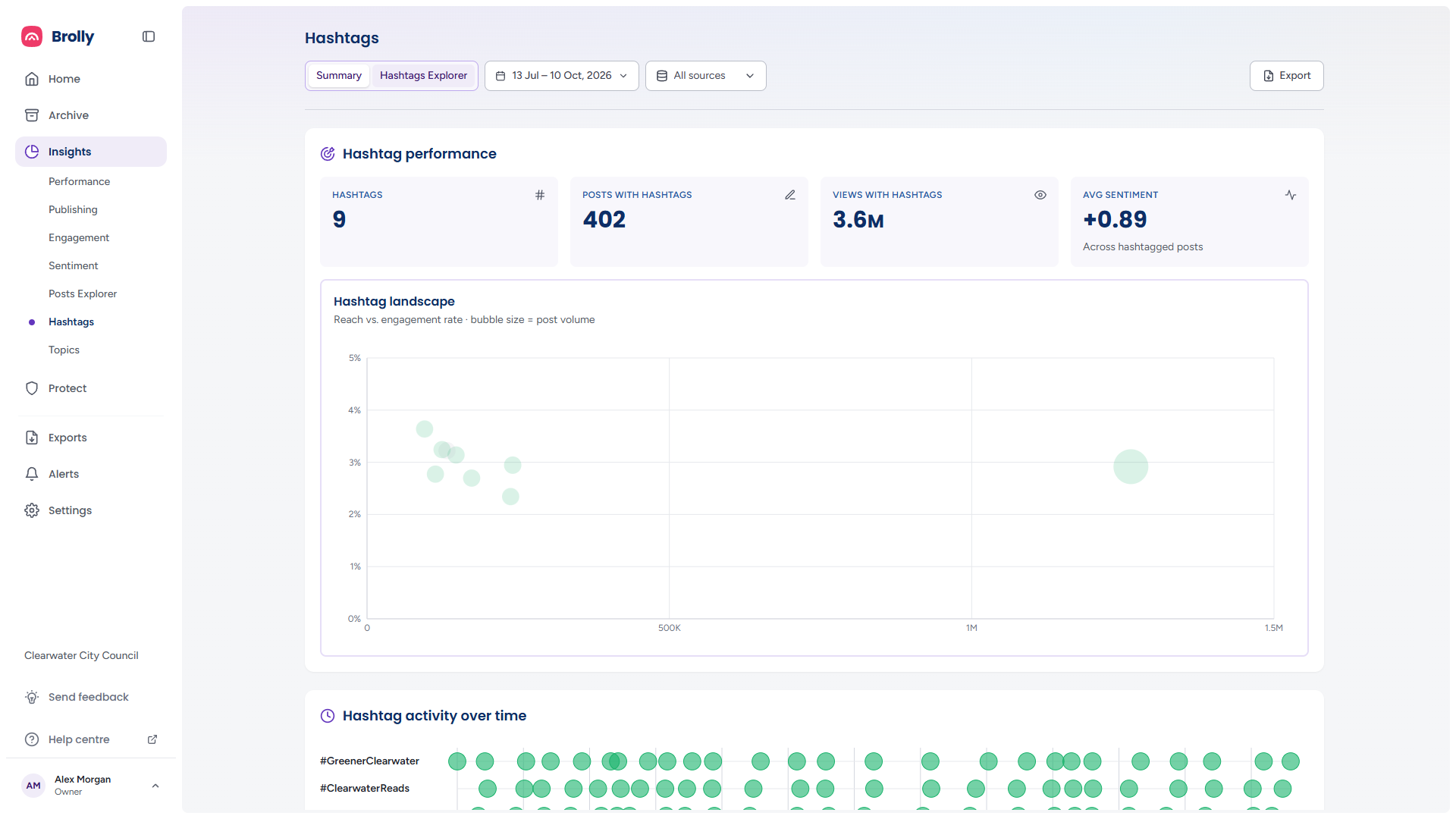
Hashtags shows what the tags you use are doing for you: how many posts carry them, how far those posts travel, how people respond and how they feel about it. The Summary view gives the headline figures, a landscape chart, activity over time and an impact ranking; the Hashtags Explorer lists every hashtag with its figures. Either view opens a Hashtag inspector for a single tag.
How to Get There
- Click Insights in the left sidebar, then Hashtags
The Summary / Hashtags Explorer switch sits at the left of the toolbar, before the date range and sources controls, which are described in The Toolbar; the view you choose is written into the page's address. Export at the right opens the report dialog, whose Hashtags section carries the headline figures and the impact index under all three lenses.
Hashtag Performance
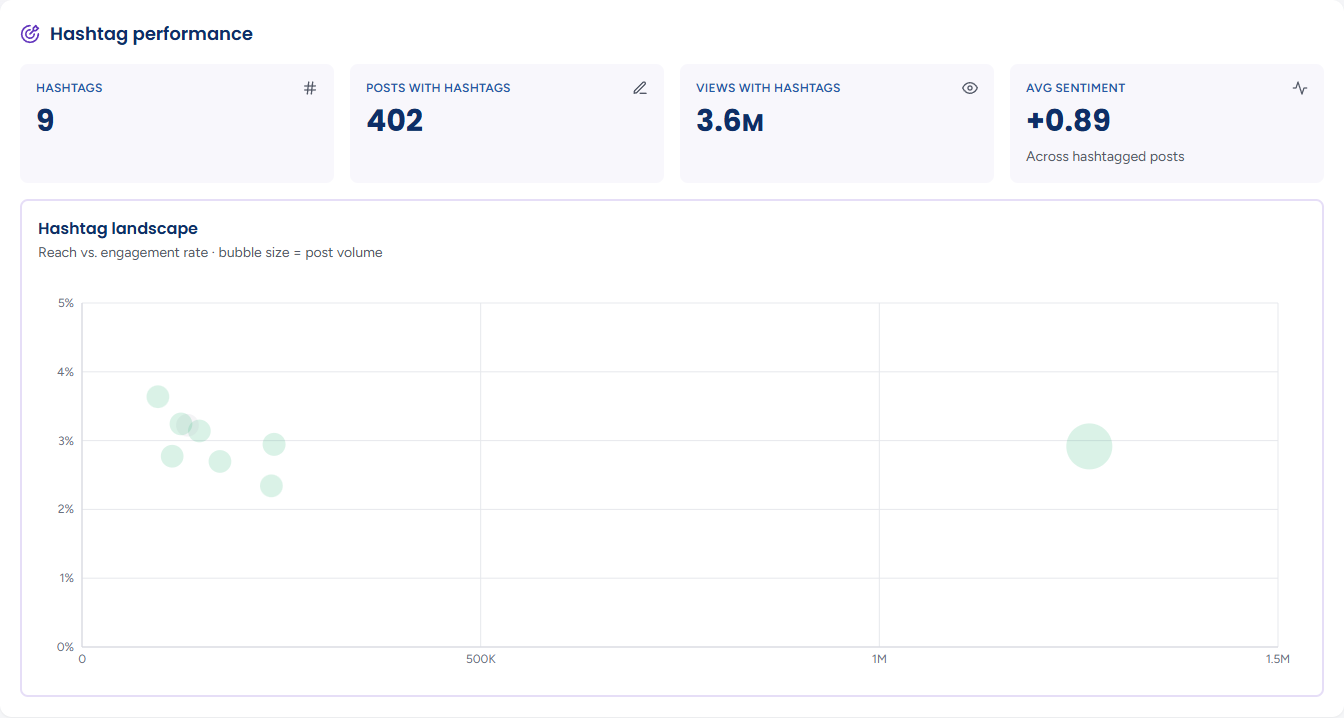
Four figures for the period, without previous-period badges:
- Hashtags — how many different hashtags you used
- Posts with hashtags and Views with hashtags — the posts that carried at least one, and their combined views
- Avg sentiment — the average sentiment score across hashtagged posts
Hashtag landscape
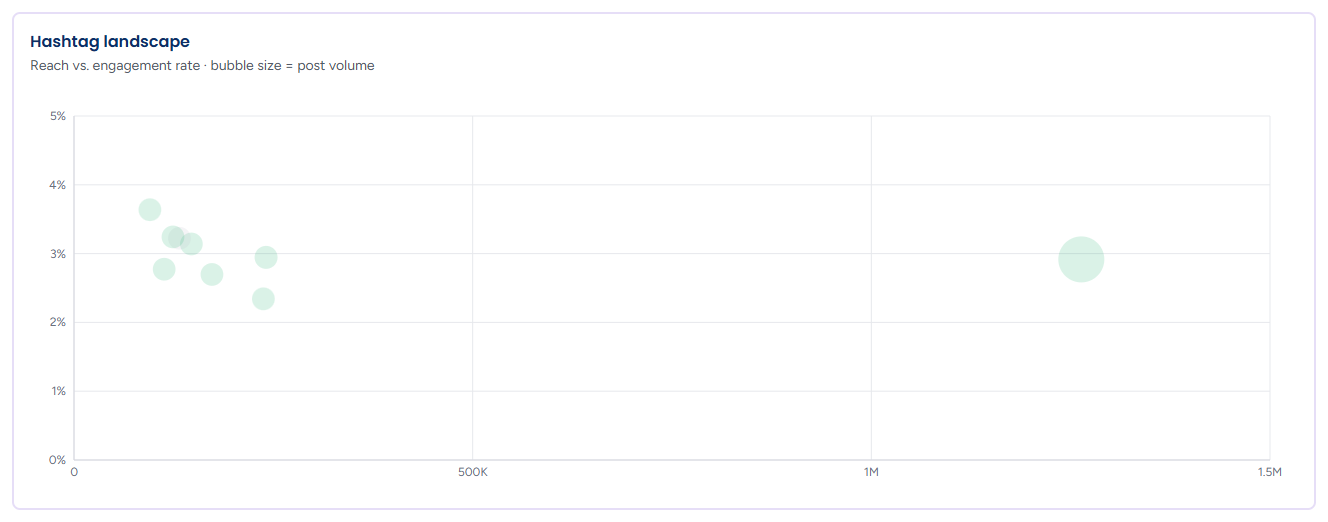
Reach vs. engagement rate · bubble size = post volume. Each of your twenty most-used hashtags is a bubble with reach left to right and engagement rate bottom to top, sized by the number of posts and coloured by sentiment; a tag no scored comment covers draws a dashed Not scored ring. Tags in the top right both travel and draw a response. Hover a bubble for the tag's sentiment, Reach, Posts, Interactions and Engagement rate, and click it to open the Hashtag inspector; the arrow keys move between bubbles and Enter opens one. The caption beneath names the tag with the widest reach and the one with the highest engagement rate. With nothing to plot it reads No hashtags with reach data for this selection.
Hashtag Activity over Time

One lane per hashtag and a bubble for each period it was posted in, sized by volume and coloured Positive, Neutral or Negative by that period's sentiment — the same chart Topics has. A lane with bubbles spread across it is a standing subject; one clustered tightly is a story that came and went. A period no scored comment covers draws a dashed Not scored ring rather than reading neutral. Hover a bubble for the tag, the period, its post count and its sentiment; the chart's text alternative lists each hashtag's posts, the periods it was posted in and its busiest period.
Hashtag Impact Index
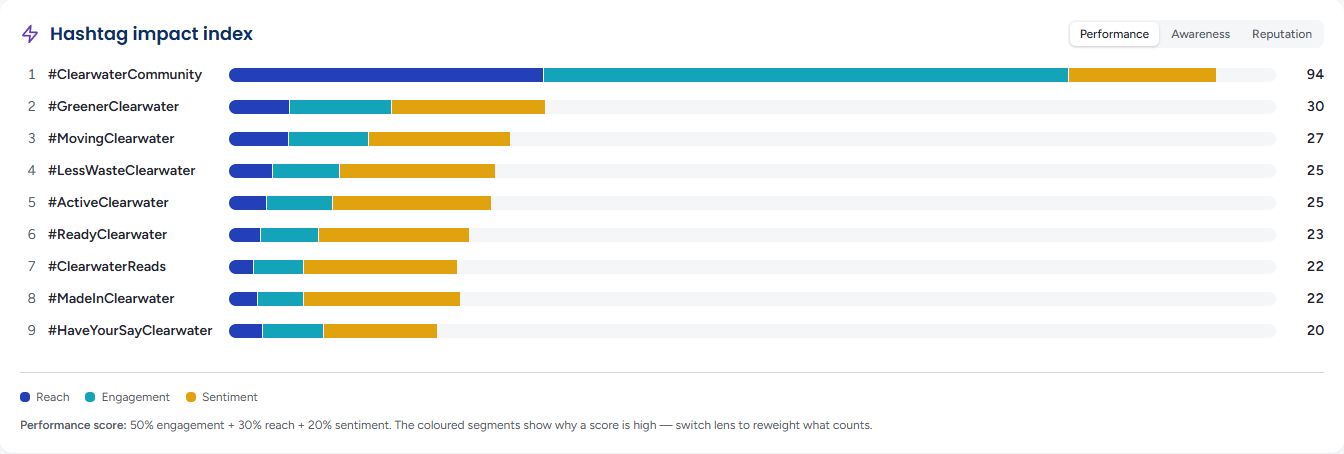
Every hashtag scored out of 100 and ranked, the rank beside each name. The bar's coloured segments show where the score comes from — Reach, Engagement and Sentiment — and the three lenses at the top right reweight the score; the rows slide into their new order when you switch:
- Performance — 50% engagement, 30% reach, 20% sentiment: which tags work best overall
- Awareness — 25% engagement, 60% reach, 15% sentiment: which tags get your posts seen
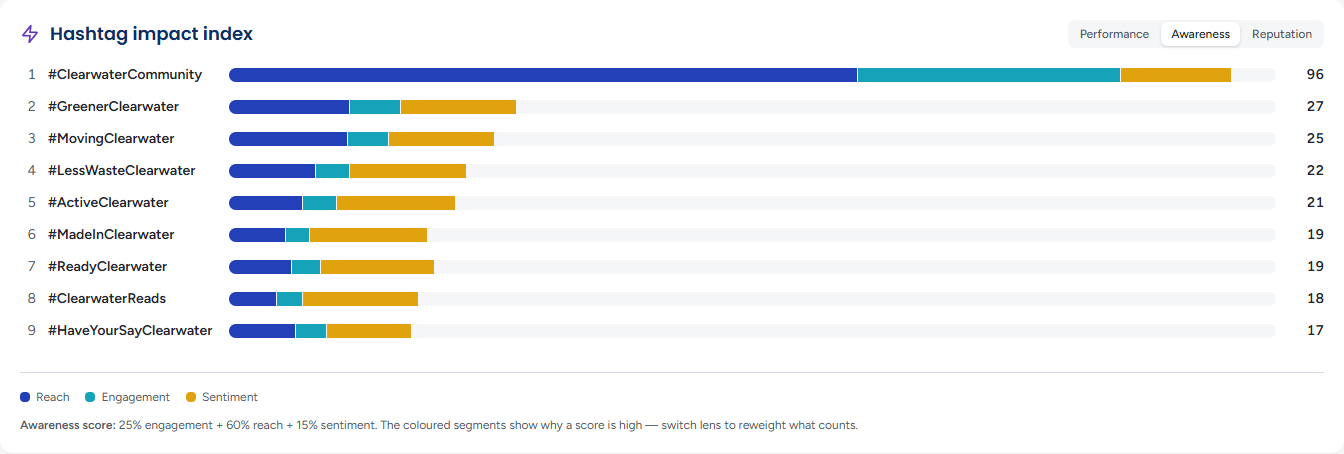
- Reputation — 30% engagement, 20% reach, 50% sentiment: which tags attract the warmest response
Hover a row for the figures behind its score. The note beneath the chart states the weighting of the lens you are on. Scores are relative to the hashtags on screen, so they cannot be compared with a topic's. A panel ranked from a capped list says how much of the period it covers, for example Covers 500 of the 612 hashtags in this period, the most Insights can read at once.
Hashtags Explorer
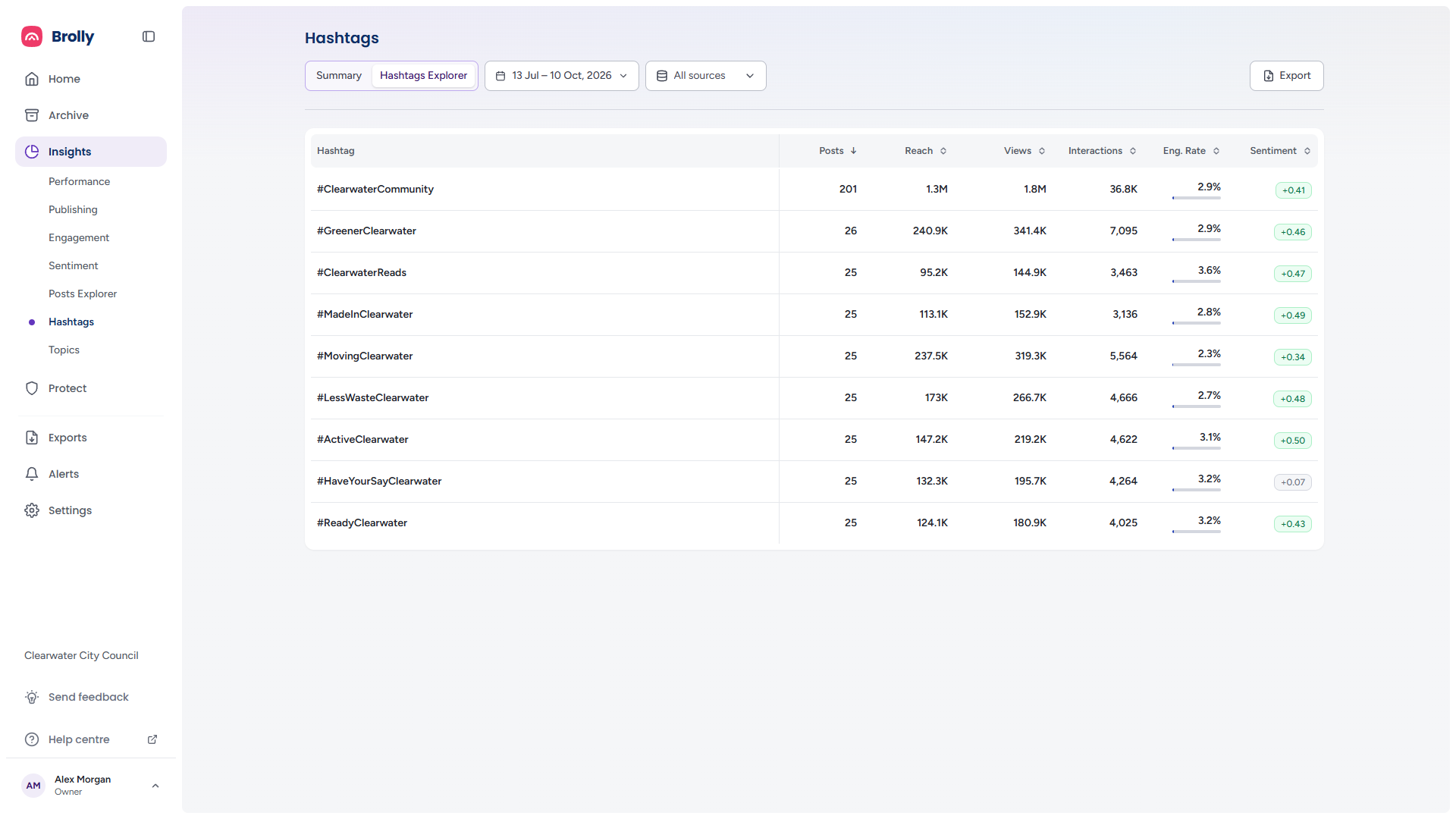
One row per hashtag with Posts, Reach, Views, Interactions, Eng. Rate and Sentiment. Click a column heading to sort by it, and again to reverse the order; Posts descending is the default, and tags without a value for the chosen column sort last. The sentiment badge is green when positive, red when negative and grey when close to neutral. The table shows fifteen hashtags a page, with the same Showing a–b of n hashtags bar and page numbers as the Posts Explorer. On a narrow window it scrolls as one with the hashtag column frozen, and it can be sorted from a keyboard. A period with no tags reads No hashtags detected for this selection.
The Hashtag Inspector
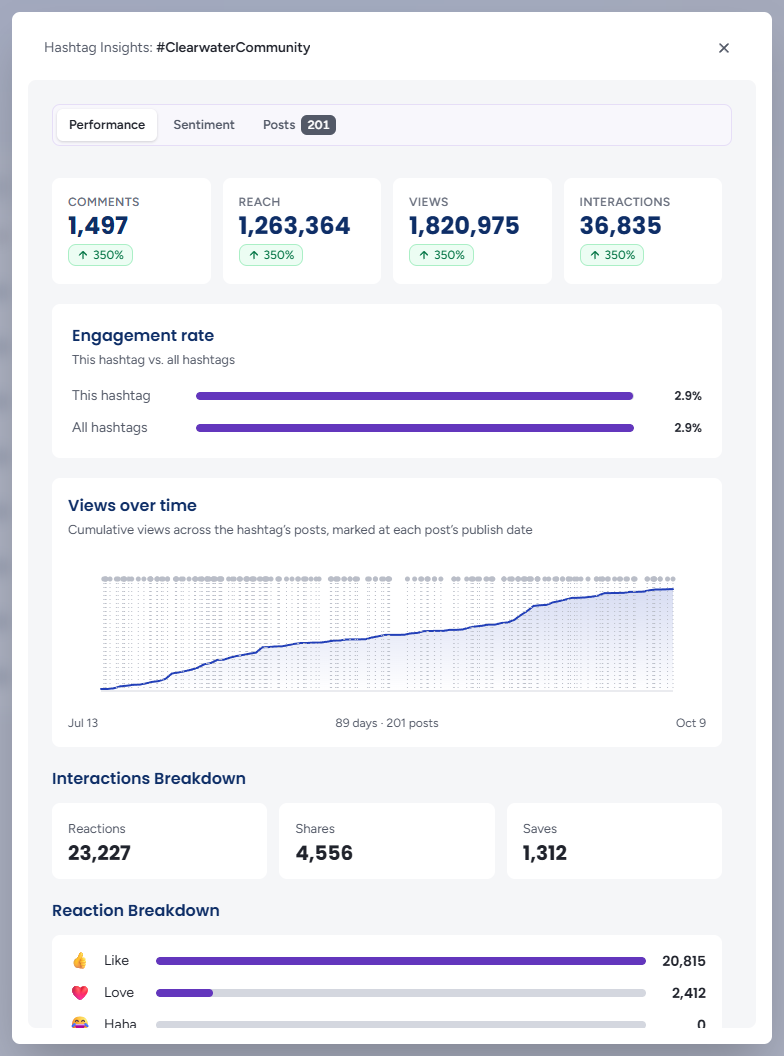
Click a hashtag — a row in the Explorer or a bubble on the landscape — to open Hashtag Insights: #tag over the page. It has one column and three tabs, and answers for the period and accounts you filtered to, not the whole organisation. Close it with the ×, the Esc key or a click on the page behind it.
- Performance — Comments, Reach, Views and Interactions, each badged against the average across the hashtags in view, so a tag's reach reads as high or low for your organisation rather than as a bare number. Engagement rate is drawn as This hashtag against All hashtags. Views over time charts cumulative views across the tag's posts, marked at each post's publish date, and the Interactions Breakdown gives Reactions, Shares and Saves, with a Reaction Breakdown where a platform reports one. While a fresher read of the figures is fetched the tab says Refreshing hashtag metrics…
- Sentiment — the Score and the Positive, Neutral & ambiguous, Mixed and Negative counts over a stacked bar; Sentiment over time, which plots each post's own comment sentiment rather than a daily trend (Not enough scored posts to chart sentiment over time below two); and, with the emotion add-on, the Emotion radar, withheld until enough comments have been emotion-scored
- Posts — every post carrying the hashtag, newest first, the tab's badge counting them: each with its picture, date, platform icon and publishing account, text, Comments and Comment sentiment. The eye on a row (Open in Post Insights) opens the full Post Inspector in front of the hashtag, with a short notice while it opens; Esc closes the post first, then the hashtag
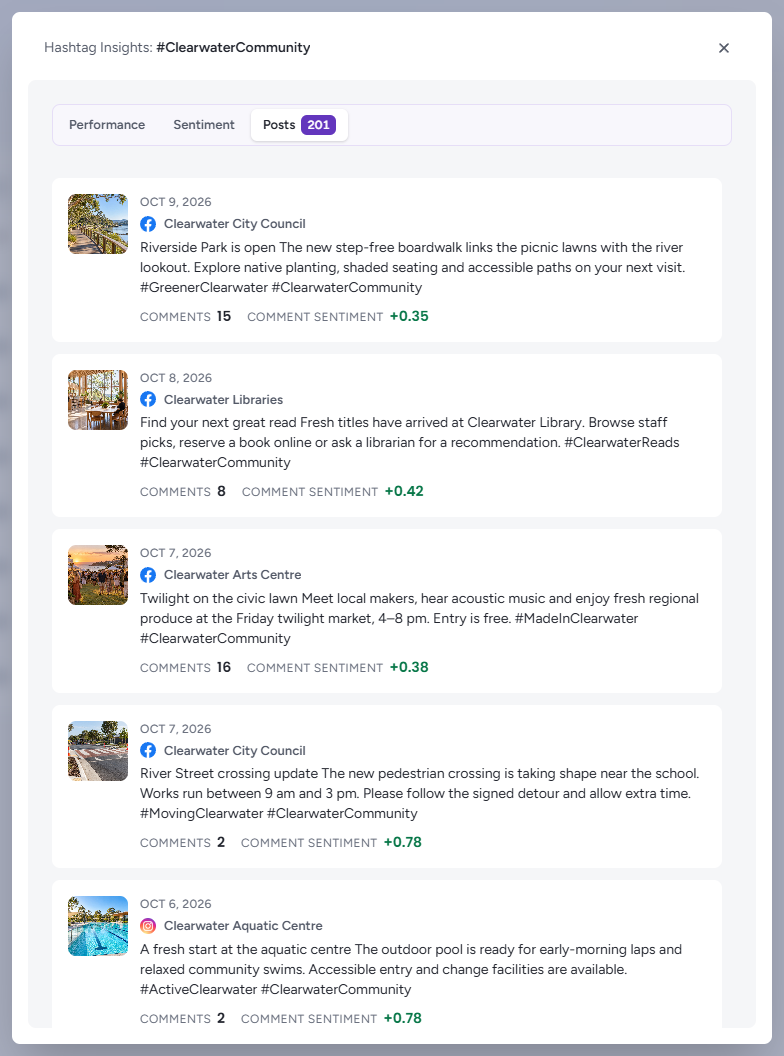
Where the Inspector lists only part of the tag's posts, a note under the charts says how many it covers; posts on a platform Insights cannot show yet are counted in a second note rather than silently dropped.
Tips
A hashtag with high reach and negative sentiment is drawing the wrong crowd — check the Reputation lens before using it again.
Sort the explorer by Posts descending to see the tags you lean on most, then compare their engagement rates: the tags you use most are not always the ones that work.
Hashtags and Topics answer different questions: topics are what a post is about, hashtags are how you labelled it. A topic that performs well but whose usual hashtags do not may just need better tags.