Connecting LinkedIn
Submit a LinkedIn page or profile URL for the Brolly team to connect. There is no sign-in or authorisation screen; the account sits at Pending until it is activated.
Overview
LinkedIn is set up by the Brolly team rather than through an authorisation screen. You paste the page or profile's public URL, choose a group, request the connection, and the team activates it. You do not need admin access to the LinkedIn page itself and there is no sign-in — and because no token is involved, a LinkedIn connection does not expire the way an authorised one can, though platform changes can still interrupt capture. Connect only accounts your organisation owns, controls or is authorised to archive; a public address being reachable is not authorisation in itself.
Before You Start
- Have the page or profile's public URL ready, for example
https://www.linkedin.com/company/your-page
Step 1 — Choose LinkedIn
- Click Settings in the left sidebar, then Connect account at the top right of the Social accounts page
- Choose LinkedIn
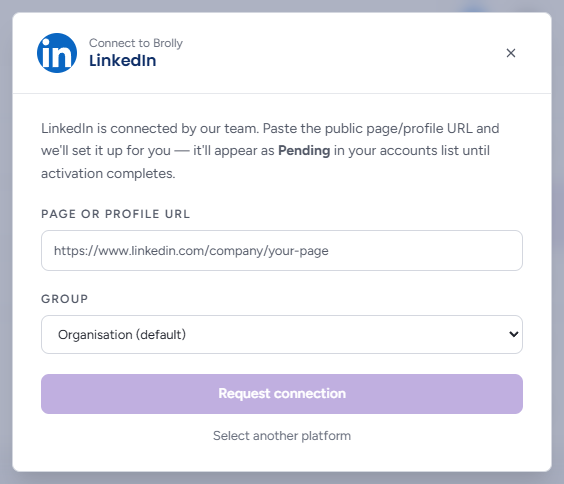
The dialog explains that LinkedIn is connected by the Brolly team and that the account will appear as Pending in your accounts list until activation completes.
Step 2 — Request the Connection
- Paste the page or profile's public address into Page or profile URL
- If your organisation has more than one permission group, choose a Group — Organisation (default), which every team member can see, or one of your own. (With a single group the dropdown is not shown.) You can change it later from the account's drawer
- Click Request connection, or press Enter in the field. The button stays greyed out until a URL is entered and reads "Requesting…" while it sends
- The dialog confirms Connection requested — "Our team has been notified and will activate your LinkedIn account shortly. It now appears as Pending in your accounts list." Click Done
- The account appears in the Social accounts table as Pending
Step 3 — Wait for Activation
The Brolly team activates the account. Its status changes to Active and capture begins, including the page's earlier posts. You do not need to do anything else.
A Pending LinkedIn account is normal and expected. It is waiting for activation, not stuck. If it stays Pending longer than you expect, contact support@brolly.com.au with the URL you submitted.
After Connecting
Once the account is Active, open its row in the Social accounts table and check:
- Group is right. Use Change group if only some people should see this page's records. See Managing Groups
- The Records column starts to climb within a few minutes of activation
Paid ("Dark") Posts
Brolly does not archive LinkedIn dark posts — paid posts that never appear on the page's public feed. If you need that creative on file, keep a copy in your own records. (Facebook dark posts are different; see Connecting Facebook.)
Troubleshooting
- The URL was rejected — check it is the page or profile's public address on
linkedin.com, not a link to a single post or a URL that only works while you are signed in - The account shows Does not exist — the page or profile has been removed or renamed on LinkedIn. Check the URL and request the connection again
- The account stopped capturing — there is nothing to re-connect on your side. Check the URL on the account's row is still correct (a moved page breaks capture), and if it looks right, email support@brolly.com.au